360 Product Video Generator: Spin Any Product from One Photo
The VdoBloom 360 Product Video Generator takes a single product photo and renders a full turntable rotation — the shot that normally needs a motorised rig, a lightbox and an afternoon of a photographer's time. Upload the photo, pick a style, and the model builds a constant-speed 360-degree orbit with the product locked dead-centre, its shadow travelling correctly underneath, and the label text staying legible all the way round.
Eighteen styles ship with the tool, and they map to jobs sellers actually have rather than to moods. Marketplace White is pure white for Amazon, Flipkart and Meesho listing media. Soft Grey Cyc exists because pale and white products disappear against white. Premium Black and Marble Pedestal handle luxury and boutique. Then come the category setups: Jewel Sparkle for gold and gemstones, Ghost Mannequin for apparel, Sneaker Low Angle for footwear, Beauty Glow for cosmetics, Tech Light Tent for electronics, Gourmet Table for food and Macro Detail Glide for a close pass on stitching and texture. For ad creative rather than listings there are Floating Hero, Splash Spin, Smoke Reveal, Neon Tech, Lifestyle Orbit, Studio Turntable and a Diwali Festive setup.
A spin answers the question a still photo leaves open: what does this look like from the side, and is the back as good as the front. Every preset prompt is written around the same constraint — the product stays rigid and identical to the photo, no warping, no melting, no re-invented packaging — because a rotation that quietly redesigns your label is worse than no video at all. The rotation is also built to loop: constant speed, locked camera, last frame matching the first, so it can run continuously on a product page without an obvious restart.
You do not need a studio or a second photo to try it. New accounts get 10 free credits, and a 4-second 720p image-to-video render on Seedance 1.5 Pro costs 6 — enough to spin one product and see whether the label survives before committing anything. Spins downloaded on those free credits carry a VdoBloom watermark; on a paid plan the identical render downloads as plain MP4. That distinction is worth reading twice if the clip is headed for a marketplace, because several platforms reject listing media carrying third-party branding.
Examples
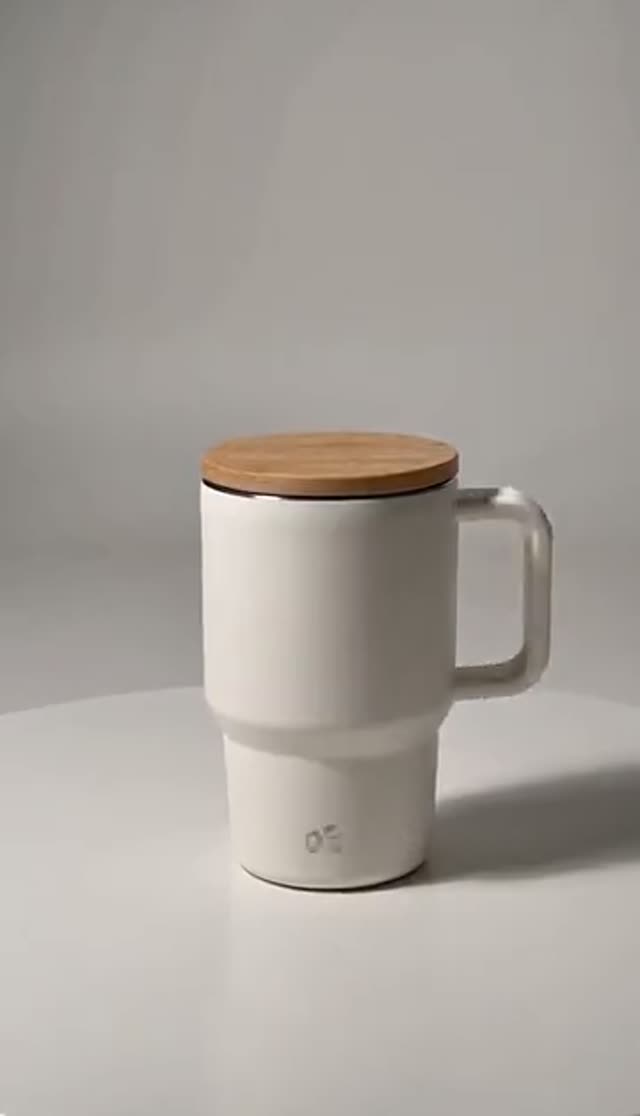
Studio Turntable
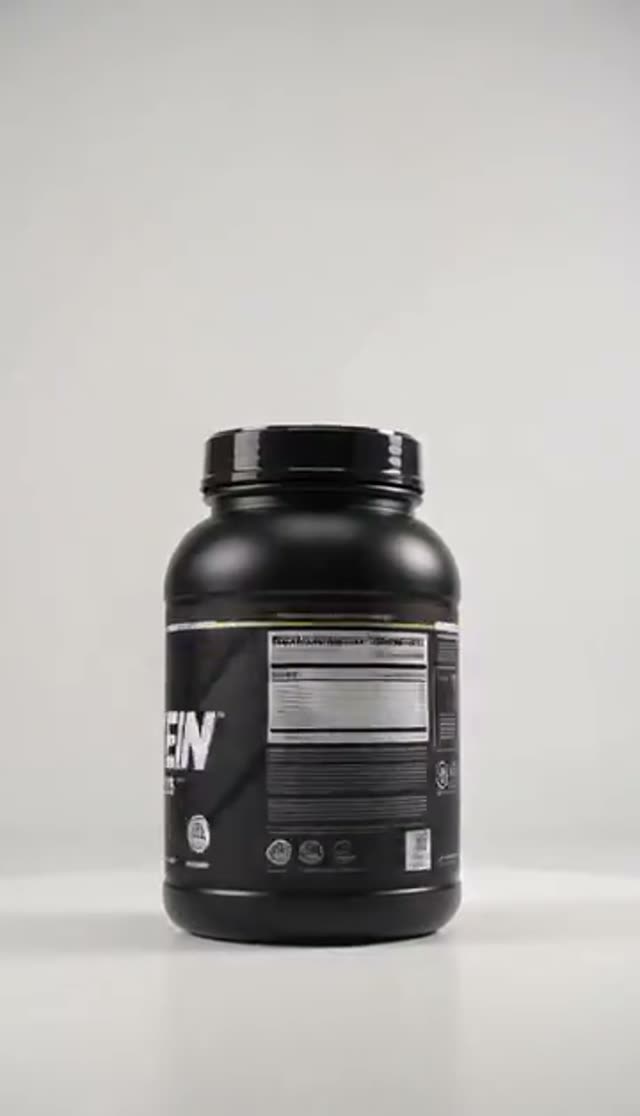
Marketplace White
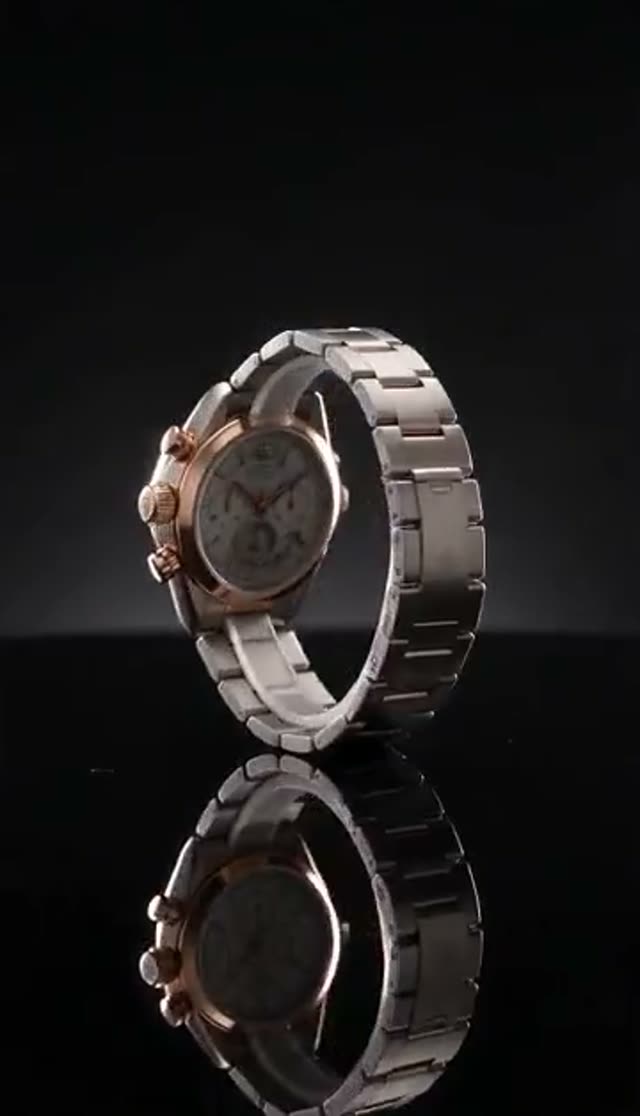
Premium Black
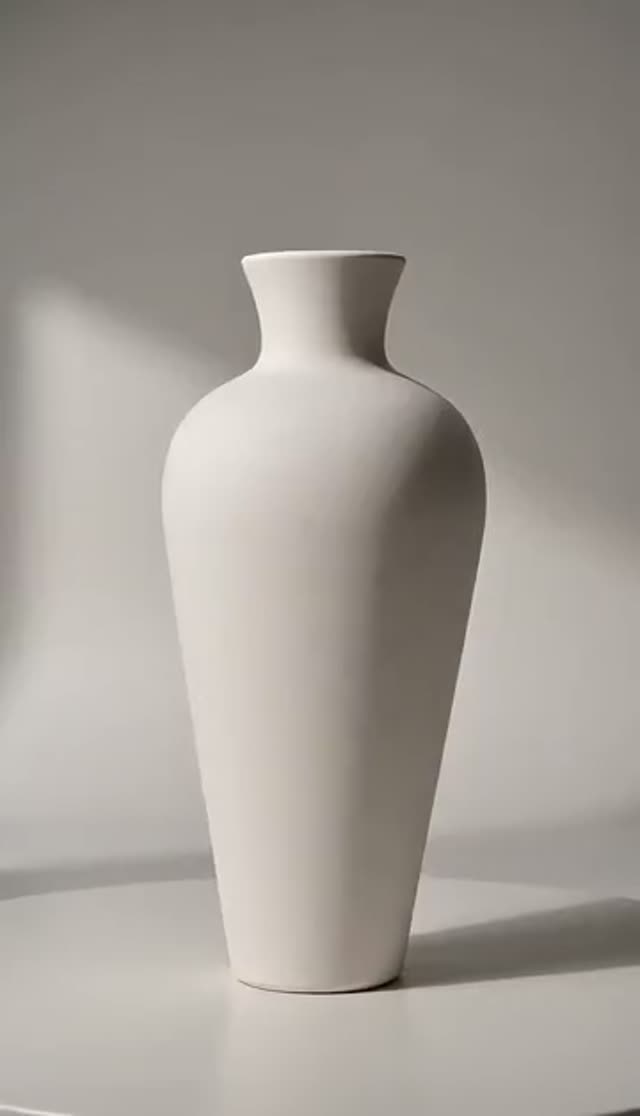
Soft Grey Cyc
How it works
- 1
Start with the right photo
One sharp, straight-on shot on a plain background: the whole product in frame, label facing the camera, no hands, props or heavy shadows. This single choice does more for the result than any setting further down the page, and a better photo beats a better model every time on this tab.
- 2
Pick a style that matches the job
Marketplace White if the clip is going on a listing, Premium Black or Marble Pedestal for a luxury feel, and the category presets — Jewel Sparkle, Ghost Mannequin, Sneaker Low Angle, Beauty Glow, Tech Light Tent, Gourmet Table — when the product has an obvious home. Splash Spin, Smoke Reveal, Neon Tech and Floating Hero are for paid social rather than listing slots.
- 3
Add your own detail in the prompt
The prompt field layers surface, lighting and mood on top of the preset without touching its rigidity instructions. 'Brushed concrete surface, cool morning light' or 'warm wood, single soft key from the left' is usually enough to make the spin sit alongside the rest of your brand's photography instead of looking borrowed from a stock library.
- 4
Set the model, length and frame
Pick from the 44 image-to-video variants in the picker: run something cheap while you are testing framing, then switch up for the final render. Aspect ratio is a setting on most of them — Runway, Seedance, PixVerse and Vidu let you choose square for a listing gallery, 9:16 for Reels and Shorts or 16:9 for a site hero. Some families, including Kling 2.6, Hailuo 2.3, the WAN image-to-video variants and ByteDance V1 Lite, inherit the ratio from your upload, so either pick a model that exposes the setting or crop the source photo to the shape you need.
- 5
Generate and check the label first
When the clip lands, scrub to the halfway point rather than watching the opening. Halfway is where the product is side-on and the model has had to invent the most. If the logo and text are still readable there, the rest of the rotation is almost always fine.
- 6
Download and publish
Drop the MP4 into your product page, a marketplace listing video slot or an ad build alongside VdoBloom's other commerce tools. On a paid plan the file arrives ready to upload with no branding to strip out; on free credits it carries a watermark, so treat those renders as tests.
Why use this tool
One photo, no rig
No turntable, no lightbox, no second angle and no studio hire. The model reconstructs the sides and back it cannot see and carries them through a continuous rotation from the single image you upload.
Eighteen styles, listing to ad creative
Compliant white and grey backdrops at one end, splash, smoke, neon and floating-hero looks for paid social at the other, all reachable from the same upload without re-shooting anything.
Built around label fidelity
Every preset prompt instructs the model to keep the product rigid and the text legible through the full revolution — no warping, no melting, no quietly redesigned packaging halfway round.
Category presets that know the product
Jewellery, apparel, footwear, cosmetics, electronics and food each get their own lighting and camera setup — pinpoint sparkle lights for facets, softboxes at 45 degrees for fabric weave, a light tent for glossy casings — instead of one generic studio look.
Loop-ready rotation
Constant speed, locked camera and a closing frame that matches the opening, so the clip can run on a product page or in a gallery slot without a visible jump at the join.
Watermark-free once you are on a plan
Paid-plan downloads are plain MP4 with nothing burned into the corner, which keeps the clip usable on marketplaces that reject third-party branding in listing media. Spins downloaded on the free signup credits carry a VdoBloom mark until you upgrade.
Frequently asked questions
Do I need multiple photos for a 360 video?
No — one good photo is enough. The model reconstructs the angles it cannot see and carries them through a continuous rotation. For the best fidelity, use a sharp, well-lit photo taken straight on, with the whole product visible, the label facing the camera and minimal background clutter. Shooting a second angle will not help; improving the one photo you feed it will, and re-shooting the front on a plain background is usually a five-minute job that pays for itself across every spin you generate afterwards.
Is it free, and how many credits does a spin cost?
New accounts get 10 free credits with no card, and a 4-second 720p render on Seedance 1.5 Pro costs 6, so your first spin is free. Longer and larger renders cost more from the same model: 8 seconds at 720p is 12 credits, and 4 seconds at 1080p is also 12. That arithmetic is the thing to plan around if you sell more than a handful of items — a forty-SKU catalogue spun at 6 credits each is 240 credits, which is a plan rather than a credit top-up. The free allowance is sized to answer one question: does this tool hold your particular packaging together.
Do the spin videos have a watermark?
On a paid plan, no — the file downloads as plain MP4 with no logo, badge or end card. Spins downloaded on the 10 free signup credits carry a VdoBloom watermark, so use the free credits to check framing and label fidelity and re-download the same render clean once you are on a plan. This is worth getting right before you build a workflow around it, because several marketplaces reject listing videos carrying third-party branding: a watermarked test file would be turned away by exactly the platform you generated it for.
Are my product photos private, and do I need an account?
Pre-launch work is the reason this answer matters. Uploads and finished spins sit in your own Creations library, visible only to your account, with nothing published anywhere automatically and a delete option on every item — so a product that has not been announced yet, or one covered by a supplier NDA, does not leak by being run through the tool. An account is required, since it is what the free credits and that library attach to, but it is email only with no card.
Will my product label and logo stay readable?
That is what the tool is tuned for: the default prompts explicitly instruct the model to keep the item rigid and the labels legible through the full rotation. Results are strongest when the label is clearly visible and in focus in your source photo, because the model can hold text it can read and will only approximate text it cannot. Small print and dense ingredient panels soften first. If the fine print is the selling point, shoot closer, or run a second pass with the Macro Detail Glide style, which circles in tight with a grazing key light and keeps focus locked on the surface.
How long does one spin take to render?
Usually a few minutes at short durations, with 1080p and the heavier model families taking proportionally longer. Rendering happens server-side, which changes the practical shape of catalogue work: queue spins for several SKUs back to back, close the tab, and collect the whole set from your Creations library in one visit. Batching this way also makes it easier to compare styles across products, since you are looking at ten finished spins side by side rather than approving them one at a time over an afternoon.
Which style should I pick for my product?
Match the background to the product's tone. Pale, white and glass items disappear on Marketplace White, so use Soft Grey Cyc, which adds a subtle gradient behind the product and keeps its edges separated. Dark and reflective products — watches, black electronics, glossy bottles — belong on Premium Black, where travelling specular highlights have something to describe. Anything gold or faceted gets Jewel Sparkle and its pinpoint sparkle light. If the clip is for an ad rather than a listing, the creative styles earn their keep: Splash Spin for drinks, Smoke Reveal for a launch, Floating Hero when you want the product hovering with no visible stand.
Can I make spins for jewellery, shoes, bottles or clothing?
Yes, and several styles exist specifically for those categories: Jewel Sparkle for rings and chains, Sneaker Low Angle for footwear shot from a slight hero angle, Ghost Mannequin for garments that need to hold their shape with no model inside, Beauty Glow for bottles and droppers. The hardest case for any AI video model is highly reflective and transparent material — polished silver, clear glass, faceted stones — because the model has to invent what the surface is reflecting as it turns. Give those a dark, controlled background rather than white, and keep the clip short.
Are these spins okay for Amazon, Flipkart and Meesho listings?
The Marketplace White style is written to produce a pure white background with the product centred at about 85 percent of the frame, no props, no visible stand and only a small contact shadow, which is what those platforms ask for in listing media. Requirements change and vary by category, so check the current spec for yours before uploading — the style exists to hit that brief rather than to look decorative. Note the ratio caveat too: pick a model that exposes an aspect-ratio setting if the listing slot wants square and your source photo is not, and the same spin re-rendered at 9:16 doubles as Reels and Shorts creative.
The product warped, the text blurred, or the render failed — what now?
Change one variable per attempt. In order of impact: use a sharper source photo, crop tighter so the product fills more of the frame, and shorten the clip, since a long rotation gives the model more opportunities to drift. If the shape itself is deforming, a higher-fidelity family holds rigid geometry better than the fast ones. If only the text is softening, the source photo is usually the culprit rather than the model. Failures surface as a failed item in Creations — nothing retries itself, so queue a new render rather than waiting.