Anime Character Generation Workflow
Full prompt
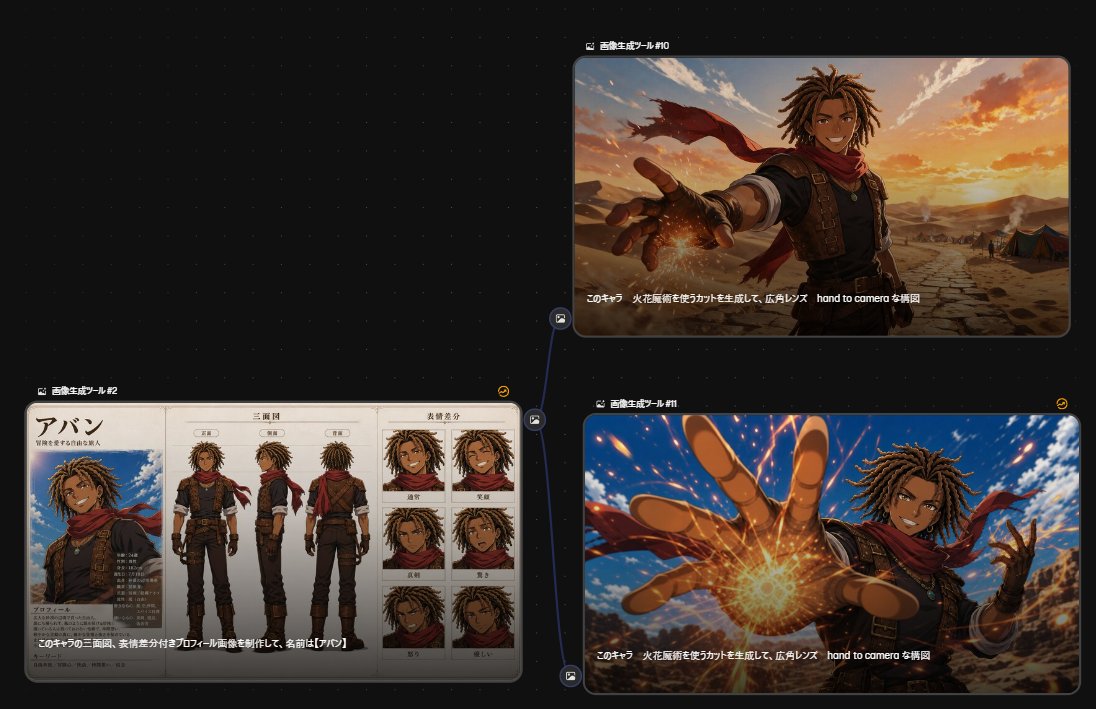
Goal: Create a dark UI-style comparison canvas showing three generated anime-image results connected in a workflow graph, as if viewed inside an image generation tool.

Canvas: Wide 16:9 screenshot composition with a nearly black dotted-grid background. Use subtle blue connector lines and small circular image-node icons between panels. The layout contains exactly 3 rounded rectangular panels: 1 large character sheet panel on the lower left, 1 cinematic panel on the upper right, and 1 cinematic panel on the lower right.

Layout: Place the lower-left panel as the source reference node, labeled in small white Japanese text above it: 「画像生成ツール #2」. From its right side, draw a branching blue connector line to the two right panels. Label the upper-right panel 「画像生成ツール #10」 and the lower-right panel 「画像生成ツール #1」. Add tiny yellow circular refresh-style icons near the top-right corner of the right-side panels. Keep all panels with thin gray borders, rounded corners, and faint drop shadows.

Left panel content: Show a detailed anime character design sheet for {argument name="character name" default="Aban"}, a tan-skinned young male adventurer with medium-length brown dreadlocks, athletic build, confident expression, sleeveless dark tunic, brown leather vest with straps, fingerless gloves, dark pants, boots, pendant necklace, and a flowing red scarf. The sheet contains exactly 3 full-body turnaround views in the center: front view, side view, and back view. It also contains exactly 6 expression portrait boxes on the right arranged in a 2-column by 3-row grid: normal smile, broad grin, serious, surprised, angry, and sad. On the left side of the sheet, include a larger bust portrait under a large Japanese name title 「アバン」, with small Japanese profile text blocks and stat-like labels beneath. Use beige parchment paper, clean black manga-style line art, and muted watercolor anime coloring.

Upper-right panel content: Show the same character in a cinematic desert scene at sunset, framed from waist up with a dramatic wide-angle lens. He smiles confidently while reaching one hand toward the camera, fingers foreshortened, with a glowing orange fire-magic spark forming near his palm. His red scarf blows behind him. The background has cracked desert ground, distant tents, low mountains, warm orange clouds, and golden sunlight. Add a white Japanese caption along the lower edge of the image: 「このキャラ 火花魔術を使うカットを生成して、広角レンズ hand to camera な構図」.

Lower-right panel content: Show a more dynamic anime action version of the same scene, closer to the camera and more intense. The character reaches one large foreshortened hand directly toward the viewer, with a bright circular burst of fiery magic at the palm, orange sparks flying across the frame, blue sky behind him, desert cliffs in the distance, and his red scarf whipping dramatically. Use high-energy perspective, strong motion, vivid lighting, and sharp anime rendering. Repeat the same white Japanese caption along the bottom: 「このキャラ 火花魔術を使うカットを生成して、広角レンズ hand to camera な構図」.

Visual style: Sleek AI-tool screenshot aesthetic, dark interface, crisp panel edges, small UI labels, anime fantasy illustration inside each panel. The character should remain consistent across all 3 panels: {argument name="hair color" default="brown dreadlocks"}, tan skin, red scarf, leather adventurer outfit, friendly but heroic personality. Use the magic effect color {argument name="magic color" default="orange fire"} and the environment {argument name="setting" default="desert at sunset"}.

Constraints: Include exactly 3 main image panels, exactly 3 full-body turnaround views, exactly 6 expression portraits, exactly 2 right-side cinematic action images, and exactly 1 branching connector from the left panel to the two right panels. Keep the Japanese text legible enough to read where specified, but do not add extra large titles outside the UI labels.
Use this prompt in the VdoBloom image editor.
Opens the image editor with this prompt — add your own photo to generate.