ChatGPT Transparent Robot UI Screenshot
Full prompt
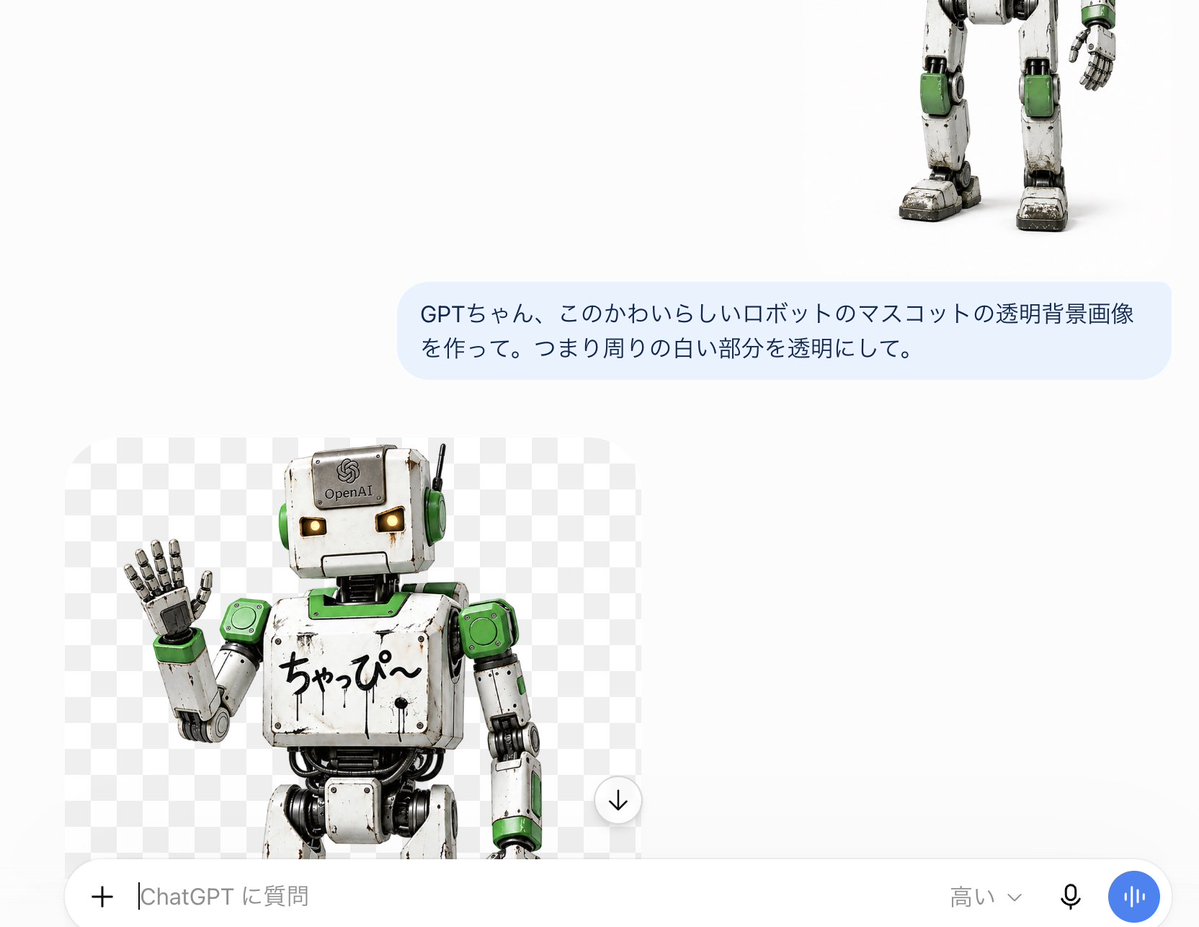
Goal: Create a realistic screenshot-style image of a ChatGPT mobile conversation demonstrating transparent-background image generation for a cute robot mascot.

Canvas: Landscape 16:9 mobile screenshot composition, white app background, clean minimal UI, high-resolution, with lots of empty white space in the upper left and center.

Layout: Show exactly 4 main visible UI/content elements: 1 partially cropped robot image at the top right, 1 pale blue user message bubble in the upper middle-right, 1 generated image preview card in the lower left, and 1 rounded chat input bar along the bottom.

Top content: Place the lower half of a cute weathered humanoid robot mascot cropped at the top-right edge, showing only legs, part of torso, one arm, and feet. The robot is white metal with green accent panels, black joints, scuffed grime, chunky feet, and a friendly toy-like industrial design.

User message bubble: A rounded pale blue chat bubble centered slightly right, containing Japanese text exactly as: {argument name="user message" default="GPTちゃん、このかわいらしいロボットのマスコットの透明背景画像を作って。つまり周りの白い部分を透明にして。"}. Use dark gray Japanese sans-serif text, two lines, with generous padding.

Generated image preview: In the lower-left area, create one large rounded rectangle preview card with a gray-and-white checkerboard transparency pattern. Inside it, show exactly 1 robot mascot from the waist up, matching the top robot: white scratched metal body, green shoulder and ear-like side panels, black mechanical joints, square head, glowing warm yellow rectangular eyes, small antenna on the right side of the head, and an OpenAI logo plate on the forehead. The robot is waving with its left hand raised. On its chest, include handwritten Japanese text exactly: {argument name="chest text" default="ちゃっぴ〜"}. Crop the robot slightly at the bottom of the preview card. Add exactly 1 small circular download button with a downward arrow at the lower-right corner of the preview card.

Bottom input bar: Add one large rounded white input field spanning the bottom width with subtle gray border/shadow. Include exactly 5 visible controls/text items inside it: a plus icon on the far left, placeholder text exactly {argument name="input placeholder" default="ChatGPT に質問"}, a model label exactly {argument name="model label" default="高い⌄"} near the right, a small black microphone icon, and a blue circular voice waveform button at the far right.

Visual style: Photorealistic 3D robot render combined with a clean ChatGPT-like mobile app UI screenshot. Use soft shadows, crisp text, rounded corners, neutral white background, and a realistic transparent checkerboard preview. Keep all Japanese text legible and preserve the UI spacing. No extra messages, no watermark, no browser chrome, no additional icons beyond the specified elements.
Use this prompt in the VdoBloom image editor.
Opens the image editor with this prompt — add your own photo to generate.