Chinese Study Card Social Screenshot
Full prompt
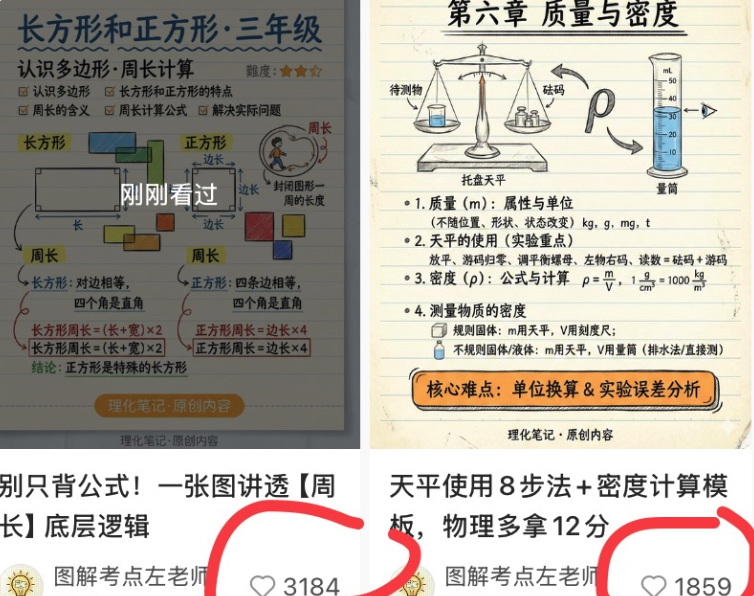
Goal: Create a square social-media collage screenshot showing two Chinese study-card posts side by side, like a creator portfolio preview for primary-school math and science visual notes.

Canvas: 756×628 px square-ish screenshot crop, white background, divided into two vertical columns. Each column contains one educational note image on top and a partial social feed caption area beneath. The overall look should be slightly compressed like a phone screenshot, with mild shadows and cropped edges.

Layout: Use exactly 2 post cards. Left post: a math knowledge card about rectangles and squares for third grade, positioned in the upper-left, with the bottom caption and like count visible below it. Right post: a physics knowledge card about mass and density, positioned in the upper-right, with the bottom caption and like count visible below it. Add thick hand-drawn red marker circles around both like-count areas, partially cropped at the bottom.

Left card details: Beige lined notebook-paper background with blue and black handwritten Chinese typography. Header text: {argument name="left card title" default="长方形和正方形·三年级"}. Subtitle: “认识多边形·周长计算”. Include a small difficulty rating with 3 orange stars near the top right. The card contains exactly 2 main diagram sections: one labeled “长方形” showing a rectangle with length and width arrows, and one labeled “正方形” showing a square with equal side labels. Include exactly 4 small colored square/rectangle blocks around the diagrams: blue, green, orange, and yellow. Include a small circular illustration of a person walking around a shape to explain perimeter. Add a semi-transparent dark overlay centered on the card with large white Chinese text “刚刚看过”. Bottom formulas and notes explain rectangle perimeter and square perimeter, including boxed formulas such as “长方形周长=(长+宽)×2” and “正方形周长=边长×4”. Add a rounded orange pill near the bottom reading “理化笔记·原创内容”.

Right card details: Beige lined notebook-paper background with neat black Chinese handwritten style. Header text: {argument name="right card title" default="第六章 质量与密度"}. Include exactly 3 main illustrated science objects across the top: a balance scale with an item and weights, a horseshoe magnet with an arrow, and a graduated cylinder filled with blue liquid. Add labels such as “待测物”, “砝码”, “托盘天平”, and “量筒”. Below, include exactly 4 numbered learning sections: 1. mass with units, 2. balance scale use with steps, 3. density formula and units, 4. measuring density. Show the density formula “ρ=m/V” and unit conversions including “1 g/cm³ = 1000 kg/m³”. At the bottom, add an orange rounded rectangle callout reading “核心难点:单位换算 & 实验误差分析”, and small footer text “理化笔记·原创内容”.

Bottom social feed area: Under the left card, show a bold Chinese caption beginning “别只背公式!一张图讲透【周长】底层逻辑”. Under the right card, show a bold Chinese caption beginning “天平使用8步法 + 密度计算模板,物理多拿12分”. Beneath each caption, show a small circular avatar with a yellow lightbulb-like icon and creator name text “图解考点左老师”. Show exactly 2 visible like widgets, each with a gray outline heart icon and number: left like count {argument name="left like count" default="3184"}, right like count {argument name="right like count" default="1859"}. Circle both like widgets with thick red freehand marker strokes.

Visual style: Clean Chinese educational infographic cards, hand-drawn textbook aesthetic, lined paper texture, muted pastel diagram colors, black/blue handwritten annotations, orange emphasis boxes, realistic screenshot crop, no photorealistic people except tiny simple illustration, no watermark beyond the displayed creator/footer text.

Constraints: Keep all visible text in Chinese where specified. Do not add more than 2 post cards, 3 top science objects on the right card, 2 main geometry diagram sections on the left card, 4 numbered sections on the right card, or 2 circled like widgets.
Use this prompt in the VdoBloom image editor.
Opens the image editor with this prompt — add your own photo to generate.