Dark Mode AI Portrait Result Card
Full prompt
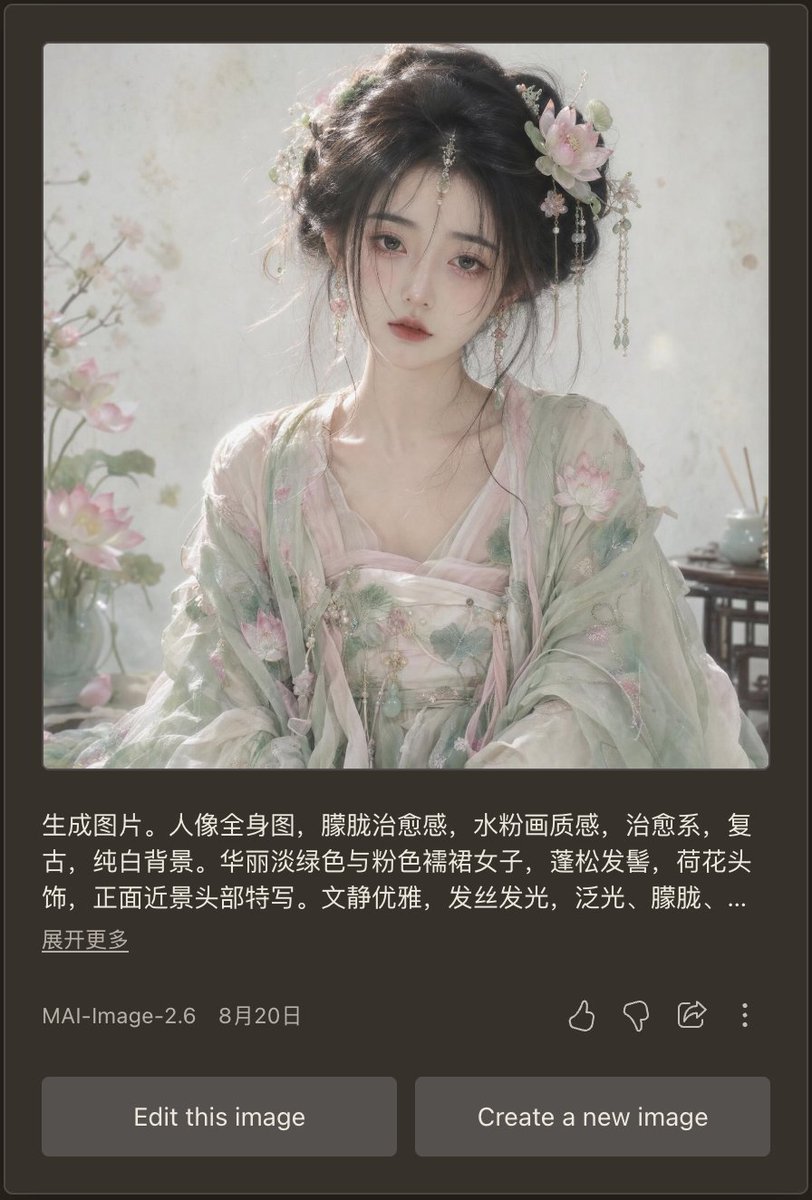
Goal: Create a realistic mobile app screenshot showing an AI image generation result card in dark mode, featuring a soft vintage Chinese-style portrait and the surrounding interface.

Canvas: Vertical smartphone screenshot, approximately 9:16 ratio. Use a dark charcoal brown app background with rounded card edges and subtle borders. The main content is centered with generous margins.

Main generated image: At the top of the card, place one large square portrait image with slightly rounded corners. The portrait shows {argument name="character description" default="a beautiful young woman in pale green and pink Hanfu, lotus-flower hair ornaments, loose black updo, delicate dangling jewelry, soft melancholic expression, facing forward in a close-up half-body composition"}. Style the portrait as ethereal, therapeutic, vintage, pale watercolor-like, with soft diffused daylight, glowing hair strands, translucent fabric, pure white background, pastel lotus blossoms, misty atmosphere, shallow depth of field, and a refined elegant mood. Include exactly 3 visible floral/environment details in the portrait: lotus flowers on the left foreground, a pale blossom hair ornament on the right side of her hair, and a small tea table or vase detail on the right background.

Text block under image: Add a Chinese prompt preview in white text, left aligned, spanning about three lines, ending with an ellipsis. Use this exact visible text: {argument name="prompt preview text" default="生成图片。人像全身图,朦胧治愈感,水粉画质感,治愈系,复古,纯白背景。华丽淡绿色与粉色襦裙女子,蓬松发髻,荷花头饰,正面近景头部特写。文静优雅,发丝发光,泛光,朦胧,..."}. Below it, place a smaller underlined-style Chinese link reading {argument name="expand link text" default="展开更多"}.

Metadata row: Under the prompt preview, show one metadata row with the model name {argument name="model label" default="MAI-Image-2.6"} on the left and the date {argument name="date label" default="8月20日"} beside it. On the right side of the same row, include exactly 4 outline action icons: thumbs up, thumbs down, share arrow, and vertical three-dot menu.

Bottom controls: Add exactly 2 large rounded rectangular gray buttons at the bottom, side by side with a small gap. The left button says “Edit this image”; the right button says “Create a new image”.

Visual style: Make the UI look like a real mobile app screenshot, clean and slightly compressed, with crisp white and gray typography. The portrait should be much brighter than the surrounding interface, with dreamy pastel lighting and delicate realistic facial rendering. No extra panels, no watermark, no browser chrome.
Use this prompt in the VdoBloom image editor.
Opens the image editor with this prompt — add your own photo to generate.