Dark Infographic-to-Video Poster
Full prompt
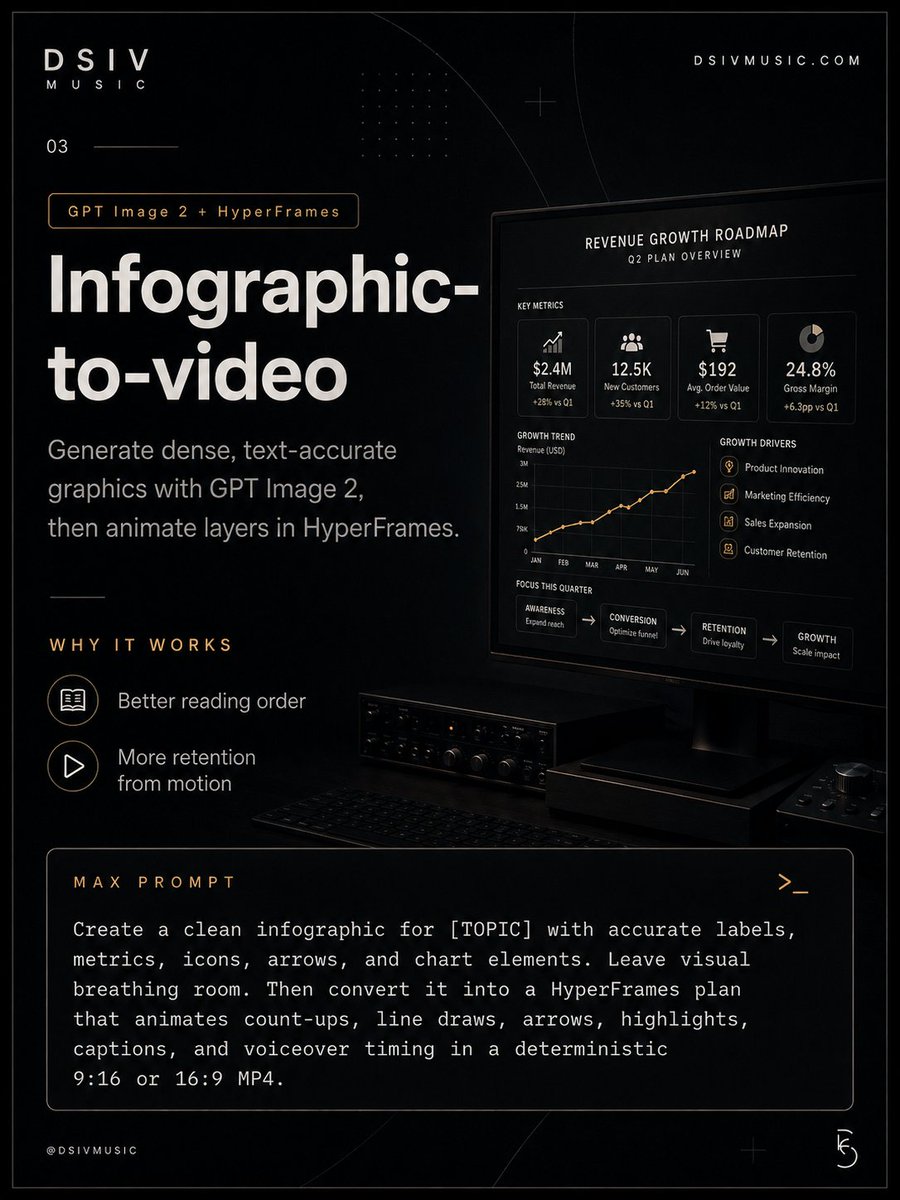
Goal: Create a dark premium editorial infographic poster for {argument name="brand name" default="DSIV MUSIC"} explaining an “infographic-to-video” workflow using GPT Image 2 and HyperFrames.

Canvas: Vertical 4:5 poster, black matte background with subtle charcoal gradients, thin border line around the entire canvas, high-contrast white typography, warm amber accent lines and labels, sleek futuristic music/tech studio aesthetic.

Layout: Split composition with text-heavy information on the left, a large angled computer monitor mockup on the right, and a wide prompt card along the bottom. Add faint geometric overlays: curved arc lines, tiny dot-grid texture, plus-sign crosshair marks, and thin divider strokes.

Top branding: In the upper left, place the logo text “DSIV” with spaced letters and “MUSIC” underneath. Beneath it place the small number “03” with a short horizontal line. In the upper right, place the website “DSIVMUSIC.COM”.

Main headline block: Add a small rounded amber-outline pill reading “GPT Image 2 + HyperFrames”. Below it, set a very large bold white headline on two lines: “Infographic-” and “to-video”. Under the headline, add the subheading: “Generate dense, text-accurate graphics with GPT Image 2, then animate layers in HyperFrames.”

Why it works section: Add the amber spaced title “WHY IT WORKS”. Include exactly 2 benefit rows with circular outline icons: 1) an open book icon labeled “Better reading order”; 2) a play button icon labeled “More retention from motion”.

Right monitor content: Show a realistic black desktop monitor angled slightly in perspective. On its screen, create a compact business dashboard titled “REVENUE GROWTH ROADMAP” with subtitle “Q2 PLAN OVERVIEW”. The dashboard must contain exactly 4 key metric cards across the top: 1) upward chart icon, “$2.4M”, “Total Revenue”, “+28% vs Q1”; 2) people icon, “12.5K”, “New Customers”, “+35% vs Q1”; 3) shopping cart icon, “$192”, “Avg. Order Value”, “+12% vs Q1”; 4) donut chart icon, “24.8%”, “Gross Margin”, “+6.3pp vs Q1”. Below, include exactly 1 line chart labeled “GROWTH TREND” with “Revenue (USD)” and month labels JAN, FEB, MAR, APR, MAY, JUN. To the right, include exactly 4 growth driver rows: “Product Innovation”, “Marketing Efficiency”, “Sales Expansion”, and “Customer Retention”, each with a small amber icon. Along the bottom of the dashboard, include exactly 4 process boxes connected by arrows: “AWARENESS / Expand reach”, “CONVERSION / Optimize funnel”, “RETENTION / Drive loyalty”, and “GROWTH / Scale impact”.

Desk objects: Under the monitor, show a dark audio interface or rack unit with small knobs and lights, a low-profile keyboard, and a compact control pad at the bottom right, all mostly shadowed.

Bottom prompt card: Create a large rounded rectangle outline card spanning the lower width. At the top-left of the card, use amber spaced text “MAX PROMPT”. At the top-right, add a small terminal symbol “>_”. Inside the card, use monospaced white text reading: “Create a clean infographic for [TOPIC] with accurate labels, metrics, icons, arrows, and chart elements. Leave visual breathing room. Then convert it into a HyperFrames plan that animates count-ups, line draws, arrows, highlights, captions, and voiceover timing in a deterministic 9:16 or 16:9 MP4.”

Footer: Bottom left text “@DSIVMUSIC”. Bottom right small circular glyph resembling a stylized “5”.

Visual style: Cinematic black-on-black product photography mixed with crisp UI design, sharp typography, subtle glow, amber highlights, accurate readable text, realistic monitor lighting, clean information hierarchy.

Constraints: Keep all text legible and spelled exactly as specified. Use exactly 2 benefit rows, 4 metric cards, 4 growth driver rows, and 4 process boxes. Do not add extra logos, watermarks, or unrelated text.
Use this prompt in the VdoBloom image editor.
Opens the image editor with this prompt — add your own photo to generate.