LartAI Download Step Tutorial
Full prompt
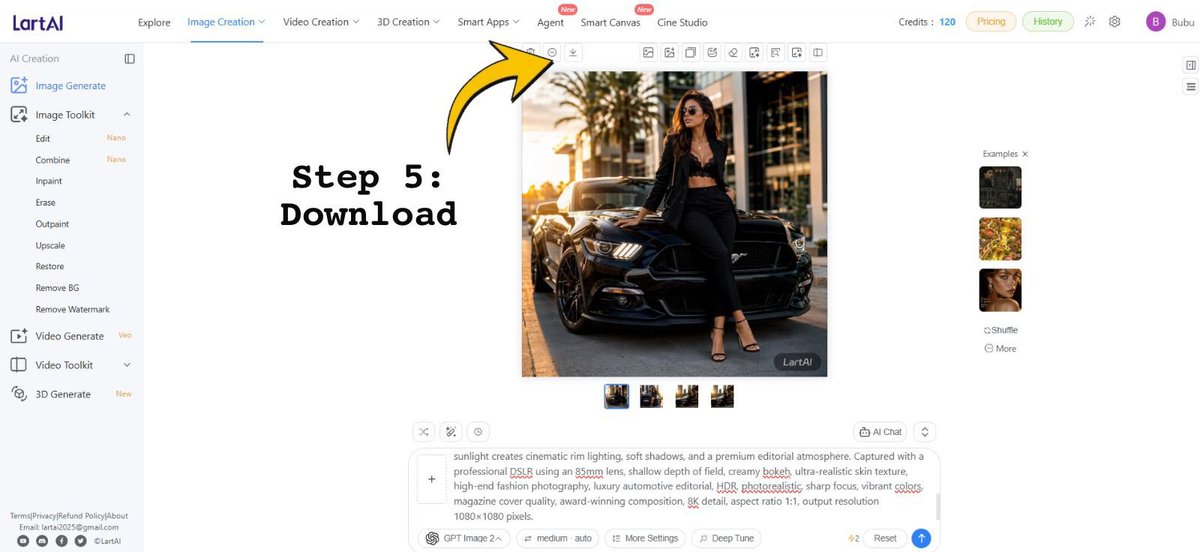
Goal: Create a wide tutorial-style screenshot graphic showing the LartAI image generation web app interface with an instructional overlay for downloading a generated image.

Canvas: 1200×552 horizontal screen capture composition, bright white UI, clean SaaS dashboard look, thin gray dividers, small icons, and lots of empty white space.

Layout: Full browser-app interface. A left sidebar occupies about 12% of the width, a top navigation bar spans the full width, the central workspace contains one large generated square image, and a right examples strip contains small thumbnails. Add a bold annotation on the left-center reading “Step 5: Download” in a black typewriter/monospace font, with a large curved yellow arrow outlined in black pointing upward toward the small download icon in the top toolbar above the generated image.

Top navigation: Show the LartAI logo at top left. Include exactly 7 main navigation items across the top: “Explore”, “Image Creation” highlighted/underlined in blue, “Video Creation”, “3D Creation”, “Smart Apps”, “Agent”, “Smart Canvas”, and “Cine Studio”; place small red “New” badges near Agent and Smart Canvas. On the right, show “Credits: 120”, pill buttons “Pricing” and “History”, small utility icons, and a purple circular avatar with the letter “B” followed by the username {argument name="user name" default="Bubu"}.

Left sidebar: Under the “AI Creation” heading, show exactly 14 visible tool entries: “Image Generate” selected in blue, “Image Toolkit”, “Edit” with a small “Nano” tag, “Combine” with a small “Nano” tag, “Inpaint”, “Erase”, “Outpaint”, “Upscale”, “Restore”, “Remove BG”, “Remove Watermark”, “Video Generate” with a small “Veo” tag, “Video Toolkit”, and “3D Generate” with a small “New” tag. At the bottom, include tiny footer text links and social icons, resembling Terms/Privacy/Refund Policy/About and contact details.

Central generated image: Display a square fashion editorial photo of {argument name="main subject" default="a stylish woman wearing sunglasses, a black blazer, black crop top, black trousers, and strappy heels"} leaning against the front of {argument name="vehicle" default="a glossy black Ford Mustang"} on a city street at golden hour. The subject sits on the car hood/front corner with one leg bent, palm trees and modern buildings in the background, warm cinematic sunlight, realistic shadows, high-end fashion and luxury automotive photography. Add a small dark “LartAI” watermark in the lower-right corner of this generated image.

Toolbar and controls: Above the square image, show a row of small square action icons, with the yellow arrow specifically pointing at the download icon. Beneath the large image, show exactly 4 small square result thumbnails in a row, with the first thumbnail selected using a blue border.

Right examples panel: Show the heading “Examples ×” and exactly 3 stacked example thumbnails: a dark car/fashion image, a yellow floral image, and a woman’s face portrait. Below them show exactly 2 small text controls: “Shuffle” and “More”.

Bottom prompt area: Include a large prompt input box with a plus button at its left and a visible text prompt beginning with “sunlight creates cinematic rim lighting, soft shadows, and a premium editorial atmosphere...” and containing underlined red spellcheck marks on some words. Below it, show controls including “GPT Image 2”, “medium auto”, “More Settings”, “Deep Tune”, a “4/2” indicator, “Reset”, and a blue circular send button.

Text overlay: The annotation text must read exactly {argument name="step label" default="Step 5:\nDownload"}. Use very large black bold typewriter lettering. The arrow should be bright yellow with a thick black outline, curved, and point from the text region toward the top toolbar download button.

Constraints: Preserve the clean web-app screenshot style, keep all UI text in English, use crisp small interface typography, no browser chrome, no extra popups, and no additional instructional steps.
Use this prompt in the VdoBloom image editor.
Opens the image editor with this prompt — add your own photo to generate.