Cute AI Doodle Generator Landing Page
Full prompt
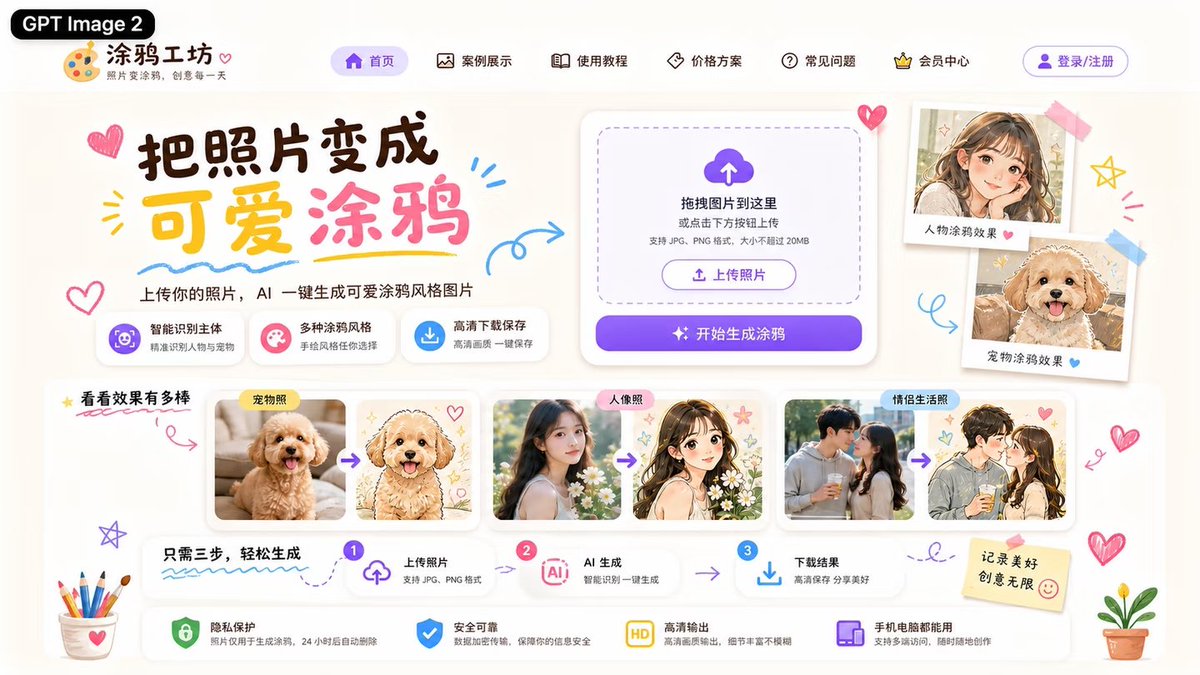
Goal: Create a cute Chinese landing-page UI mockup for an AI website that turns photos into adorable hand-drawn doodle illustrations, branded as {argument name="product name" default="涂鸦工坊"} and tagged with a black pill label reading {argument name="model label" default="GPT Image 2"}.

Canvas: Wide 16:9 web hero screenshot, approximately 1200×675, warm off-white paper background, soft shadows, rounded cards, pastel purple, pink, yellow, and sky-blue accents. Use a playful kawaii stationery style with doodled hearts, arrows, stars, scribbles, stickers, tape, colored pencils, and small potted plants around the edges.

Header: At top left place the black rounded label “GPT Image 2”, then a palette icon logo and the site name “涂鸦工坊” with the small subtitle “照片变涂鸦,创意每一天”. Across the top navigation show exactly 6 menu items with simple line icons: “首页” highlighted in a purple pill, “案例展示”, “使用教程”, “价格方案”, “常见问题”, and “会员中心”. At the far right add a purple outlined login button labeled “登录/注册”.

Hero section: On the left, create a large brush-style headline reading {argument name="headline text" default="把照片变成 可爱涂鸦"}, with “可爱” in yellow and “涂鸦” in pink, surrounded by doodle hearts and underline strokes. Under it add the subheading “上传你的照片,AI 一键生成可爱涂鸦风格图片”. Below the subheading place exactly 3 feature chips: 1) purple icon “智能识别主体 / 精准识别人像与宠物”, 2) pink icon “多种涂鸦风格 / 手绘风格任你选择”, 3) blue download icon “高清下载保存 / 高清画质一键保存”.

Upload card: On the center-right place a large white rounded upload panel with a dashed rounded drop zone, a purple cloud-upload icon, and the text “拖拽图片到这里 或点击下方按钮上传”, plus smaller text “支持 JPG、PNG 格式,大小不超过 20MB”. Inside it include a small outlined button “上传照片”, and below it a large purple gradient primary button reading “开始生成涂鸦” with sparkle icons.

Right showcase stickers: To the right of the upload card, show exactly 2 tilted polaroid-style sample cards taped to the page: 1) a cute anime-style girl portrait labeled “人物涂鸦效果” with a pink heart, 2) a fluffy dog doodle portrait labeled “宠物涂鸦效果” with a blue heart.

Example gallery: Below the hero, create a section title “看看效果有多棒” with a yellow star and a red underline. Show exactly 3 before-to-after comparison groups in white rounded cards, each group containing two images separated by a purple arrow: 1) labeled “宠物照”, a real fluffy apricot puppy photo transformed into a cute hand-drawn puppy illustration with hearts, 2) labeled “人像照”, a real young woman portrait transformed into a soft anime girl illustration with flowers and stars, 3) labeled “情侣生活照”, a couple photo transformed into a romantic anime couple doodle. Keep the after-images pastel, clean, and adorable.

Process strip: Under the gallery, create a three-step horizontal guide titled “只需三步,轻松生成”. Show exactly 3 numbered steps connected by arrows: step 1 “上传照片 / 支持 JPG、PNG 格式” with an upload icon, step 2 “AI 生成 / 智能识别一键生成” with an AI chip icon, step 3 “下载结果 / 高清保存 分享美好” with a download icon.

Bottom assurance bar: Along the bottom place exactly 4 trust feature cards with icons: 1) green shield “隐私保护 / 照片仅用于生成涂鸦,24小时后自动删除”, 2) blue shield-check “安全可靠 / 数据加密传输,保障你的信息安全”, 3) yellow HD badge “高清输出 / 高清画质输出,细节丰富不模糊”, 4) purple device icon “手机电脑都能用 / 支持多端访问,随时随地创作”. Add a sticky note on the right reading {argument name="sticky note text" default="记录美好 创意无限"} with a smiley face.

Visual style: Modern polished UI/UX design, highly legible Chinese typography, playful hand-drawn accents, soft cream background, glassy rounded white cards, subtle drop shadows, purple CTA gradient, adorable doodle illustration aesthetic. Avoid browser chrome, watermarks, or extra unlisted sections.
Use this prompt in the VdoBloom image editor.
Opens the image editor with this prompt — add your own photo to generate.