Verified Post with Kawaii Cactus Sticker
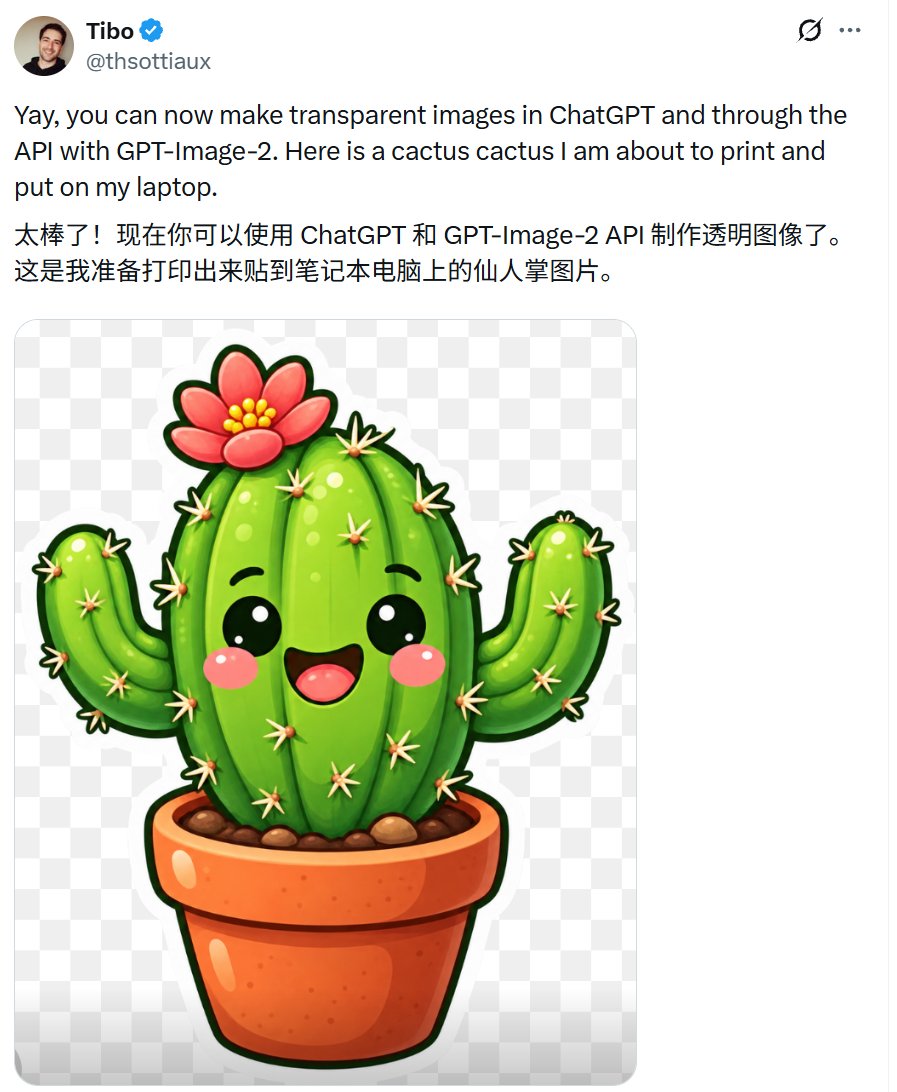
Full prompt
Create a realistic social-media post screenshot on a white interface, like an X/Twitter post, showing a verified user announcing transparent background images. At the top left, include a small circular profile photo of a smiling man, the display name {argument name="display name" default="Tibo"} in bold with a blue verified checkmark, and the handle {argument name="handle" default="@thsottiaux"} in gray beneath it. At the top right show two small interface icons: a circular refresh-like icon and a three-dot menu. The post text should be large black sans-serif and contain exactly two paragraphs: first, “{argument name="English post text" default="Yay, you can now make transparent images in ChatGPT and through the API with GPT-Image-2. Here is a cactus cactus I am about to print and put on my laptop."}” and second, Chinese text “{argument name="Chinese post text" default="太棒了!现在你可以使用 ChatGPT 和 GPT-Image-2 API 制作透明图像了。这是我准备打印出来贴到笔记本电脑上的仙人掌图片。"}”. Below the text, embed one large rounded-corner image preview with a light gray-and-white checkerboard transparency pattern. Centered inside the preview is a glossy kawaii sticker illustration of a potted cactus on a transparent background: exactly 1 central tall oval cactus body, exactly 2 raised side arms, exactly 1 terracotta flowerpot, exactly 1 pink-red flower with yellow center dots on top, many small cream-colored star-shaped spines, black cute oval eyes with white highlights, rosy pink cheeks, and an open smiling mouth. Use vibrant saturated greens, thick dark green sticker outline, shiny highlights, soft shadows, and a clean sticker-print style. Keep the screenshot composition vertical, cropped around the post, with generous white margins and no extra UI elements or watermark.
Use this prompt in the VdoBloom image editor.
Opens the image editor with this prompt — add your own photo to generate.