AI Video Editor
Change the look or content of a clip with a prompt
0.7-15s clips, up to 720p, priced per second
Source video
Describe the transformation you want: style, mood, effects, atmosphere.
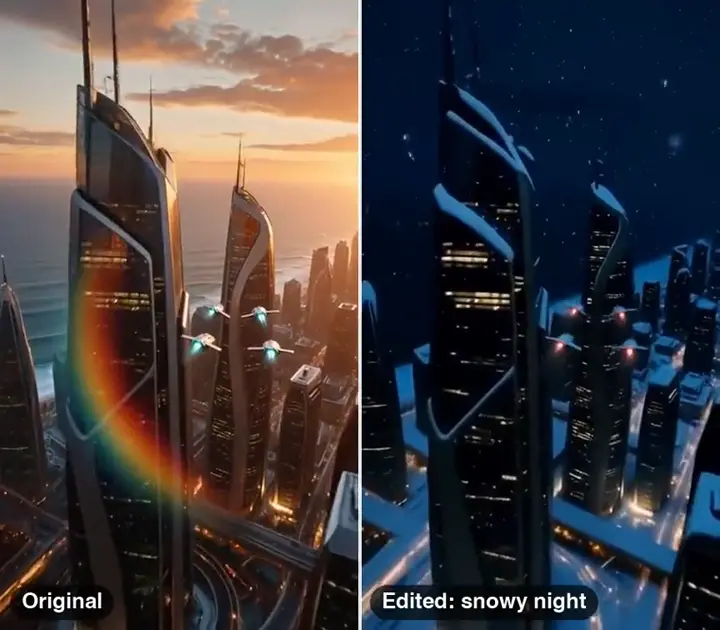
Example
AI Video Editor
Left: the original clip. Right: the same shot re-lit as a snowy night by FLUX Video Edit
- Price
- From 3 credits
AI Video Editor: Change Any Clip by Typing What You Want
Updated
VdoBloom AI Video Editor edits a video you already have from a text instruction. Upload a clip of up to 15 seconds, type the change, for example "make it snow", "swap the red car for a blue one" or "turn it into a watercolor painting", and the AI renders a new version that keeps the original motion and timing. The default engine, FLUX Video Edit [fast], costs 2.4 credits per second of video (13 credits for a 5-second clip) and keeps the original sound.
Is it free? New accounts get 10 free credits, enough for one FLUX edit of a clip up to 4 seconds long. Free-tier downloads carry a VdoBloom watermark; any paid credit pack or plan removes it. The edit runs in the background and lands in My Creations, so you can leave the page while it renders.
It is a generative editor: it changes what is in the picture. It does not cut, trim or join clips on a timeline. For that, VdoBloom has a separate Timeline Editor, plus tools for captions, short clips, object removal and upscaling, all listed further down this page.
How it works
- 1
Upload your video
Add a clip of up to 15 seconds: your own footage or a video you made with another VdoBloom tool. FLUX takes files up to 50 MB; the upload limit for each model is shown when you pick it.
- 2
Describe the edit
Write the change in plain words: a new style, a different season or time of day, a swapped object, a new outfit color or a different background.
- 3
Pick an editing model
FLUX Video Edit [fast] is selected first. Switch to P-Video-Edit Draft for a lower price, PixVerse Modify for restyles, WAN 2.7 or HappyHorse to guide the edit with reference images, or Gemini Omni for 4K.
- 4
Generate and download
The credit cost is shown before you start. Compare the result with your original, adjust the instruction if needed, and download the MP4.
Why use this tool
Edit by instruction
Change objects, people, setting or style by describing the change. No masks, keyframes or timeline needed.
Motion and sound kept
FLUX Video Edit and P-Video-Edit keep the source clip's motion, timing, framing and audio. The output is the same length as your upload.
Eight editing engines
FLUX, P-Video-Edit, PixVerse Modify, WAN 2.7 Video Edit, WAN 2.6, HappyHorse, Gemini Omni and SkyReels V4 sit in one picker.
Priced by the second
FLUX, P-Video-Edit and PixVerse Modify bill by the length of your clip, so a 3-second edit costs less than a 15-second one. FLUX starts at 8 credits for 3 seconds.
Reference images
WAN 2.7 Video Edit and HappyHorse Video Edit accept reference images, useful when the new object or outfit must look a certain way.
Works in the browser
Nothing to install. Upload, type and download on a computer or a phone.
What can you change in a video with a text prompt?
Prompt editing works on what the camera sees. One clear change per run gives the most reliable result. These are the kinds of instructions that work well:
- Style: "turn this into a watercolor painting", "make it look like a 1980s VHS tape", "anime style".
- Weather and time: "make it snow", "change the daytime street to night with neon lights", "golden hour light".
- Objects: "replace the coffee cup with a glass of orange juice", "change the red car to a blue pickup".
- People and clothes: "change her jacket to a yellow raincoat", "give him a beard".
- Setting: "move the scene to a beach", "replace the office wall with a bookshelf".
AI video editing models and prices
Credits below are for a 5-second clip. WAN 2.7, WAN 2.6 and HappyHorse count the seconds you upload plus the seconds they make, so a 5-second clip with a 5-second result is billed as 10 seconds. The exact cost for your clip is shown before you confirm.
- FLUX Video Edit [fast] (default)
- Good for:Object, person, setting or style edits; keeps motion and sound
- Clip length:0.7 to 15 s
- Output:Up to 720p
- Credits (5 s clip):13 (2.4 per second)
- P-Video-Edit
- Good for:Low-cost edits; keeps motion and sound
- Clip length:1 to 15 s
- Output:Up to 848 px
- Credits (5 s clip):19 Standard, 11 Draft
- PixVerse Modify
- Good for:Restyling a clip
- Clip length:1 to 15 s
- Output:360p, 540p, 720p
- Credits (5 s clip):17 at 360p, 25 at 720p
- WAN 2.7 Video Edit
- Good for:Edits guided by reference images
- Clip length:Up to 10 s
- Output:720p, 1080p
- Credits (5 s clip):64 at 720p
- WAN 2.6 Video-to-Video
- Good for:Whole-clip transformations (10 MB upload limit)
- Clip length:5 or 10 s
- Output:720p, 1080p
- Credits (5 s clip):75 at 720p
- HappyHorse Video Edit
- Good for:Edits with reference images, original or new audio
- Clip length:4 to 15 s result
- Output:720p, 1080p
- Credits (5 s clip):116 at 720p
- Gemini Omni Video-to-Video
- Good for:High-resolution edits
- Clip length:Short clips
- Output:720p, 1080p, 4K
- Credits (5 s clip):96 per edit, 143 at 4K
- SkyReels V4 Video-to-Video
- Good for:Motion reference or subject replacement
- Clip length:3 to 15 s
- Output:1080p
- Credits (5 s clip):250
| Model | Good for | Clip length | Output | Credits (5 s clip) |
|---|---|---|---|---|
| FLUX Video Edit [fast] (default) | Object, person, setting or style edits; keeps motion and sound | 0.7 to 15 s | Up to 720p | 13 (2.4 per second) |
| P-Video-Edit | Low-cost edits; keeps motion and sound | 1 to 15 s | Up to 848 px | 19 Standard, 11 Draft |
| PixVerse Modify | Restyling a clip | 1 to 15 s | 360p, 540p, 720p | 17 at 360p, 25 at 720p |
| WAN 2.7 Video Edit | Edits guided by reference images | Up to 10 s | 720p, 1080p | 64 at 720p |
| WAN 2.6 Video-to-Video | Whole-clip transformations (10 MB upload limit) | 5 or 10 s | 720p, 1080p | 75 at 720p |
| HappyHorse Video Edit | Edits with reference images, original or new audio | 4 to 15 s result | 720p, 1080p | 116 at 720p |
| Gemini Omni Video-to-Video | High-resolution edits | Short clips | 720p, 1080p, 4K | 96 per edit, 143 at 4K |
| SkyReels V4 Video-to-Video | Motion reference or subject replacement | 3 to 15 s | 1080p | 250 |
Read more: FLUX Video Edit [fast] guide
Is the AI video editor free?
You can try it free. Every new account gets 10 credits, and a FLUX edit costs 8 credits for a 3-second clip or 10 credits for a 4-second clip. Free-tier downloads carry a VdoBloom watermark; any paid credit pack or plan removes it.
The Lite pack is 300 credits for $19.50 one-time, or $15 a month as a subscription. That is about 23 five-second FLUX edits. One-time credits never expire, and the same credits work on every VdoBloom tool.
Read more: See all plans and credit packs
Prompt editor or timeline editor: which one do you need?
Most "AI video editor" apps are timeline editors with AI helpers: they cut, trim, add captions and remove silences. This tool does the other job. It changes what is inside the frame, which a timeline editor cannot do.
If you need the timeline jobs too, VdoBloom has them as separate tools. The Timeline Editor in the dashboard trims and joins up to 30 clips into a video of up to 3 minutes, with text and audio tracks, for 10 credits per render (auto-captions are extra, at the AI Captions price).
- Add word-by-word captions to a talking video: AI Caption Generator.
- Turn a long recording into short vertical clips: AI Clip Maker.
- Erase an object or person from a clip: Video Object Remover.
- Remove the background from a clip: Video Background Remover.
- Sharpen a clip to 1080p, 2K or 4K: Video Upscaler.
Read more: AI Caption Generator · AI Clip Maker · Video Object Remover
Tips for better AI video edits
Small changes to how you write the instruction make a big difference.
- Ask for one change per run. Stack a second edit on the result instead of writing both at once.
- Say what must stay the same: "keep the face, the camera move and the background unchanged".
- Trim the clip to the part you need before uploading. FLUX, P-Video-Edit and PixVerse Modify bill by the second.
- Use a reference image on WAN 2.7 or HappyHorse when the new object must match a real product.
- FLUX outputs up to 720p. For a sharper final file, run the result through the Video Upscaler.
Limits worth knowing
Clips are capped at 15 seconds (10 seconds on WAN 2.7, 5 or 10 seconds on WAN 2.6), so edit long videos in short parts. The edit is generated, so small details outside the change can shift; describe what must stay fixed and re-run if something drifts. Only upload footage you have the right to use, and get consent before editing a video of a real person.
Frequently asked questions
What is an AI video editor?
It is a tool that changes a video from a written instruction. On VdoBloom you upload a clip of up to 15 seconds, describe the change, such as a new style, setting or object, and the AI renders a new version that keeps the original motion.
Can I edit a video with AI for free?
Yes, once. New accounts get 10 free credits, and a FLUX Video Edit run costs 8 credits for a 3-second clip or 10 credits for a 4-second clip. Free-tier downloads carry a watermark; any paid pack or plan removes it.
How much does it cost to edit a video with AI?
It depends on the model and the clip length. For a 5-second clip: FLUX Video Edit 13 credits, P-Video-Edit 11 (Draft) or 19 (Standard), PixVerse Modify 17 at 360p, WAN 2.7 Video Edit 64, WAN 2.6 75, HappyHorse 116 (all at 720p), Gemini Omni 96 and SkyReels V4 250. The exact cost is shown before you start.
Does the AI video editor keep the original audio?
FLUX Video Edit [fast] and P-Video-Edit keep the source clip's audio, motion and timing, and the output is the same length as the upload. HappyHorse Video Edit lets you keep the original audio or make new audio.
How long can the video be?
Up to 15 seconds on FLUX, P-Video-Edit, PixVerse Modify, HappyHorse and SkyReels V4. WAN 2.7 Video Edit takes up to 10 seconds and WAN 2.6 makes 5- or 10-second results. Cut longer videos into short parts first.
Can it cut, trim or add captions to my video?
Not this tool: it changes what is in the frame. To trim and join clips use the Timeline Editor (10 credits per render, up to 30 clips and 3 minutes). For word-by-word captions use the AI Caption Generator, and for short clips from a long video use the AI Clip Maker.
Can I remove an object or the background from a video?
Yes, with the dedicated tools. Video Object Remover erases a selected object or person, and Video Background Remover removes the background. For swapping one object for another, describe it in the AI Video Editor.
Which model should I start with?
Start with FLUX Video Edit [fast], the default: it keeps motion and sound and is priced by the second. Try P-Video-Edit Draft for cheap test runs, PixVerse Modify for restyles, WAN 2.7 or HappyHorse when you have a reference image, and Gemini Omni when you need 4K.
Can I edit AI-generated videos too?
Yes. A common workflow is to make a clip with text to video or image to video, then use the AI Video Editor to change the style, light or a detail, all inside VdoBloom with no export and re-import.
Do I need to install editing software?
No. The AI Video Editor runs in your web browser on a computer or phone. You upload a clip, type the edit and download the result.