AI Fight Video Generator: Cinematic Action Scenes From Photos
The VdoBloom AI fight video generator turns one or two photos into a short, stylised action-movie scene: choreographed martial arts moves, dust kicked up by the motion, dramatic lighting and a camera that moves with the action. Nobody throws a real punch. Upload a portrait of each fighter, or one photo for a solo sequence, pick a style, and the model stages the scene around the faces you gave it. It is built for friendly versus clips, gaming and anime-style edits, skits and trailer-style intros.
Is it free? New accounts get 10 free credits with no card. The tab opens on Runway Gen-3 at 5 seconds and 720p, which costs exactly 10 credits, so one two-fighter scene is free. In single-photo mode, ByteDance V1 Pro Fast (7 credits) and Seedance 1.5 Pro (8 credits) are cheaper for the same 5-second 720p clip. Free-tier results play and download with a VdoBloom watermark; any paid plan unlocks the clean MP4.
Two presets set the scene. Martial Arts stages epic, choreographed martial arts combat with dynamic motion. Street Fight trades that for an intense street-style action scene with dramatic lighting. A photo-count toggle switches between two fighters from separate photos and a single fighter, and each preset carries its own prompt for each mode. The prompt stays editable: name the location, the era, the style or one slow-motion move and the render follows your wording. The presets are written for movie-style action, not realistic violence.
Examples
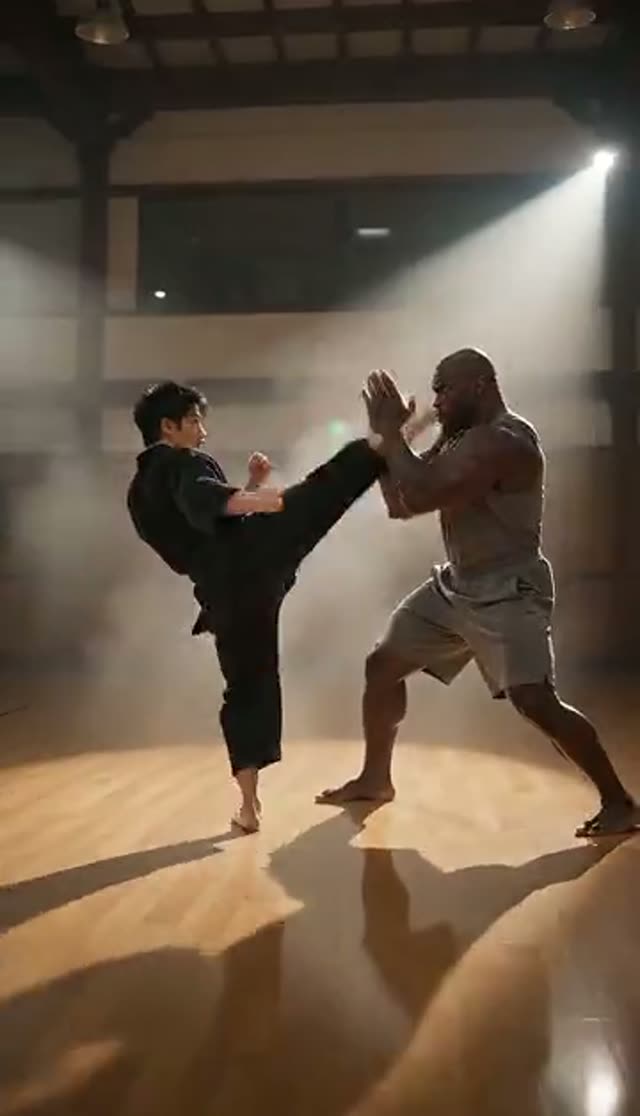
Martial Arts
Make this with my photo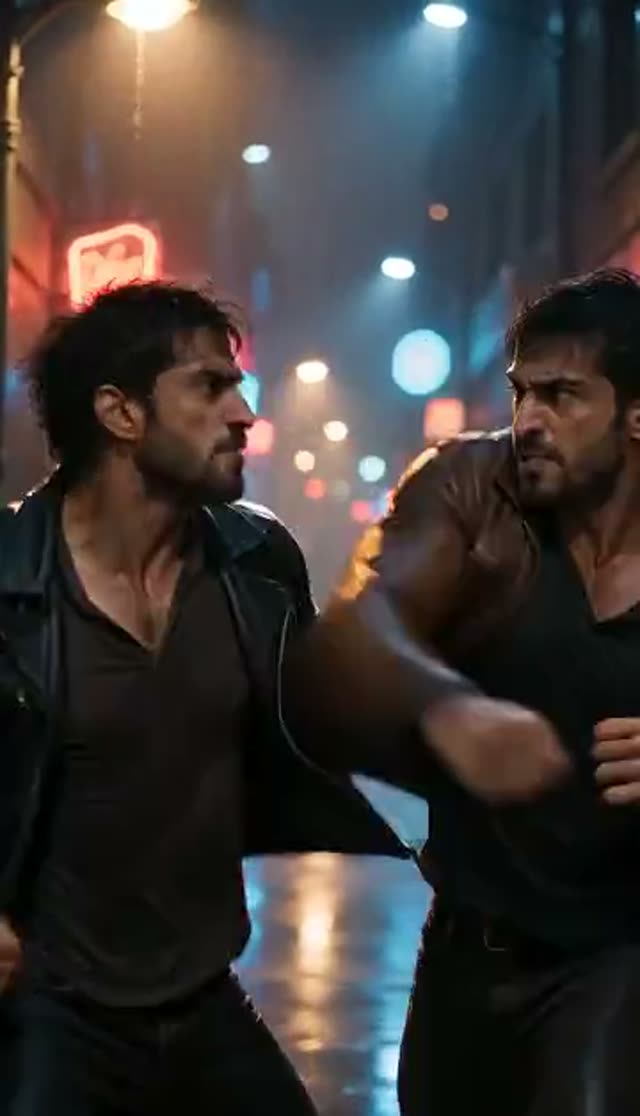
Street Fight
Make this with my photo
How it works
- 1
Choose one fighter or two
The toggle above the uploads opens Fighter 1 and Fighter 2 slots for a versus scene, or a single slot for a solo fight. Two-photo mode narrows the model picker to models that can use both photos.
- 2
Confirm consent, then upload
Tick the box confirming everyone in the photos is an adult who agreed to be animated. Then upload a clear, well-lit, full-body or three-quarter shot of each person.
- 3
Pick a style
Martial Arts for choreographed, film-style combat; Street Fight for a grittier action scene under dramatic light. Each preset fills the prompt with wording for the mode you are in.
- 4
Direct it in the prompt
Rewrite the scene: a rooftop at night, a temple courtyard, an anime-style duel, one slow-motion spin kick. One clear action lands better than a whole exchange.
- 5
Choose model, length and frame
The tab defaults to Runway Gen-3, 5 seconds, 720p, 16:9. Pick 9:16 for Shorts and Reels or keep 16:9 for a YouTube intro.
- 6
Generate and collect the clip
Rendering runs on the server and most clips return within a few minutes. The video lands in your library, watermarked on the free tier and clean on a paid plan.
Why use this tool
Two fighters from separate photos
You do not need a picture of both people together. Upload one portrait per fighter and the effect stages them facing each other in one scene.
Solo mode with the full model list
Switch to one photo and the picker shows every image-to-video model, including 7- and 8-credit options for quick tests.
Presets that switch with the mode
Martial Arts and Street Fight each ship a one-fighter prompt and a two-fighter prompt, swapped automatically when you move the toggle, and both stay editable.
Stylised, cinematic action
The built-in prompts describe choreographed movie action with cinematic lighting, aimed at fun versus clips and trailer-style edits rather than graphic content.
First scene inside the free credits
Runway Gen-3 at 5 seconds and 720p costs exactly the 10 credits a new account starts with, in either mode.
Failed renders refund automatically
Fast limb motion is hard to render. If a generation errors out, its credits return to your balance so the retry costs nothing extra.
Which model to use for a fight scene
The model list depends on the mode. With one photo, every image-to-video model is available. With two photos, the picker shows the effect-native models (Runway, Kling 2.5 Turbo, PixVerse, Vidu, LTX-2 Fast) plus models that take both photos as references: the Seedance 2 family, Gemini Omni and Veo 3 Fast. Prices are per clip, from VdoBloom's credit table.
| Model | Mode | Clip | Credits |
|---|---|---|---|
| Runway Gen-3 (tab default) | One or two photos | 5 s, 720p | 10 |
| Runway Gen-3 | One or two photos | 10 s, 720p | 20 |
| PixVerse v3.5 | One or two photos | 5 s, 720p | 18 |
| Vidu Q2 Turbo | One or two photos | 5 s, 720p | 18 |
| Kling 2.5 Turbo | One or two photos | 5 s | 40 |
| Seedance 2 Fast | One or two photos | 5 s, 720p | 50 |
| ByteDance V1 Pro Fast | One photo | 5 s, 720p | 7 |
| Seedance 1.5 Pro | One photo | 5 s, 720p | 8 |
| Kling V3 Turbo image-to-video | One photo | 5 s, 720p | 36 |
Read more: Runway Gen-3 · Seedance 2 Fast · Vidu Q2 Turbo
What a fight video costs
Credits come from the 10 free signup credits, one-time packs that never expire, or a subscription that resets each cycle. The Lite pack is 300 credits for $19.50 one-time, or $15 a month.
| Plan | Credits | Runway Gen-3 5 s 720p (10) | Vidu Q2 Turbo 5 s 720p (18) | Seedance 2 Fast 5 s 720p (50) |
|---|---|---|---|---|
| Free signup | 10 | 1 | 0 | 0 |
| Lite, one-time $19.50 | 300 | 30 | 16 | 6 |
| Lite, $15 per month | 300 per month | 30 | 16 | 6 |
Ideas for fight videos
- You versus a friend: a portrait each, staged as a movie duel (with their permission).
- Anime-style battles: ask for an anime look, speed lines and a dramatic finishing pose in the prompt.
- Gaming and esports intros: a player-versus-player title card before a match video.
- Skits and comedy: an over-the-top kung fu showdown over the last slice of pizza.
- Trailer-style openers for short films or channels.
- Martial arts and fitness pages: a stylised kata or a single slow-motion kick.
Tips for cleaner action
- Use full-body or three-quarter photos with both arms visible; the model has to invent stance and limb positions.
- Even light and a neutral standing pose work best. Avoid heavy shadow, motion blur and tiny faces cropped out of group photos.
- Name one beat ('a single spinning kick in slow motion') rather than a long exchange.
- Shorter clips keep faces and limbs more stable.
- If motion smears, switch model family rather than re-rolling the same one.
- Set the location in the prompt; the environment does a lot of the cinematic work.
Content rules and limits
This tab is for stylised, movie-style action. Prompts asking for gore, injury detail or real-world harm are not what it is for: every generation must comply with VdoBloom's content policies, is moderated and can be rejected. Only upload photos of adults who agreed to be animated, never of children, and do not use the tool to depict real people in a way that could mislead or harass. Platforms have their own rules on violent and synthetic media, so label the clip as AI-generated where asked. There is no separate intensity or safe-mode control on this tab; tone is set by the preset and the prompt.
Frequently asked questions
Is the AI fight video generator free?
Your first scene can be. New accounts get 10 free credits with no card, and the default, Runway Gen-3 at 5 seconds and 720p, costs exactly 10 in either mode. In single-photo mode, ByteDance V1 Pro Fast (7) and Seedance 1.5 Pro (8) are cheaper. Free-tier results are watermarked and downloads carry the watermark until you are on a paid plan.
Can I make a fight video of me versus my friend?
Yes. Set the toggle to two photos, put a portrait of each person in the Fighter 1 and Fighter 2 slots, and the preset switches to its two-fighter prompt. Make sure your friend has agreed to be animated.
How do I make an AI fight video from photos?
Choose one or two fighters, confirm consent, upload the photos, pick Martial Arts or Street Fight, adjust the prompt, choose a model and aspect ratio, and generate. The clip lands in your library in a few minutes.
Can I make an anime-style fight?
Yes, through the prompt. Ask for an anime or cel-shaded look, speed lines and dramatic poses. Results depend on the model, so try two and keep the better take.
Which AI model is best for fight scenes?
With two photos, Runway Gen-3 (10) is the entry point, PixVerse v3.5 and Vidu Q2 Turbo (18) the next step, and Kling 2.5 Turbo (40) and Seedance 2 Fast (50) the heavier options. With one photo you also get ByteDance V1 Pro Fast (7), Seedance 1.5 Pro (8) and Kling V3 Turbo image-to-video (36).
Is the fight content violent or graphic?
The presets describe stylised, choreographed movie action with cinematic lighting, not injury or gore. The prompt is free text, but every generation must follow VdoBloom's content policies and is moderated, and content glorifying real-world harm is not allowed.
What photos work best?
Full-body or three-quarter shots with even light and both arms visible. Tight headshots leave the model guessing at everything below the collar, and heavy shadows or motion blur make faces less stable.
Do fight videos have a watermark?
On the free tier, yes: the result plays and downloads with a VdoBloom mark. Any paid plan unlocks the clean MP4.
How long does a fight video take?
Usually a few minutes; 10-second or 1080p renders and heavier models take longer. The job runs on the server, so it still lands in your library if you close the browser.
What if the fight looks wrong or fails?
A failed generation refunds its credits automatically. If it completes but faces drift or limbs merge, try a sharper photo, a shorter clip, a single action in the prompt, or a different model family.