AI Jesus Embrace Video Generator: Divine Light and Heavenly Scenes
The AI Jesus Embrace video generator turns one photo into a short, peaceful clip of Jesus embracing the person in the picture, set in either golden divine light or a heavenly scene in soft white light. Upload a photo, choose the setting and generate. Your first clip is free: new accounts get 10 credits, and the default render (Runway Gen-3, 720p, 5 seconds) costs exactly 10. Free clips carry a VdoBloom watermark, and a paid plan gives you the clean MP4.
Where the sister tool, AI Jesus Hug, is built around the gesture of comfort, this page is built around the place and the light. That is why it is the one most people choose for remembrance: a clip for a memorial slideshow, a tribute shared with family after a loss, or a quiet piece for a service screen. Divine Embrace is warm, close and golden. Heavenly Embrace is open and luminous, with an angelic feel.
Both templates load into an editable prompt, so you can keep the scene as written or describe the setting more precisely, for example dawn over open fields, a still church interior or light through a high window.
Examples

Divine Embrace
Make this with my photo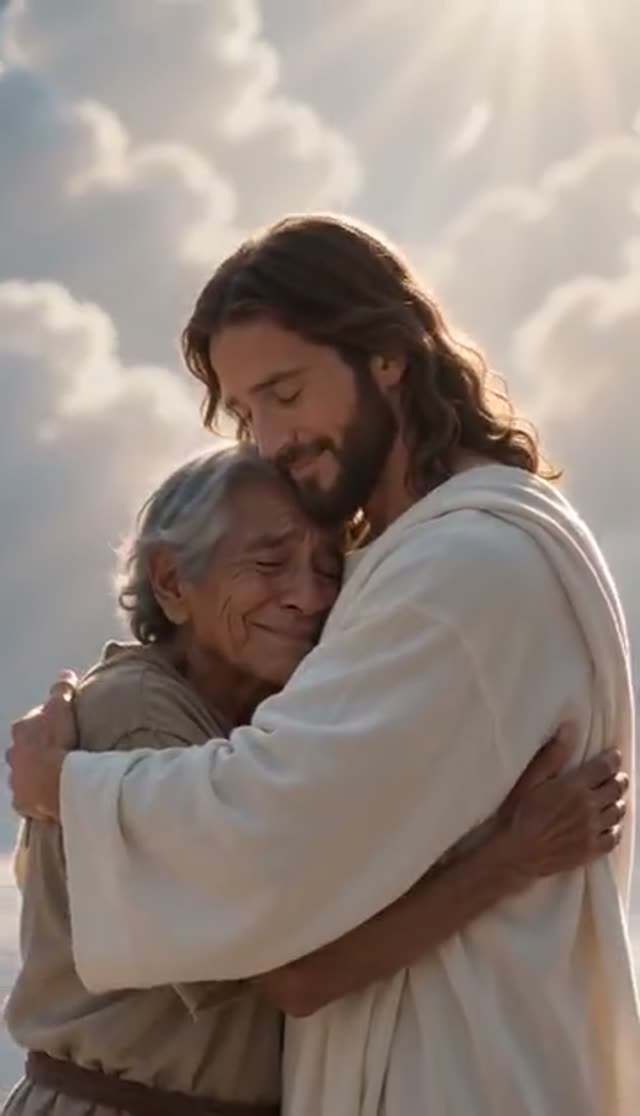
Heavenly Embrace
Make this with my photo
How it works
- 1
Upload one photo
A clear picture of the person who will appear in the embrace. Scanned prints are common here; sharpen or upscale them first for a more faithful face.
- 2
Choose the setting
Divine Embrace for golden light and a warm, close scene. Heavenly Embrace for a heavenly setting in soft white light. This choice changes the light, the space and the mood together.
- 3
Shape the scene in the prompt
Add a place or a time of day if it carries meaning, and a line asking the model to keep the person's face, hair and clothing unchanged if likeness matters.
- 4
Set the frame before rendering
16:9 for a slideshow, projector or TV; 9:16 for Stories and WhatsApp status; 1:1 for a feed post. Choosing now avoids cropping the light out of the frame later.
- 5
Generate and download
The default is Runway Gen-3 at 720p for 5 seconds (10 credits). The clip is ready in a few minutes and stays in your library.
Why use this tool
Two settings, two different videos
Golden divine light and a soft white heavenly scene give visibly different clips from the same photo, one warm and close, the other open and bright. The difference is in the prompt, not just the label.
Suited to remembrance
Heavenly Embrace in particular is written for a gentle, luminous treatment that many families choose for tributes and memorial slideshows.
Works from old photographs
One photo is the only input, so a scanned print works. Restoring or upscaling it first is the single biggest improvement you can make to the likeness.
Slideshow-ready formats
Render at 16:9 so the clip sits between stills and plays on a projector without letterboxing. Runway Gen-3 also offers 4:3, 1:1, 3:4 and 9:16.
Every image-to-video model available
Your photo goes straight to the video model, so the full roster is in the picker: Runway, Seedance and ByteDance, Kling, Veo 3, WAN, PixVerse, Vidu, Hailuo and more, from 7 credits a clip.
Private and respectful
Both prompts ask for a peaceful, spiritual atmosphere with nothing theatrical. Uploads and results stay in your own library and are not published by VdoBloom.
Is the Jesus embrace AI generator free?
Your first clip is. New accounts receive 10 free credits with no card, and the default settings (Runway Gen-3, 720p, 5 seconds) cost exactly 10. ByteDance V1 Pro Fast is 7 credits for the same length.
Free clips are full renders with a VdoBloom watermark on the player and the download. For a memorial screen or a family slideshow you will usually want the clean file, which needs a paid plan. The Lite pack is 300 credits for $19.50 one-time (one-time credits never expire) or $15 a month (subscription credits reset each cycle).
Divine Embrace vs Heavenly Embrace
Both templates show Jesus gently embracing the person from your photo. What changes is the world around them.
| Template | Light and setting | Feel | Often chosen for |
|---|---|---|---|
| Divine Embrace | Divine golden light surrounding the figures | Warm, close, grounded | Personal faith posts, Easter and Christmas greetings |
| Heavenly Embrace | Heavenly setting, soft white light, angelic atmosphere | Open, bright, calm | Remembrance videos, tributes, memorial slideshows |
Which model should I use?
The scene needs slow, steady motion, so start with a value model and move up only for the version you will show. Credits are per clip at the length shown.
| Model | Clip | Credits | Good for |
|---|---|---|---|
| ByteDance V1 Pro Fast | 5 s, 720p | 7 | Low-cost 5-second test |
| Seedance 1.5 Pro | 4 s, 720p | 6 | Short clips; also 8 s and 12 s |
| P-Video | 5 s, 720p | 8 | Low-cost alternative look |
| ByteDance V1 Lite | 5 s, 720p | 9 | Budget renders |
| Runway Gen-3 (default) | 5 s, 720p | 10 | Steady camera; 20 credits at 1080p or 10 s |
| Runway Gen-4 Turbo | 5 s | 20 | Sharper detail |
| PixVerse v4.5 | 5 s, 720p | 22 | More detail in the face |
| Kling V2.5 Turbo | 5 s | 40 | Smooth, natural motion |
| Runway Gen-4.5 | 5 s | 48 | Highest detail for a final tribute clip |
Read more: Runway Gen-3 model page · Runway Gen-4.5 model page · Best AI model for image to video
What a remembrance slideshow costs
Worked examples from the prices above. Failed jobs are not charged.
| What you have | Default (Runway Gen-3, 10 cr) | ByteDance V1 Pro Fast (7 cr) | Runway Gen-4.5 (48 cr) |
|---|---|---|---|
| 10 free signup credits | 1 clip | 1 clip | Not enough |
| Lite pack, 300 credits ($19.50 one-time or $15/month) | 30 clips | 42 clips | 6 clips |
| A 5-clip slideshow | 50 credits | 35 credits | 240 credits |
Jesus Embrace or Jesus Hug: which tool fits?
Both make a short, peaceful clip of Jesus holding the person in your photo, with the same models and prices.
- Jesus Embrace (this page) is built around the setting: golden divine light or a heavenly scene. Choose it for remembrance, tributes and slideshows where atmosphere matters most.
- Jesus Hug is built around the gesture: a Comforting Hug or a Healing Hug with rays of light. Choose it for encouragement and get-well messages you want to send to someone.
Read more: AI Jesus Hug video generator · How to make an AI Jesus embrace video
Making a memorial clip from an old photo
Memorial videos usually start from a scan, and the video model animates what it is given rather than repairing it. Creases, grain and low resolution carry straight into the clip. A few minutes of preparation makes the biggest difference.
- Restore scratches and fading first, then upscale small scans.
- Avoid tight face crops; the model needs room around the person to build the embrace.
- Generate at 16:9 if the clip will sit inside a slideshow.
- Add a prompt line asking for the person's face, hair and clothing to stay unchanged.
- Check with close family before sharing widely; reactions to memorial content vary.
Read more: Photo restoration · AI image upscaler · Animate old photos
Limits to know
The tab takes one photo and the templates are written for one person. Neither template includes an identity-lock instruction, so likeness depends on the model and the photo. Runway Gen-3 runs 5 or 10 seconds, with 1080p at 5 seconds only. Most models return a silent MP4, so add music in your slideshow or editing app.
Everyone shown in an upload must be an adult aged 18 or over and you must have the right to use the photo. Prompts are screened before a job runs and every generation follows VdoBloom's content policies.
Frequently asked questions
What does an AI Jesus embrace video look like?
It is a short clip of Jesus gently embracing the person from your photo, either in divine golden light or in a heavenly setting under soft white light. Both templates ask for a peaceful, spiritual atmosphere with nothing dramatic.
Is the Jesus embrace AI generator free?
The first clip is. New accounts get 10 free credits and the default render costs 10; ByteDance V1 Pro Fast costs 7. Free clips are watermarked, and the clean file needs a paid plan. The Lite pack is 300 credits for $19.50 one-time or $15 a month.
Can I make one in memory of someone who has passed away?
Yes. Heavenly Embrace, with its soft white light, is the template most people choose for remembrance. Use the clearest photo you have and check with close family before sharing widely. The person shown must have been an adult and you must have the right to use the photo.
Will the clip fit into a memorial slideshow?
Yes. Set 16:9 before generating so it matches the slides and plays on a projector or TV without letterboxing. Five seconds sits comfortably between stills; Runway Gen-3 also renders 10 seconds at 720p for 20 credits.
Can I use an old printed or scanned photo?
Yes, and it is common for this tool. The model animates the photo as it is, so restore and upscale the scan first. That usually improves the likeness more than switching models.
How is this different from the Jesus Hug tool?
Jesus Embrace is organised around the setting: golden divine light or a heavenly scene. Jesus Hug is organised around the gesture: a comforting hug or a healing hug. The models and prices are the same.
Will the face stay recognisable?
Largely, but it depends on the model and the photo. Neither template has an explicit face-preservation line, so add one to the editable prompt if likeness matters, and try a higher-detail model such as PixVerse v4.5 or Runway Gen-4.5 if it still drifts.
Which model is best for a Jesus embrace video?
ByteDance V1 Pro Fast at 7 credits and Runway Gen-3 at 10 handle the slow, gentle motion well. Use PixVerse v4.5 (22) for more facial detail or Runway Gen-4.5 (48) for a final tribute clip.
A render came out wrong. What should I try?
Generate again first, since results vary between runs. Then try the other template, a clearer photo with more space around the person, or a different model. Jobs that fail outright are not charged.
Are my uploads private?
Yes. Uploads and finished clips stay in your own account library and are not published to a public gallery by VdoBloom.