Labubu AI Video Generator: Turn Your Photo into a Labubu-Style Doll
A Labubu AI video is the transformation clip from collectible-toy feeds: the person in your photo opens their arms, spins, and when they face the camera again their head has become a fluffy, toothy-grinned doll head, with stars bursting around the reveal. On VdoBloom you upload one photo, pick a template and the AI renders the whole clip. The tab opens on Runway Gen-3, which costs 10 credits for a five-second 720p video, so the 10 free credits every new account gets cover exactly one clip (free renders carry a watermark).
Two templates share the same spin-and-swap choreography. Classic Labubu ends with blooming stars; Labubu Sparkle wraps the reveal in glitter and coloured star bursts. Both load an editable prompt, so you can change the action leading into the reveal or the effects around it.
People use it for TikTok and Reels trend posts, birthday and gift clips for toy collectors, profile videos and quick jokes for the group chat. Upload photos of adults only: yourself, or someone who has agreed to it.
Examples
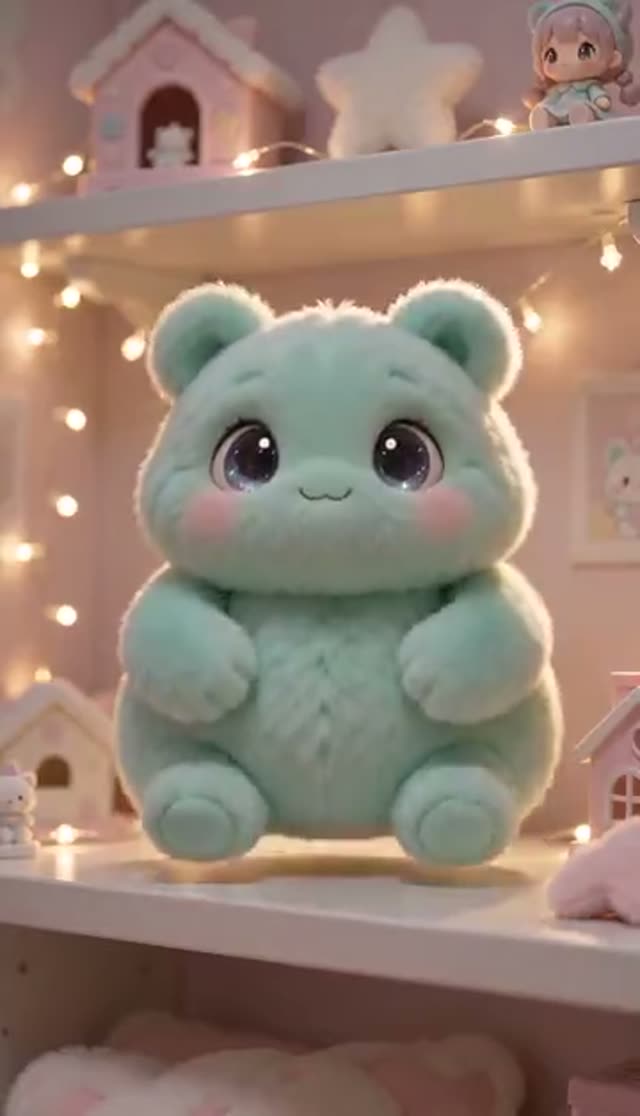
Classic Labubu
Make this with my photo
Labubu Sparkle
Make this with my photo
How it works
- 1
Upload a clear photo of one person
Front-facing, roughly waist-up, with the whole head visible. The swap happens mid-spin, so hats, sunglasses or a hand near the face can break the reveal.
- 2
Choose Classic or Sparkle
Both run the same spin and head swap. Classic finishes on blooming stars; Sparkle adds glitter and colour bursts that read well on a small screen.
- 3
Edit the action if you like
The prompt is editable. Swap the spin for a walk-in, a jump or hands lowering from the face; the doll head and star effects stay.
- 4
Pick a model, length and shape
Runway Gen-3 is the default (5 or 10 seconds). Choose 9:16 for TikTok and Reels. Five seconds is usually enough because the reveal lands near the end.
- 5
Generate and check the turn
Clips take a few minutes and save to My Creations. If the head holds through the middle of the spin, the reveal will look clean. Failed jobs refund automatically.
Why use this tool
Swap timing built in
The spin, the turn back to camera and the frame where the head changes are written into the template, which is the hard part to describe yourself.
Two finishes, one beat
Classic and Sparkle differ only in the effects after the reveal, so you can pick the look without changing the motion.
Rewrite the choreography
Change what happens before the reveal, add confetti or slow motion, or restage the background in plain words.
Model choice on the tab
Runway, Seedance, PixVerse, Kling, Vidu, Wan, P-Video and LTX-2 Fast are all in the picker; engines differ most in how well they carry a face through a rotation.
Known cost per clip
One clip is 10 credits on the default, and the exact price is shown before you confirm.
Refunds on failed jobs
If a render errors out, the credits come back automatically.
Which model should I use for a Labubu video?
Runway Gen-3 is the default because it holds a person steadily through a full turn. Every model below can be picked on the same tab; credits are per clip.
| Model | Lengths | Credits per clip | Good to know |
|---|---|---|---|
| Runway Gen-3 (tab default) | 5 s or 10 s | 10 / 20 at 720p, 20 / 30 at 1080p | Steady rotation; reliable reveal |
| Seedance 1.5 Pro | 4 to 14 s | 1.5 credits per second at 720p (8 for 5 s) | Lower cost, slightly softer motion |
| ByteDance V1 Pro Fast | 5 s or 10 s | 7 / 15 at 720p | Fast drafts; aspect ratio follows your photo |
| PixVerse v4.5 | 5 s or 8 s | 22 / 35 at 720p | More cartoon-like motion that suits a toy look |
Read more: Runway Gen-3 model page · Low-cost AI video models compared
Is the Labubu AI video free?
One clip is. New accounts receive 10 free credits, and the default Runway Gen-3 clip (five seconds, 720p) costs 10, so that is one full render with nothing left over. Seedance 1.5 Pro costs 8 for the same length. Free clips play and download with a VdoBloom watermark; any credit pack or plan removes it.
For more, the Lite pack is 300 credits for $19.50 one-time (credits never expire) or $15 a month. No card is needed to sign up.
| What 300 Lite credits buy | Clips (5 s, 720p) |
|---|---|
| Runway Gen-3 (tab default, 10 each) | 30 |
| Seedance 1.5 Pro (8 each) | 37 |
| ByteDance V1 Pro Fast (7 each) | 42 |
| PixVerse v4.5 (22 each) | 13 |
Read more: See all credit packs and plans
The two Labubu templates
Both share the same motion; only the finish changes.
| Template | What happens | Pick it when |
|---|---|---|
| Classic Labubu | Arms open, happy spin, head becomes a doll head on the return, blooming stars appear | You want the doll head itself to read clearly |
| Labubu Sparkle | Same spin and swap, wrapped in glitter and coloured star bursts | The clip is going onto a busy feed and needs to pop at thumbnail size |
Labubu prompt ideas
Replace the opening action in the template with one of these; keep the doll-head sentence as it is.
- The person walks into frame, stops, turns to camera and the head changes with a pop of stars.
- The person covers their face with both hands, lowers them, and the doll head is revealed.
- A small jump in place; the head changes at the top of the jump, slow motion on the landing.
- The person waves at the camera, spins once, and confetti falls around the new doll head.
- Bedroom shelf of toys in the background, soft pastel lighting, gentle spin and reveal.
What people make with it
Short, loopable and readable with the sound off:
- TikTok and Reels trend posts.
- Birthday or gift videos for a friend who collects designer toys.
- Profile and channel intro clips.
- Group-chat jokes and reaction videos.
- Before-and-after posts for toy and collectible pages (personal, non-commercial).
Tips for a clean reveal
The swap happens mid-rotation, so the photo matters more than the prompt.
- Use a straight-on, evenly lit photo with the whole head clear.
- Frame from the waist up so the arms have room to open during the spin.
- Avoid hats, sunglasses, hands near the face and strong side angles.
- Keep it to five seconds; the extra time on a ten-second render sits after the reveal.
- If the head smears during the turn, try a sharper photo first, then another model.
Limits worth knowing
The tab takes one photo per clip and cannot combine two separate portraits. Two people in one photo can both transform, but tracking two heads through a spin is harder, so results vary more. Clips are short and silent. There is no random outfit or "blind box" variant; the doll look comes from the prompt. The style is inspired by the popular collectible doll; VdoBloom is not connected to Pop Mart or the character's creator.
Frequently asked questions
Is the Labubu AI video generator free?
Your first clip can be. New VdoBloom accounts get 10 free credits, and the default Runway Gen-3 clip at five seconds and 720p costs 10. Seedance 1.5 Pro is 8 for the same clip. Free renders carry a VdoBloom watermark; buying any credit pack or plan removes it.
How do I make a Labubu AI video from my photo?
Open the Labubu tab, upload a clear photo of one person, choose Classic Labubu or Labubu Sparkle, pick a model and aspect ratio (9:16 for TikTok), and press generate. The clip is ready in My Creations after a few minutes.
How much does a Labubu video cost?
At five seconds and 720p: Runway Gen-3 (the default) is 10 credits, Seedance 1.5 Pro is 8, ByteDance V1 Pro Fast is 7 and PixVerse v4.5 is 22. The Lite pack is 300 credits for $19.50 one-time, about 30 Runway Gen-3 clips.
Why did the head swap look smeared?
The model lost the head during the spin. The swap happens when you turn back to camera, so anything that hides the head partway through, like a hat brim, sunglasses, a raised hand or a strong side angle, breaks it. A straight-on, well-lit photo with the head fully visible fixes most cases.
Does my photo need to show my whole body?
No. Waist-up framing works well because the arms need room to open during the spin. Full-body is fine too. A head-only crop is the weak case: there is no room for the turn, and the model tends to move the camera instead.
What is the difference between Classic Labubu and Labubu Sparkle?
Only the finish. Both run the same spin and head swap. Classic ends with blooming stars around the reveal; Sparkle adds glitter and coloured star bursts, which stands out more on a busy feed.
Can two people turn into Labubu dolls in one clip?
Yes, if both are in the photo you upload. The tab works from one image, so it cannot merge separate portraits. Results are better when both faces are evenly lit, facing the camera and slightly apart.
Can I remove the watermark and post it on TikTok?
Free-tier clips have a VdoBloom watermark on playback and download. Any paid credit pack or plan gives you a clean MP4. Render at 9:16 so it is already vertical for TikTok, Reels and Shorts.
Is this affiliated with Labubu or Pop Mart?
No. VdoBloom is independent and has no affiliation, endorsement or licence from Pop Mart or the creator of the Labubu character. The tool makes video in a style inspired by the doll for personal, fan-style content. Think carefully before using a clip in anything commercial.
Whose photos can I upload?
Photos of adults only: yourself, or another adult who has agreed to appear. Do not upload photos of children. Uploads are used only for your generation and stay in your account; you can delete clips from My Creations at any time. Prompts are moderated before they run.