Minecraft AI Video Filter: Turn a Selfie into a Blocky Voxel Clip
A Minecraft AI video filter turns a person into a blocky, pixel-textured voxel character and animates them in a world made of cubes. On VdoBloom it works from a photo: you upload one selfie, choose a template, and the AI renders a short clip with a cubic head, pixel-grid skin and squared-off body, while keeping your expression readable so friends can still tell it is you. The tab opens on Runway Gen-3 at 10 credits for a five-second 720p clip, and new accounts get 10 free credits, enough for one clip (free renders carry a watermark).
Three templates cover the common ideas: Real to Blocky is the quick transformation reveal, Block World Adventure sends your character through trees, mountains and structures, and Builder Mode shows you placing blocks in creative-mode style. Each prompt is editable, so you can name a biome, the time of day or a camera move.
Gaming channels use it for intros, Shorts and moving thumbnail ideas; everyone else mostly makes them as jokes for friends, party invites or profile clips. It takes no editing skills and nothing to install.
Examples

Real to Blocky
Make this with my photo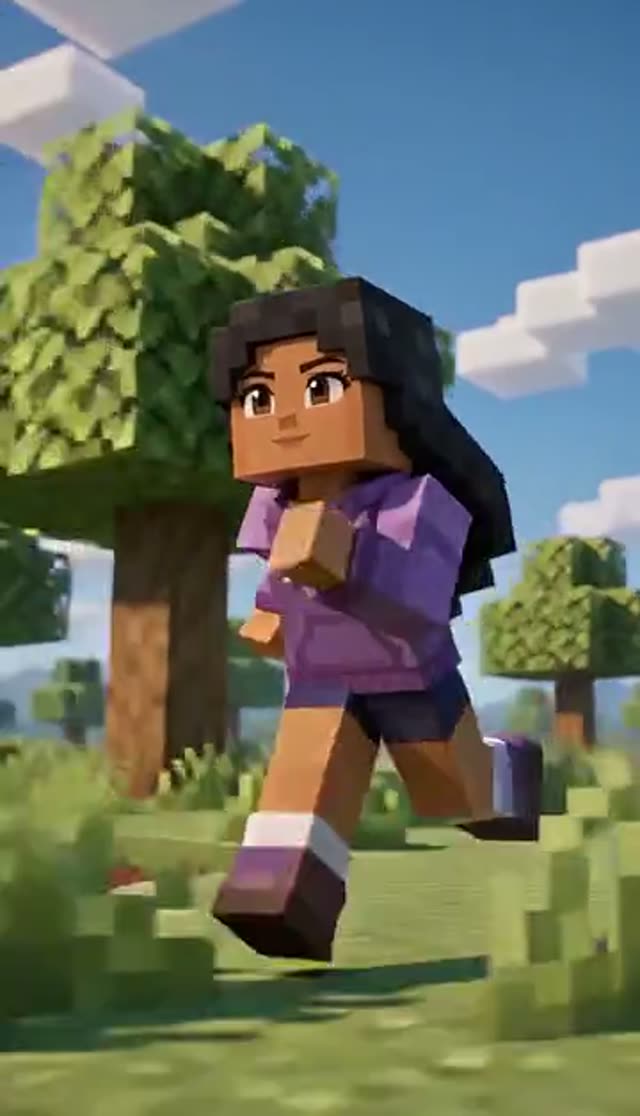
Block World Adventure
Make this with my photo
Builder Mode
Make this with my photo
How it works
- 1
Upload a selfie
A sharp, front-facing photo with good light, up to 10 MB. A strong expression (big grin, mock shout) gives a more distinctive voxel character than a neutral face.
- 2
Pick a block template
Real to Blocky for the reveal, Block World Adventure to explore a voxel landscape, or Builder Mode for block placing. The full prompt shows in the box before you generate.
- 3
Direct the scene
Edit the prompt to add a biome, night with torches, a particular structure, or a low orbit around the character.
- 4
Choose a model, length and shape
Runway Gen-3 is the default (5 or 10 seconds). Use 10 seconds for the Adventure and Builder templates, which need time to move. Pick 9:16 for Shorts and TikTok or 16:9 for a YouTube edit.
- 5
Generate and download
Renders take a few minutes and land in My Creations, ready to cut into a longer video. Failed jobs refund their credits automatically.
Why use this tool
Your face survives the blocks
The templates ask for your expression and pose to stay readable through the voxel conversion, so the result looks like you rather than a generic block character.
Three different videos
A reveal, a world exploration and a building sequence are three distinct clips, each with its own pacing.
Scene direction in plain words
Biome, weather, time of day, mobs, structures and camera movement all respond to the prompt.
Model choice on the tab
Runway, Seedance, PixVerse, Kling, Vidu, Wan, P-Video and LTX-2 Fast are all selectable, so you can find the engine whose motion suits blocky geometry.
Ready for your edit
Set 9:16 or 16:9 before rendering; paid plans download a clean MP4 with no watermark for your timeline.
Refunds on failed jobs
Errored renders return their credits automatically, so testing prompt variations is low-risk.
How the Minecraft-style video filter works
Most "Minecraft filter" apps restyle a still image; some web tools edit a reference frame and then animate it. This tab does both steps in one render: the image-to-video model receives your photo plus a block-style prompt and produces the transformed, moving clip directly. You do not need to make a blocky image first. It starts from a photo, not from existing video footage, so it is a photo-to-video effect rather than a filter you lay over a recorded clip.
Which model should I use for a Minecraft-style video?
Runway Gen-3 is the default and handles camera movement through a scene well. Credits are per clip.
| Model | Lengths | Credits per clip | Good to know |
|---|---|---|---|
| Runway Gen-3 (tab default) | 5 s or 10 s | 10 / 20 at 720p, 20 / 30 at 1080p | Good camera moves through a world |
| Seedance 1.5 Pro | 4 to 14 s | 1.5 credits per second at 720p (8 for 5 s) | Lower-cost prompt tests |
| ByteDance V1 Pro Fast | 5 s or 10 s | 7 / 15 at 720p | Fast drafts; aspect ratio follows your photo |
| PixVerse v4.5 | 5 s or 8 s | 22 / 35 at 720p | Stylised motion that can flatter blocky shapes |
Read more: Runway Gen-3 model page · Best AI model for image to video
Is the Minecraft AI video filter free?
The first clip can be. New accounts get 10 free credits and the default Runway Gen-3 clip (five seconds, 720p) is 10 credits. Seedance 1.5 Pro is 8 for the same clip. Free renders play and download with a VdoBloom watermark, which matters if the clip is going into a longer edit; any credit pack or plan removes it.
The Lite pack is 300 credits for $19.50 one-time (credits never expire) or $15 a month. No card is needed to sign up.
| What 300 Lite credits buy | Clips |
|---|---|
| Runway Gen-3, 5 s 720p (10 each) | 30 |
| Runway Gen-3, 10 s 720p for Adventure or Builder (20 each) | 15 |
| Seedance 1.5 Pro, 5 s 720p (8 each) | 37 |
| ByteDance V1 Pro Fast, 5 s 720p (7 each) | 42 |
Read more: See all credit packs and plans
The three block templates
Each template wants a different clip length.
| Template | What happens | Suggested length |
|---|---|---|
| Real to Blocky | You transform into a cubic, pixel-textured character in a bright grass-and-dirt world | 5 s |
| Block World Adventure | Your voxel character explores trees, mountains, mobs and structures with scene transitions | 10 s |
| Builder Mode | Your character places blocks with creative-mode energy and smooth camera moves | 10 s |
Prompt ideas for block-world clips
Add one line to the template to steer the scene:
- Night scene, torches on the walls, character walks out of a cave toward the camera.
- Snowy mountain biome, character slides down a slope, camera follows from behind.
- Desert with a block pyramid, character jumps onto the first step, slow orbit.
- Underwater ocean biome, blocky fish swimming past, character waves.
- Sunrise over a village, character builds a small house block by block, time-lapse feel.
Who uses it
The before-and-after reads in half a second, needs no sound and loops:
- Gaming YouTubers and streamers: intros, Shorts and moving thumbnail concepts.
- TikTok and Reels creators riding block-game trends.
- Game-night and party invitations starring yourself.
- Friends sending each other blocky versions of themselves.
- Teachers and clubs making a fun opener for a game-design session.
Tips for a recognisable voxel character
Likeness is the usual complaint, and the input photo is usually the fix.
- Use a high-resolution, straight-on photo with even light and no heavy filter.
- Wear something distinctive (a hoodie colour, glasses, a hat); it carries through as block textures.
- Add "keep hair colour and glasses, expression unchanged" to the prompt.
- If the character slides instead of stepping, switch models; engines handle blocky motion differently.
Limits worth knowing
This tab takes one photo per clip; it does not restyle an uploaded video, and it cannot merge separate photos into one scene (put everyone in one photo first). Clips are short and silent, so add music in your editor. The output is a blocky voxel art style inspired by the game's well-known look; it does not use game assets, and VdoBloom is not connected to Mojang or Microsoft.
Frequently asked questions
What is a Minecraft AI video filter?
It is an AI effect that turns a person into a blocky, pixel-textured voxel character and animates them in a cube-built world. On VdoBloom it starts from one photo: the image-to-video model transforms and animates you in a single render.
Is the Minecraft AI video filter free?
Your first clip can be. New VdoBloom accounts get 10 free credits, and the default Runway Gen-3 clip at five seconds and 720p costs 10. Seedance 1.5 Pro costs 8. Free renders carry a VdoBloom watermark; any paid credit pack or plan removes it.
How do I turn myself into a Minecraft-style character on video?
Open the Minecraft tab, upload a clear selfie, choose Real to Blocky, Block World Adventure or Builder Mode, pick a model and aspect ratio, and press generate. The clip arrives in My Creations after a few minutes.
Can I apply the filter to an existing video?
Not on this tab. It works from a photo and generates a new clip. If you want to restyle footage you already shot, use a video-to-video tool instead; this effect is built for selfie-to-blocky transformations.
How much does each clip cost?
At 720p: Runway Gen-3 (the default) is 10 credits for 5 seconds or 20 for 10 seconds, Seedance 1.5 Pro is 8 for 5 seconds, ByteDance V1 Pro Fast is 7, and PixVerse v4.5 is 22. The Lite pack is 300 credits for $19.50 one-time.
Should I render five seconds or ten?
Real to Blocky lands well in five seconds. Block World Adventure and Builder Mode describe movement through a world, so ten seconds (20 credits on Runway Gen-3) gives the camera time to travel.
Can two friends be blocky characters in the same clip?
Yes, if both are in the photo you upload. The effect covers the whole frame, so two people become two voxel characters. It cannot combine two separate photos.
Can I use the clip on YouTube or TikTok without a watermark?
Free-tier clips play and download with a VdoBloom watermark. Any paid credit pack or plan gives a clean MP4. Render 9:16 for Shorts and TikTok or 16:9 for a standard YouTube upload.
Is this an official Minecraft product?
No. VdoBloom has no affiliation, endorsement or licence from Mojang or Microsoft. The tool produces a blocky voxel art style inspired by the game for fan content and social posts. Check the relevant brand guidelines yourself before any commercial use.
Whose photos can I upload?
Photos of adults only: yourself, or someone who has agreed to be in the clip. Uploads are used only to run your generation and stay in your account; you can delete clips from My Creations. Prompts are moderated before they run.