Ghibli AI Video
Turn a photo into a Ghibli-style animated clip
Works with portraits, pets and landscapes.
This version makes 1080p clips up to 5s. PixVerse v5 and newer go longer at 1080p.
Wide screen: YouTube videos, TVs, laptops and website headers.
Standard motion speed
Example
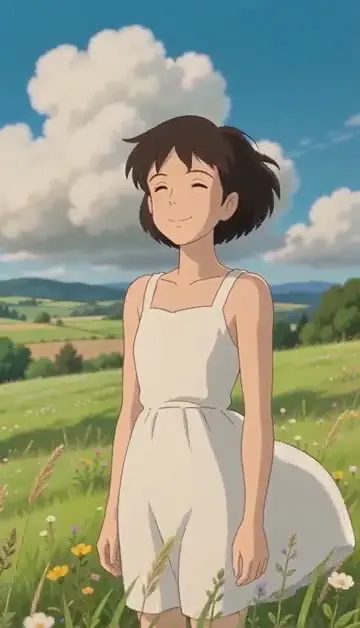
Ghibli AI Video
A photo redrawn as a Ghibli-style scene, with wind moving through the grass
- Output
- 5s · 720p
Ghibli AI Video Generator: Turn a Photo into Hand-Painted Animation
Updated
Quick answer: VdoBloom repaints and animates one photo as a 5-second Ghibli-style clip, and the tab opens on PixVerse v4.5 at 720p for 22 credits, while Runway Gen-3 (10 credits) fits inside the 10 free signup credits. A daily check-in adds 2–5 free credits a day, free-tier downloads carry a VdoBloom watermark that any credit pack removes, and one-time pack credits never expire.
A Ghibli AI video is a short animated clip made from an ordinary photo, repainted in a soft, hand-drawn anime style with watercolor skies, drifting light and a gentle breeze moving through the frame. On VdoBloom you upload one picture, pick a scene template and the AI repaints and animates the subject and the background together. The tab opens on PixVerse v4.5 at 22 credits for a five-second 720p clip; Runway Gen-3 is 10 credits and ByteDance V1 Pro Fast is 7 for the same length. New accounts get 10 free credits, which covers one full clip on Runway Gen-3 or V1 Pro Fast (free renders carry a watermark).
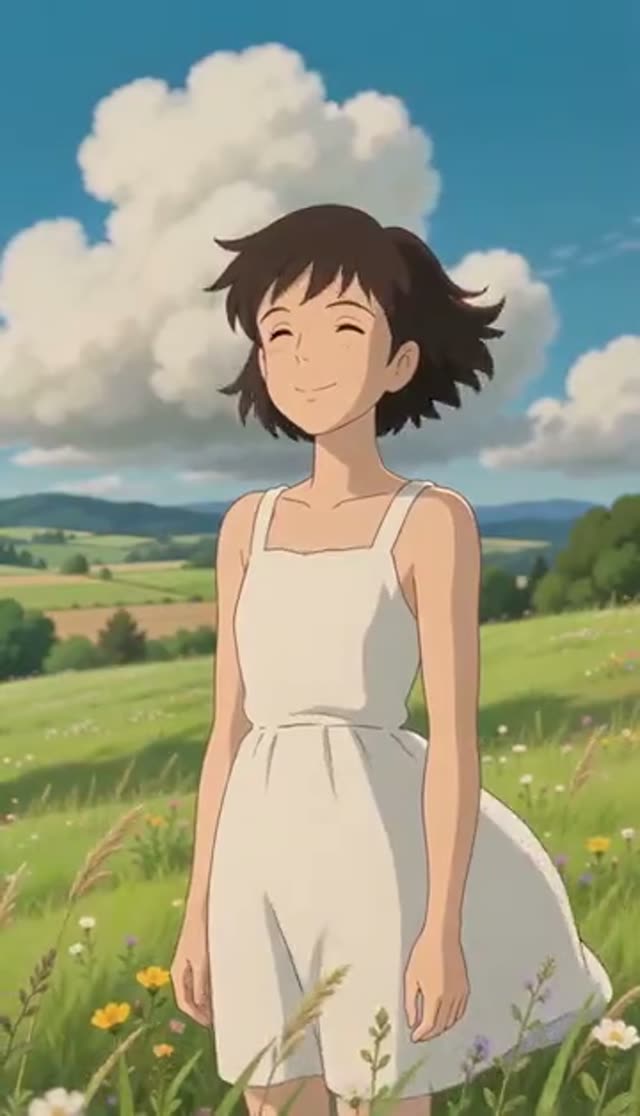
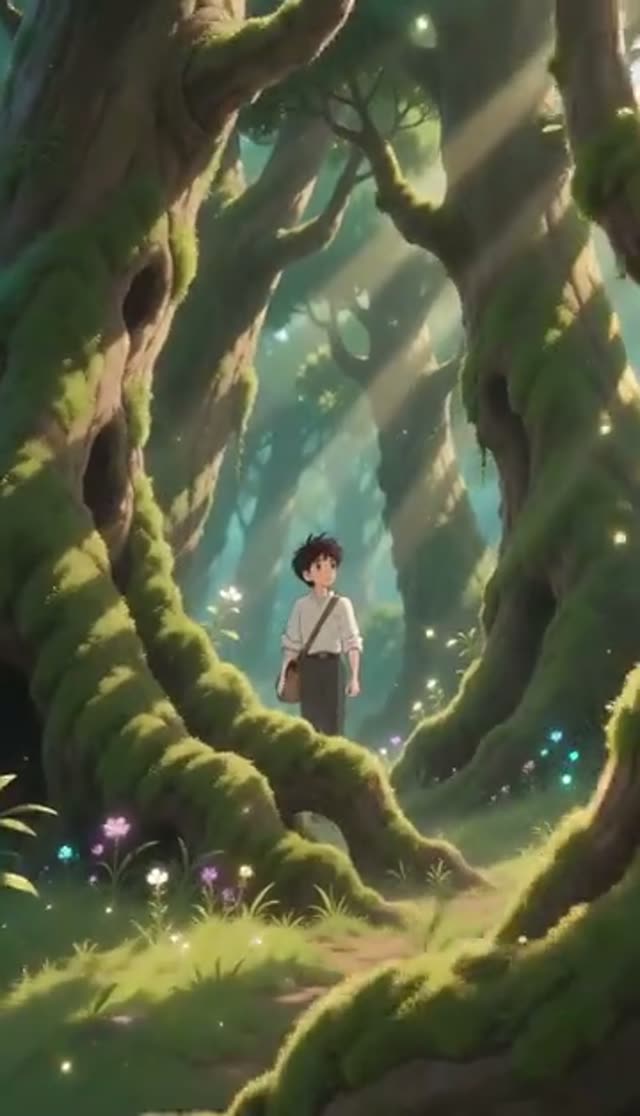
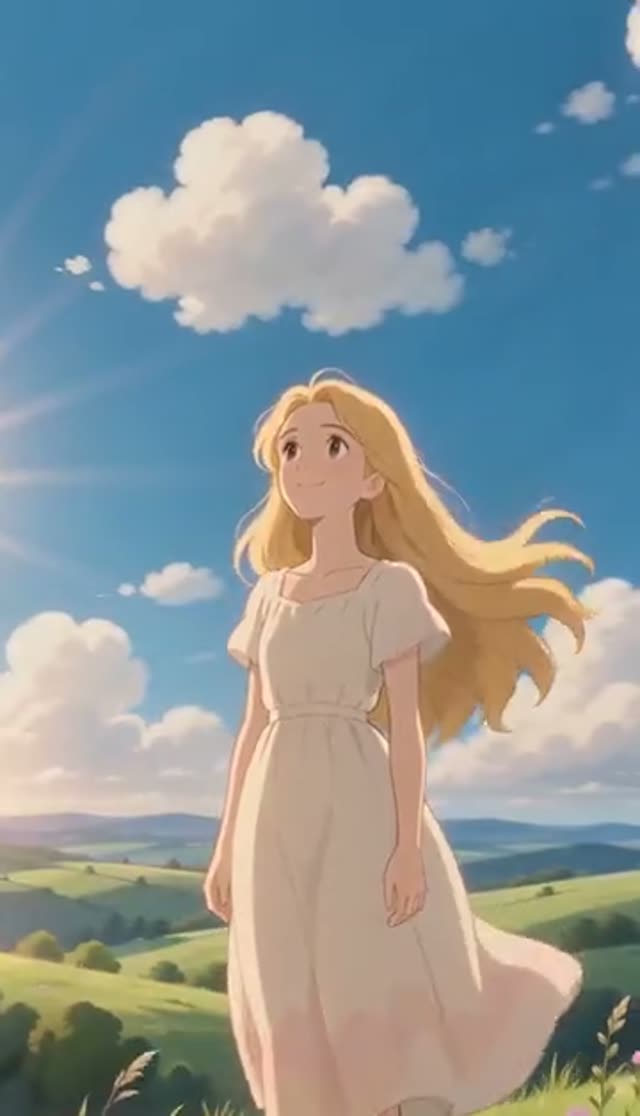
Three templates come with the tab: Classic Ghibli repaints your own setting in watercolor, Ghibli Forest moves the subject into sunlit woodland, and Ghibli Sky opens the frame onto big clouds and warm afternoon light. Each one fills an editable prompt, so you can add a season, the weather or a slow camera move before you render.
It is used for animated profile pictures, Reels and Shorts openers, moving wallpapers, family and pet clips, and travel photos that looked flatter than the day felt. The watercolor pass is forgiving, so an average phone photo often comes out better here than in a photoreal render.
How it works
- 1
Upload one photo
JPG, PNG, WebP or HEIC up to 10 MB. Photos with some sky, trees, a street or a window behind the subject give the repaint more to animate than a tight crop against a plain wall.
- 2
Pick a scene template
Classic Ghibli keeps your setting, Ghibli Forest adds dappled woodland, Ghibli Sky adds wide clouds and golden light. The full prompt appears in the box so you can read it before you spend credits.
- 3
Add one detail to the prompt
A season, a time of day or a camera move changes the whole feel, for example "early autumn, leaves drifting past, slow push-in". Whatever you type is sent to the model.
- 4
Choose a model, length and shape
PixVerse v4.5 is the default (5 or 8 seconds). Switch to Runway Gen-3, Seedance 2 Mini or another image-to-video model if you want a different price or look. Pick 9:16 for TikTok and Reels, 1:1 for a feed post or 16:9 for YouTube.
- 5
Generate and download
Renders usually take a few minutes and run in the background. The clip is saved to My Creations; a failed job refunds its credits automatically.
Why use this tool
Three watercolor scenes built in
Classic, Forest and Sky cover the looks people search for, so you start from a working prompt instead of an empty box.
Whole-frame repaint
The style is applied to the entire image, not only a detected face, so pets, buildings, food and landscapes convert as well as portraits.
Model choice on the same tab
Runway, Seedance, PixVerse, Kling, Vidu, Wan, P-Video and LTX-2 Fast all sit in the model picker, so you can render the same photo twice and keep the better take.
Editable prompt, no hidden preset
Templates fill the box and stay editable. Season, weather, wardrobe and camera direction all go straight to the model.
Shaped before rendering
Aspect ratio and length are set first, so a vertical clip comes out vertical with nothing to crop.
Refunds on failed jobs
If a render errors out, the credits come back automatically, so a provider hiccup costs time rather than credits.
Quick facts
The short version, before you upload:
- Input: one photo of a person, pet or landscape.
- Styles: Classic Ghibli, Ghibli Forest, Ghibli Sky.
- Default: PixVerse v4.5, 5 s, 720p, 22 credits; Runway Gen-3 is 10 credits for the same clip. Every model in the picker is selectable.
- Length: 5 seconds by default; 10 seconds on Runway Gen-3 is 20 credits, and Seedance 2 Mini runs up to 15 seconds.
- Free: 10 credits on signup plus a daily check-in of 2–5 credits (25 over a 7-day streak).
- Watermark: free-tier clips are watermarked; any paid plan or credit pack gives the clean MP4.
- Paying: one-time packs start at 200 credits for $10.39 and never expire; no subscription needed.
Which model should I use for a Ghibli-style video?
The tab opens on PixVerse v4.5 because it handles stylized, anime-like motion well. Every model below can be picked from the same tab. Credits are per clip at the settings shown.
- Run a low-cost draft first (Seedance 2 Mini at 480p or V1 Pro Fast), then render the keeper on PixVerse v4.5.
- The exact credit cost is shown before you confirm, whichever model you pick.
- PixVerse v4.5 (tab default)
- Lengths:5 s or 8 s
- Credits per clip:22 / 35 at 720p, 30 / 50 at 1080p
- Good to know:Leans stylized and animated, a natural fit for the painted look
- Runway Gen-3
- Lengths:5 s or 10 s
- Credits per clip:10 / 20 at 720p, 20 / 30 at 1080p
- Good to know:More cinematic and photographic; can fight a flat painted style
- Seedance 2 Mini
- Lengths:4 to 15 s
- Credits per clip:8 at 480p / 17 at 720p for 5 s
- Good to know:Holds character detail; a 4-second 480p test is 7 credits
- ByteDance V1 Pro Fast
- Lengths:5 s or 10 s
- Credits per clip:7 / 15 at 720p
- Good to know:Quick, low-cost drafts; aspect ratio follows your photo
| Model | Lengths | Credits per clip | Good to know |
|---|---|---|---|
| PixVerse v4.5 (tab default) | 5 s or 8 s | 22 / 35 at 720p, 30 / 50 at 1080p | Leans stylized and animated, a natural fit for the painted look |
| Runway Gen-3 | 5 s or 10 s | 10 / 20 at 720p, 20 / 30 at 1080p | More cinematic and photographic; can fight a flat painted style |
| Seedance 2 Mini | 4 to 15 s | 8 at 480p / 17 at 720p for 5 s | Holds character detail; a 4-second 480p test is 7 credits |
| ByteDance V1 Pro Fast | 5 s or 10 s | 7 / 15 at 720p | Quick, low-cost drafts; aspect ratio follows your photo |
Read more: PixVerse v4.5 model page · Seedance 2 Mini model page · Best AI model for image to video
Is the Ghibli AI video generator free?
You can make one real clip for free. Every new account gets 10 credits, enough for one five-second 720p clip on Runway Gen-3 (10 credits) or ByteDance V1 Pro Fast (7 credits). The default PixVerse v4.5 render is 22 credits, so switch models if you are working from the free credits alone. Free-tier clips play and download with a VdoBloom watermark; any credit pack or plan removes it.
After that, the Lite pack is 300 credits for $19.50 one-time (the credits never expire) or $15 a month on a subscription, with no card needed to sign up.
- PixVerse v4.5 (tab default, 22 each)
- 13
- Runway Gen-3 (10 each)
- 30
- ByteDance V1 Pro Fast (7 each)
- 42
| What 300 Lite credits buy | Clips (5 s, 720p) |
|---|---|
| PixVerse v4.5 (tab default, 22 each) | 13 |
| Runway Gen-3 (10 each) | 30 |
| ByteDance V1 Pro Fast (7 each) | 42 |
Read more: See all credit packs and plans
The three Ghibli scene templates
Each template is a starting prompt you can edit. Pick the one closest to the photo you have.
- Classic Ghibli
- What the AI does:Repaints your own surroundings in watercolor with a soft breeze and nostalgic light
- Works best with:Portraits, street and travel photos
- Ghibli Forest
- What the AI does:Places the subject in a lush forest with light filtering through the trees
- Works best with:Pets, garden photos, outdoor portraits
- Ghibli Sky
- What the AI does:Opens the frame onto blue sky, fluffy clouds and golden light
- Works best with:Landscapes, rooftops, beach and hill photos
| Template | What the AI does | Works best with |
|---|---|---|
| Classic Ghibli | Repaints your own surroundings in watercolor with a soft breeze and nostalgic light | Portraits, street and travel photos |
| Ghibli Forest | Places the subject in a lush forest with light filtering through the trees | Pets, garden photos, outdoor portraits |
| Ghibli Sky | Opens the frame onto blue sky, fluffy clouds and golden light | Landscapes, rooftops, beach and hill photos |
Ghibli prompt ideas you can paste in
Add one of these lines after the template text. Each names a season or time of day, a small motion and a camera move, which is what makes a short clip feel directed.
- Late summer evening, fireflies rising from the grass, slow pan to the right.
- First snow falling, warm window light behind the subject, gentle push-in.
- Windy hilltop, hair and clothes moving, clouds racing overhead, camera holds still.
- Rainy village street, puddles reflecting lanterns, subject looks up, slow tilt.
- Spring morning, petals drifting past, soft sunlight, subtle smile, locked camera.
- Seaside town at golden hour, gulls in the distance, slow drift along the shoreline.
What people make with Ghibli AI videos
The style flatters almost any input, so the uses are broad:
- Animated profile pictures and channel avatars.
- Openers for TikTok, Reels and YouTube Shorts.
- Moving phone or desktop wallpapers from a favorite landscape.
- Pet clips: fur softens and the shape stays readable.
- Travel and holiday photos given a dreamy, nostalgic feel.
- Old family photos, where the painted pass hides grain and color casts.
Tips for a better Ghibli result (and what to avoid)
Most weak results come from the input photo, not the model.
- Use a sharp photo with the subject clearly separated from the background.
- Include some environment: sky, greenery or a street gives the repaint something to animate.
- Avoid heavy filters, motion blur and very dark photos; they muddy the watercolor pass.
- Keep the motion small. "Gentle breeze, slow camera" reads more like hand-drawn animation than fast action.
- Say "keep the face unchanged" if the likeness drifts, or try a second model.
Limits worth knowing
The tab animates one photo per clip; it cannot merge separate photos of different people into one scene, so start from a group photo if you want everyone in. Clips are short (5 to 8 seconds on the default model) and silent, so add music in your editor. The style is inspired by classic hand-drawn Japanese animation in general; it does not reproduce specific characters or film scenes, and VdoBloom has no link to Studio Ghibli.
Frequently asked questions
How do I make a Ghibli style video for free?
Switch the model to Runway Gen-3 (10 credits for 5 seconds at 720p), which the 10 free signup credits cover, then claim the daily check-in for 2 to 5 more credits a day. Free renders are watermarked.
Why does the Ghibli tab cost 22 credits?
It opens on PixVerse v4.5, which costs 22 credits for a 5-second 720p clip. Pick Runway Gen-3 in the model picker for 10 credits.
Is the Ghibli AI video generator free?
You can make one full clip free. New VdoBloom accounts get 10 credits, and a five-second 720p clip costs 10 credits on Runway Gen-3 or 7 on ByteDance V1 Pro Fast. The tab default, PixVerse v4.5, is 22 credits, so switch models if you only have the free credits. Free renders carry a VdoBloom watermark; a credit pack or plan removes it.
How do I turn a photo into a Ghibli-style video?
Open the Ghibli tab, upload one photo, choose Classic Ghibli, Ghibli Forest or Ghibli Sky, optionally add a detail to the prompt, pick a model and aspect ratio, and press generate. The finished clip appears in My Creations after a few minutes.
How much does one Ghibli AI video cost?
It depends on the model. At five seconds and 720p: PixVerse v4.5 (the default) is 22 credits, Runway Gen-3 is 10, Seedance 2 Mini is 17 and ByteDance V1 Pro Fast is 7. The Lite pack is 300 credits for $19.50 one-time, which is 13 PixVerse clips or 30 Runway Gen-3 clips.
Can I remove the watermark?
Yes. Free-tier clips play and download with a VdoBloom watermark. Any paid credit pack or plan gives you a clean MP4 with no logo, ready for TikTok, Reels or YouTube Shorts.
What photo gives the best Ghibli result?
A sharp, evenly lit photo with a clear subject and some visible surroundings, such as sky, trees or a street. The style repaints the background as much as the person, so a close-up against a blank wall gives the model little to work with. Avoid heavy filters, blur and very dark images.
Can I make a Ghibli video of my pet or a landscape?
Yes. The repaint covers the whole frame and does not need a face, so pets, buildings and empty landscapes all work. For landscapes with no one in them, Ghibli Sky and Ghibli Forest give the clearest results.
Can I put several people in one Ghibli clip?
Yes, if they are all in the photo you upload. The tab animates a single image, so a group shot animates as a group. It cannot combine separate photos of different people into one scene.
How long are the videos and how long does it take?
PixVerse v4.5 renders 5 or 8 seconds, Runway Gen-3 5 or 10, and Seedance 2 Mini any length from 4 to 15 seconds. Most clips finish in a few minutes, and you can keep using other tools while they render.
Is this affiliated with Studio Ghibli?
No. VdoBloom is independent and has no affiliation, endorsement or license from Studio Ghibli. The tool makes video in a hand-drawn watercolor animation style inspired by that tradition. Treat the output as personal, fan-style content and check platform rules before any commercial use.
Whose photos can I upload, and are they private?
Upload photos of yourself or of adults who have agreed to it. Your upload is used only to run your generation and stays in your account; VdoBloom does not publish it. You can delete clips from My Creations or delete your account from settings. Prompts are checked against the content policy before they run.