AI Gym Video Generator: Make a Workout Video from One Photo
The VdoBloom AI Gym Video Generator turns one photo into a short workout video of the same person training in a generated gym. Your photo does not need to be taken in a gym: the room, equipment and lighting are built around the subject, then a video model animates the exercise motion. Six presets are offered: Dynamic Workout, Power Lifting, Cardio Training, Muscle Flex, Squat Pose and Yoga Stretch.
Is it free? Your first clip can be. New accounts get 10 free credits, and the tab defaults to Runway Gen-3 at 720p for 5 seconds, which costs exactly 10 credits, so no card is needed. Free-plan clips are watermarked; a paid plan gives you the clean file. Beyond that, 5-second 720p clips cost from 10 to 48 credits depending on the model, and the Lite pack is 300 credits for $19.50 one-time (credits never expire) or $15 a month.
It is built for personal trainers, gyms and fitness creators who need regular short clips for Reels, Shorts, TikTok and class promos without booking a shoot. One thing to know up front: the tab is written around a female subject. The on-screen instruction asks for a photo of a woman and the preset previews show that case, so results with other subjects are less predictable.
Examples
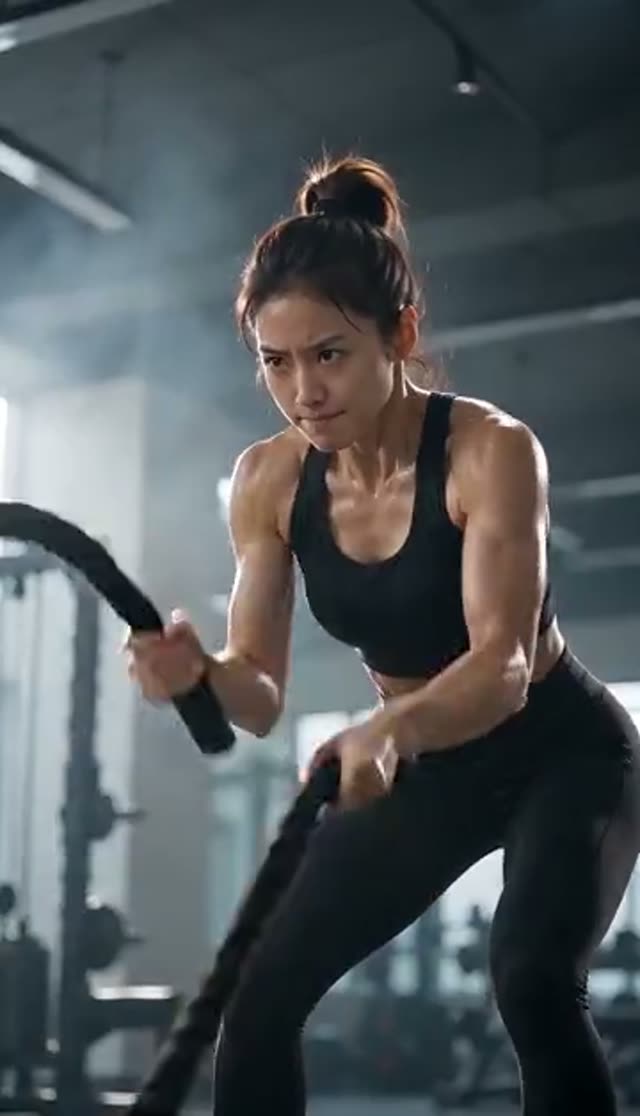
Dynamic Workout
Make this with my photo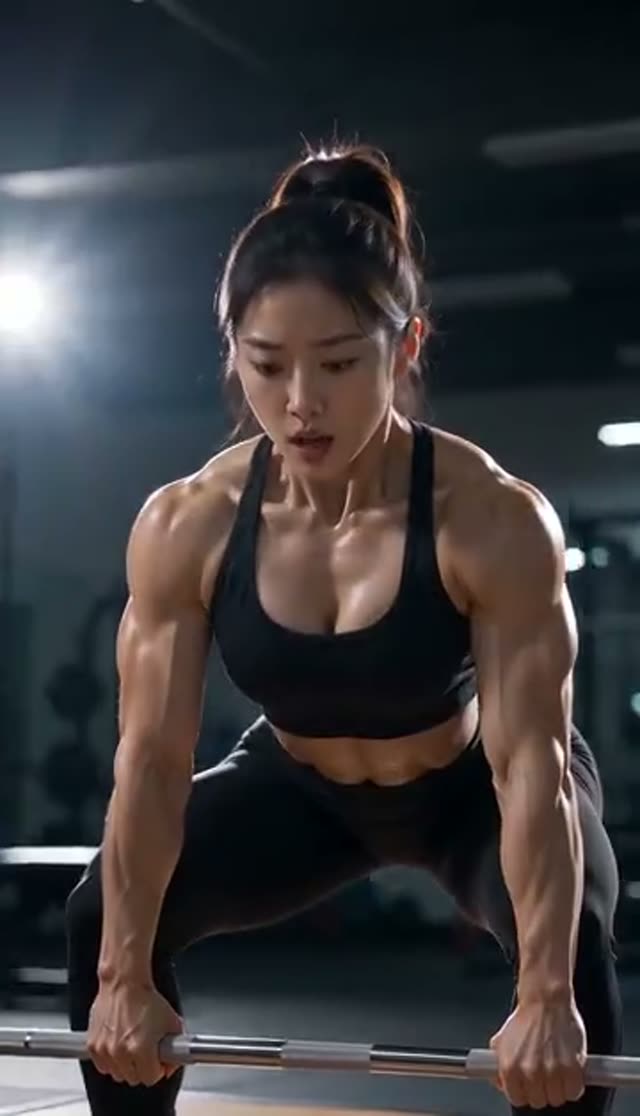
Power Lifting
Make this with my photo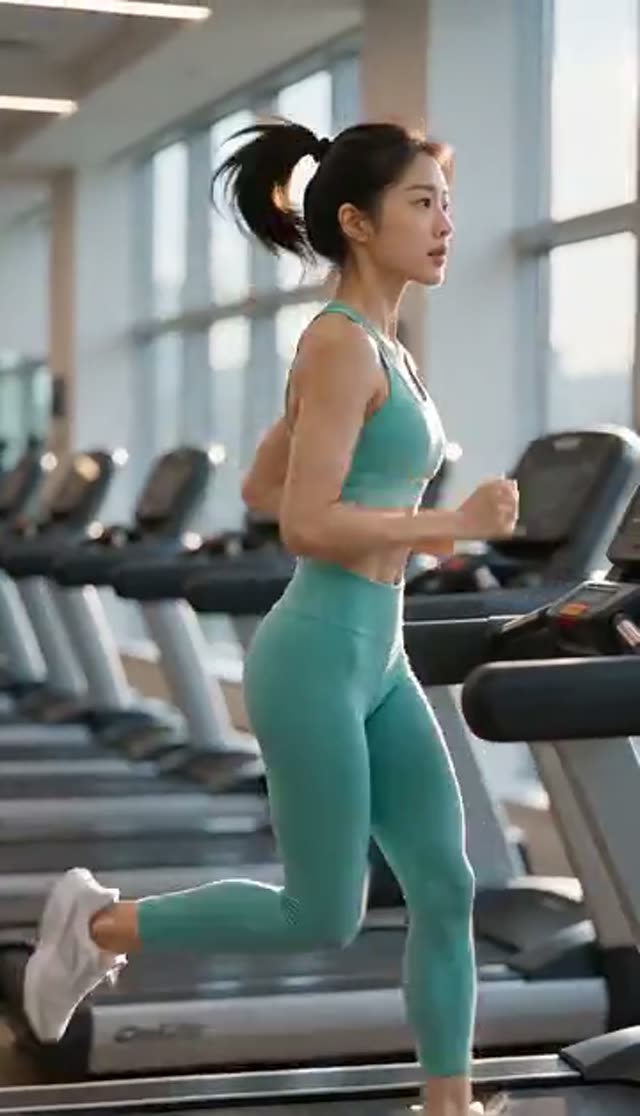
Cardio Training
Make this with my photo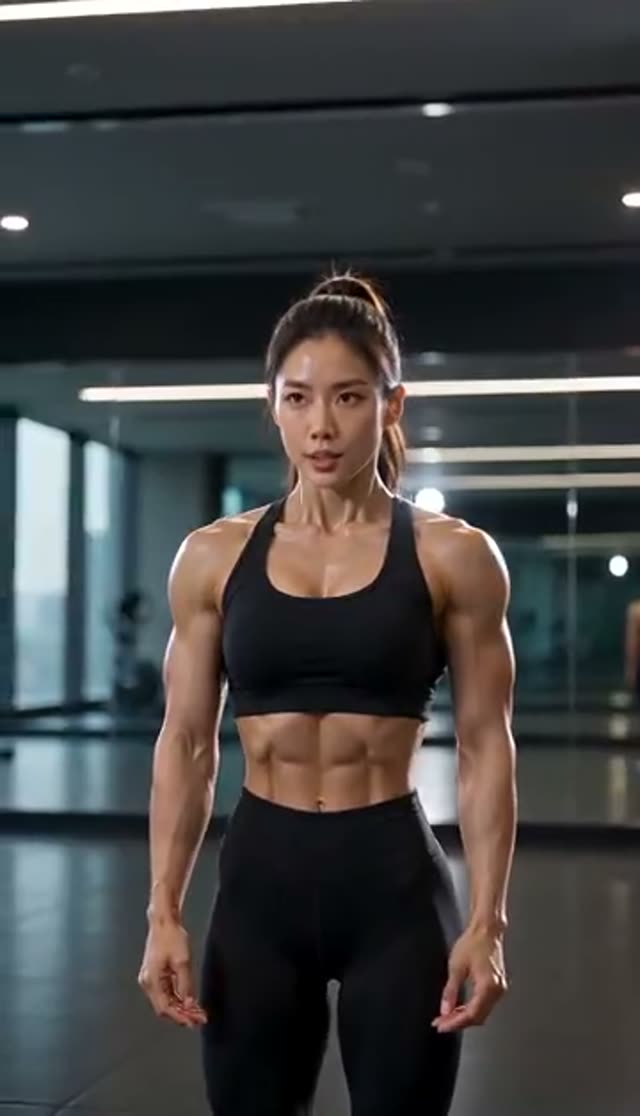
Muscle Flex
Make this with my photo
How it works
- 1
Confirm the adult and consent checkbox
Every generation requires confirmation that the photo shows an adult (18+) and that you hold the rights and the person's consent. This matters for gyms and trainers working from member or client photos.
- 2
Upload one photo
It can be taken anywhere. A clear, evenly lit shot of one person, visible from about mid-thigh up, gives the keyframe stage enough of the body to place in the gym. Busy backgrounds are the most common cause of a muddy first frame.
- 3
Pick a preset
Dynamic Workout, Power Lifting, Cardio Training, Muscle Flex, Squat Pose or Yoga Stretch. Each tile plays a preview clip, so watch them before choosing. Squat Pose is styled more like a fitness campaign than a form demonstration.
- 4
Choose model and format
Runway Gen-3 at 720p for 5 seconds is the default at 10 credits. Set 9:16 for Reels and Shorts, 1:1 for the grid or 16:9 for a website header. Kling V2.5 Turbo follows your photo's own frame, and Vidu 2.0 has no portrait option.
- 5
Generate
A WAN 2.7 image pass builds the gym keyframe, then your model animates it. Five-second jobs usually return within a few minutes, and the clip is saved to your library even if you close the tab.
- 6
Re-render for each slot
Keep the same photo and change the container: 9:16 for Stories, 1:1 for the feed, 16:9 for the site, or a second model for a different motion feel. Most models return silent MP4s, so one music track can cover the set.
Why use this tool
No gym, no camera crew
The keyframe instruction constructs a believable gym around your subject (flooring, racks or mirrors as soft background, cool athletic light), so a phone photo is enough to start.
Six previewed presets
Power Lifting, Cardio Training, Yoga Stretch and the rest each play a sample before you spend a credit, so you can match the clip to the post you are planning.
Sixteen video models
Runway Gen-3, Gen-4 Turbo and Gen-4.5, Kling V2.5 Turbo, PixVerse v3.5 to v6, and Vidu 2.0 to Q3 Turbo, with the credit cost shown before you generate.
Per-model extras
PixVerse v3.5, v4, v4.5 and v5 run PixVerse's own fitness effect template and accept a visual style such as anime, 3D animation, clay, comic or cyberpunk. Vidu 2.0, Q1, Q2 Turbo and Q2 Pro add a movement-amplitude dial and a background-music toggle; Vidu Q3 and Q3 Turbo can generate audio.
Framed before it renders
Choosing 9:16, 1:1 or 16:9 up front means a standing subject is composed for the slot instead of being cropped out of a landscape render.
Nothing charged for a failed job
Credits are taken only after the provider accepts the job, failed generations refund automatically, and the keyframe step is not billed separately.
Which model should I use for a gym video?
The gym tab uses the same 16-model keyframe roster as the other body-motion effects. Costs are for a 5-second clip at 720p unless noted. A practical routine: draft on the default, then re-render the keeper on a heavier model.
| Model | Credits (5 s, 720p) | Good for |
|---|---|---|
| Runway Gen-3 (default) | 10 | Drafts and batches; fits the 10 free credits. 1080p 5 s or 720p 10 s = 20 |
| PixVerse v3.5 | 18 | PixVerse fitness template plus style options, low cost |
| Vidu Q2 Turbo | 18 | Movement-amplitude dial and background music toggle |
| Runway Gen-4 Turbo | 20 | Smoother body motion than Gen-3 |
| PixVerse v4 / Vidu Q3 Turbo | 20 | Template look (v4); generated audio option (Q3 Turbo) |
| PixVerse v4.5 | 22 | Punchier motion with the fitness template |
| PixVerse v5 | 25 | Last PixVerse version that runs the template |
| PixVerse v5.5 | 35 | Premium plain animation |
| Kling V2.5 Turbo / Vidu Q2 Pro / Vidu Q3 | 40 | Different motion character; Kling keeps your photo's frame |
| PixVerse v6 | 45 | Newest PixVerse, plain animation |
| Runway Gen-4.5 | 48 | Most detail; paid ads and website headers |
| Vidu 2.0 | 15 (4 s only) | Short loops; 16:9 or 1:1 |
| Vidu Q1 | 25 (1080p only) | Full-HD output |
Read more: Runway Gen-3 model page · Runway Gen-4.5 model page · PixVerse v4.5 model page · Kling V2.5 Turbo model page
How much does an AI gym video cost?
Clips are paid per render in credits, with no subscription required. One-time pack credits never expire; subscription credits reset each billing cycle. For a trainer planning a month of content:
| What you have | What it buys on this tab |
|---|---|
| 10 free signup credits | 1 default clip (Runway Gen-3, 720p, 5 s), watermarked |
| Lite pack: 300 credits, $19.50 one-time | 30 default clips, or 15 Gen-4 Turbo clips, or 6 Gen-4.5 clips |
| Lite monthly: 300 credits, $15/month | 300 credits each billing cycle, e.g. one default clip a day |
| One 10-second Gen-3 clip | 20 credits (10 s is 720p only on Gen-3) |
Read more: See all credit packs
Tips for better AI workout videos
The gym is invented, but the person is not, so the photo decides most of the quality. If a result looks off, change the photo before you change the settings.
- Show the body from mid-thigh up at least. A headshot gives the keyframe nothing to place against equipment.
- One person per photo; the pipeline is built around a single subject.
- Fitted athletic or everyday clothing reads more naturally in a gym scene than formal wear or heavy coats.
- Even light and a plain background give the cleanest first frame.
- The motion instruction is the same across the six presets, so to change how the clip moves, change the model rather than the preset.
- For a weekly content plan, render one photo in two or three aspect ratios rather than three different photos.
What the gym video generator can and cannot do
It makes short generated clips, usually 5 or 10 seconds, of light exercise motion in a generated gym. It does not coach exercise technique, count reps or produce a full follow-along workout, so do not use it as instruction footage.
- Written around a female subject; other subjects are less predictable.
- No free-text prompt box: presets and model choice are the controls.
- No camera-movement control on effect tabs.
- One photo and one subject. For two people in frame, the Couple Dance and Hugging tabs accept two uploads.
- Every prompt is screened against VdoBloom's content policy, explicit content is not permitted, and images of minors are prohibited.
How gyms, trainers and creators use it
Personal trainers turn a client-approved photo into a programme teaser. Gyms make class and membership promos in vertical format without filming on the gym floor. Fitness creators fill gaps in their posting schedule with Power Lifting or Yoga Stretch clips, and small studios use a 16:9 render as a looping website header. Label realistic AI video of real people as AI-generated when you post it.
Read more: How to make an AI gym video (guide) · AI video for gyms and personal trainers · AI video generator for small business
Frequently asked questions
Is the AI gym video generator free?
Your first clip is. New accounts get 10 free credits and the default render (Runway Gen-3, 720p, 5 seconds) costs exactly 10, with no card required. Free-plan clips are watermarked; a paid plan gives you the clean file.
Can I make a workout video from a photo that was not taken in a gym?
Yes, that is what the tab is for. The gym is generated around the person in your photo, so a picture taken at home, outdoors or in an office works. It needs to be clear, evenly lit and show enough of the body to place in the scene.
What workout styles can I choose?
Six presets: Dynamic Workout, Power Lifting, Cardio Training, Muscle Flex, Squat Pose and Yoga Stretch. Each plays a preview clip. The motion instruction behind them is shared, so the model you choose changes the movement more than the preset does.
Does it work with a male subject?
The tab is written for a female subject: the on-screen instruction asks for a photo of a woman and the previews show that case. You can upload a different photo, but results are less predictable. For a physique change on any adult, the AI Muscle Video Generator is the closer fit.
How much does an AI gym video cost?
A 5-second 720p clip costs 10 credits on Runway Gen-3, 18 on PixVerse v3.5 or Vidu Q2 Turbo, 20 on Gen-4 Turbo, 22 on PixVerse v4.5, 40 on Kling V2.5 Turbo and 48 on Gen-4.5. The Lite pack is 300 credits for $19.50 one-time, enough for 30 default clips.
Can gyms and personal trainers use the videos commercially?
Yes, for class promos, membership drives, programme teasers and website headers. You need the rights to every photo and the person's consent, confirmed before generating. For member or client photos, get written permission as you would for a photo shoot.
Is there a watermark?
On the free plan, yes: the mark is on the player and on the free download, and right-click saving is disabled. Paid plans get the unmarked file. The mark is applied when the video is served, so upgrading later unlocks a clean copy of clips you already made.
How long does a gym video take to generate?
Usually two to three minutes for a 5-second clip. There are two steps behind the button (the gym keyframe, then the animation), so it runs slightly longer than plain image-to-video. Each finished clip drops into your library on its own.
Can I choose the camera movement?
Not on this tab. The camera control is hidden for effect generations because PixVerse effect templates ignore a camera setting. The motion comes from the model you pick and the fixed gym instruction.
Can I put two people in the gym video?
This tab takes one photo and is built around one subject. For two people in frame, use the Couple Dance or Hugging tabs, which accept two separate uploads.