Image to Video AI: Turn Any Photo Into a Video

Updated

How do you turn a photo into a video with AI? Upload the photo, describe the motion and pick a model: short test clips start at 2 credits (a 1-second PixVerse V6 Max clip at 360p), a 5-second clip costs from 7 credits (Seedance V1 Pro Fast, 720p) to 126 credits (Seedance 2.5, 720p), clips run up to 30 seconds and up to 4K on Kling 3.0 Omni, and new accounts get 10 free credits. The model cannot know what your photo does not show, so big head turns can drift.

VdoBloom's image to video AI animates a still photo into a video clip. Upload a picture and describe the motion you want, such as a slow push-in, hair moving in the wind or a product turning on a table. The model treats your image as the first frame and generates the movement while keeping the subject, colors and composition of the original.

Is it free? New accounts get 10 free credits with no card. That covers a full 5-second clip on several models: Seedance V1 Pro Fast at 720p costs 7 credits, P-Video at 720p costs 8, and Grok Imagine and Seedance 2 Mini at 480p cost 8. After that you pay per clip. The Lite plan is 300 credits for $15 a month, or $19.50 as a one-time pack that never expires. The cost of the exact model, length and resolution shows before you generate.

The tab connects to more than 60 image-to-video model versions from 16 families, including Kling 3.0 Omni, Seedance 2.5, Wan 2.7, Veo 3.1, Grok Imagine, Hailuo 2.3, PixVerse V6, MiniMax H3 and Runway. If one model drifts from your photo, you can run the same image and prompt on another without uploading again.

People use it to animate portraits and old family photos, turn product shots into ads, add motion to artwork and AI-generated images, and make vertical clips for Reels, Shorts and TikTok. Free-tier downloads carry a VdoBloom watermark. Paid plans and credit packs download clean, and you keep ownership of what you generate.

Examples

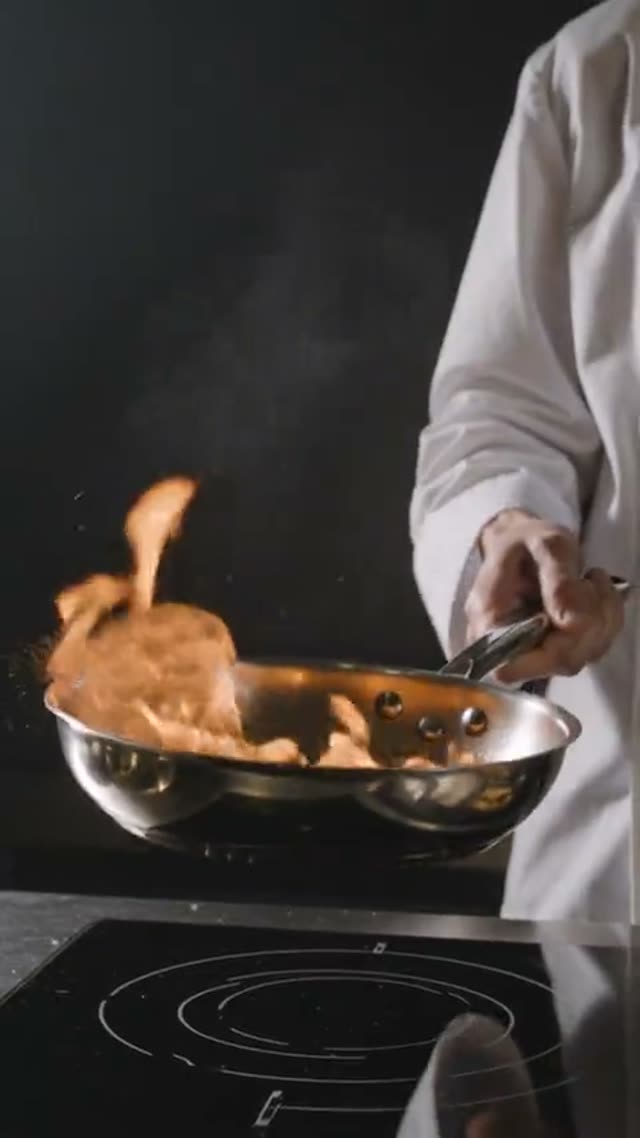
  • Image to Video AI: Turn Any Photo Into a Video — Kling V3.0 Omni Image-to-Video example

    Kling V3.0 Omni Image-to-Video

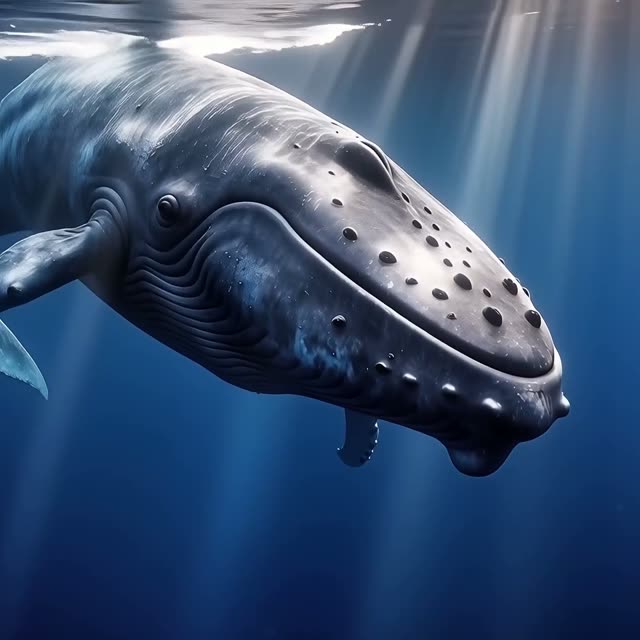
  • Image to Video AI: Turn Any Photo Into a Video — Wan AI 2.7 Image-to-Video example

    Wan AI 2.7 Image-to-Video

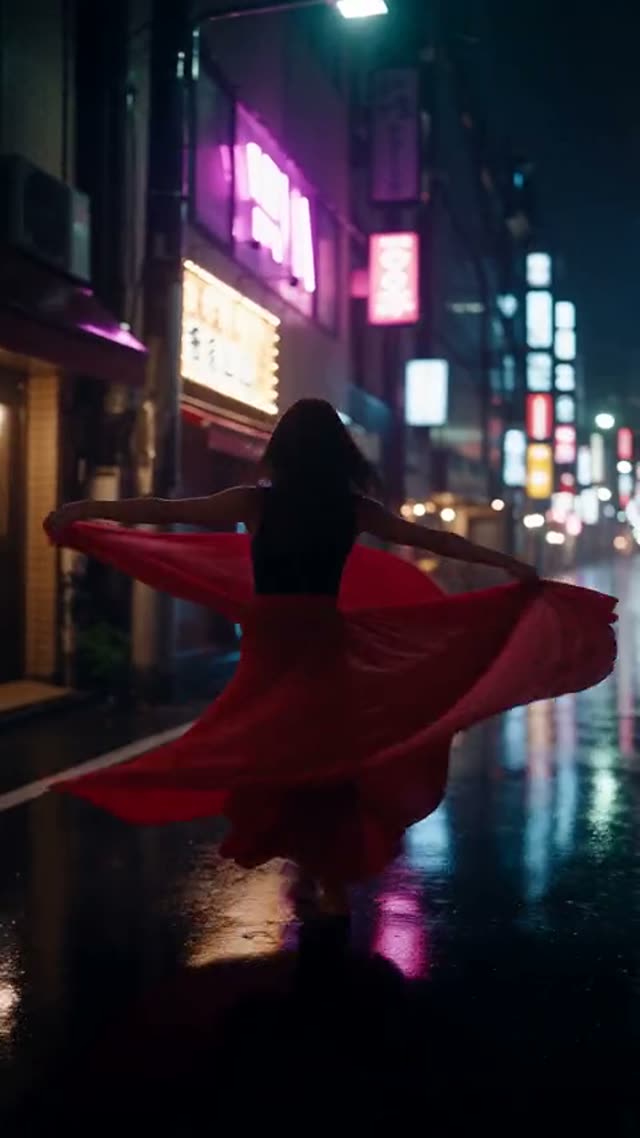
  • Image to Video AI: Turn Any Photo Into a Video — Seedance 2.5 example

    Seedance 2.5

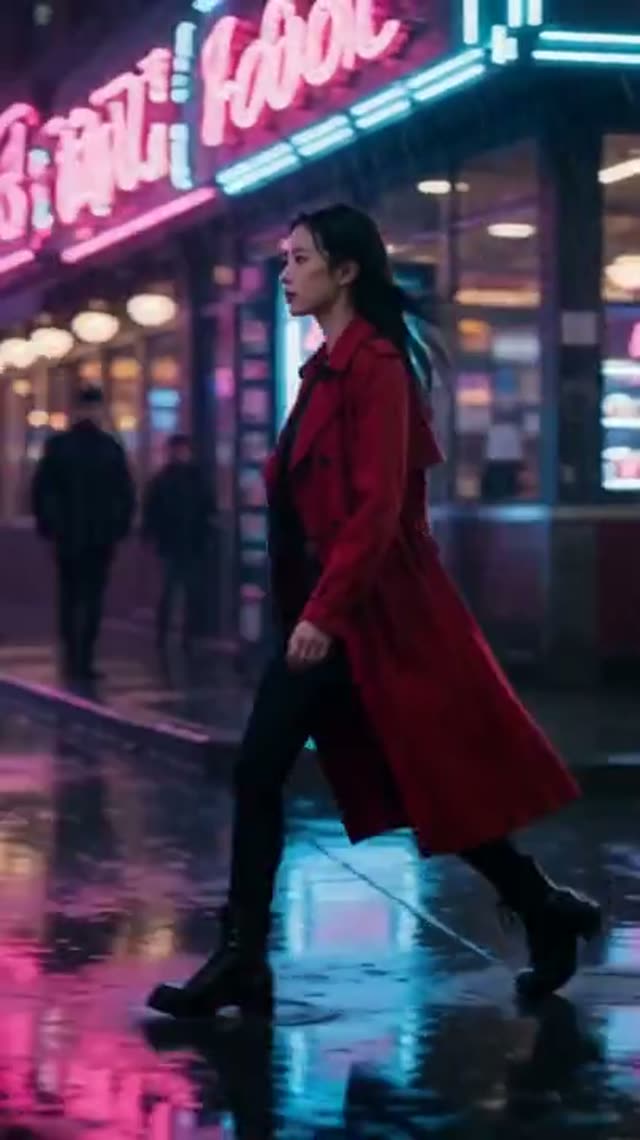
  • Image to Video AI: Turn Any Photo Into a Video — PixVerse V6 example

    PixVerse V6

Watch the tutorial

How to Turn a Photo into a Video with AI (Image to Video Tutorial)

Animate any photo with VdoBloom's Image to Video tool. Pick a model (we use Seedance, version V1 Pro Fast), tick the confirm box, upload one clear photo and describe the motion. In this video: 5 seconds at 720p for 7…

All VdoBloom tutorials

How it works

  1. 1

    Upload your photo

    Use a sharp, well-lit image with a clear main subject. Portraits, product photos, landscapes, illustrations and AI-generated images all work. The aspect ratio of the photo should match the video you want.

  2. 2

    Describe the motion

    Say what should move and how: "she turns toward the camera and smiles, hair lifting in a light breeze, slow push-in". The AI Prompt Builder and the camera chips (Push-in, Orbit 360°, Crane up, Handheld and more) help you word it.

  3. 3

    Choose a model

    Kling 3.0 Omni and Seedance 2.5 are strong at keeping faces true to the source. Wan 2.7 can take a last frame as well as a first. Grok Imagine and Seedance 2 Mini keep the cost low. The table below compares them.

  4. 4

    Set length and resolution, then generate

    Lengths and resolutions vary by model: Seedance 2.5 runs 4 to 30 seconds, Kling 3.0 Omni 3 to 15 seconds with a 4K tier. The credit cost updates as you change settings. If a generation fails, its credits are refunded.

  5. 5

    Download or keep improving

    Save the MP4, adjust the motion prompt and regenerate, or send the clip to the AI Video Upscaler for a sharper 1080p or 4K version.

Why use this tool

  • Over 60 image-to-video models

    Kling, Seedance, Wan, Veo 3.1, Grok Imagine, Hailuo, PixVerse, MiniMax H3, Runway, Vidu, HappyHorse, SkyReels, Gemini Omni and P-Video in one picker.

  • Faces and products stay recognizable

    Because your photo is the first frame, the person, outfit, packaging or room stays as it was shot. Only the motion is generated.

  • First and last frame control

    Models such as Wan 2.7 Image-to-Video and P-Video 2 accept an end frame too, so you control where the motion lands.

  • Up to 30 seconds and 4K

    Seedance 2.5 and Wan 3.0 animate a photo for up to 30 seconds. Kling 3.0 Omni renders up to 4K.

  • Native audio on some models

    Kling 3.0 Omni, Wan 2.6 Flash, Wan 3.0, PixVerse V6 and P-Video 2 can generate sound with the clip.

  • Cost shown upfront, credits that do not expire

    The credit cost displays before you generate. One-time pack credits never expire, and subscription credits reset each cycle.

Which image-to-video model should you use?

Each model handles a photo differently. Some hold identity tightly, some move more, and some are much cheaper. These are the models most people start with on this tab. Credits are for one 5-second clip at 720p unless the row says otherwise.

Kling 4.0 Image-to-Video
Best for:Your photo as frame one, up to 30 s
Length:3–30 s
Resolution:720p, 1080p
Credits (5 s, 720p):57 (85 at 1080p)
Kling 3.0 Omni Image-to-Video
Best for:Faithful faces, native audio, 4K
Length:3–15 s
Resolution:720p, 1080p, 4K
Credits (5 s, 720p):40 (54 at 1080p, 151 at 4K)
Kling V3 Turbo Image-to-Video
Best for:Fast Kling animation
Length:3–15 s
Resolution:720p, 1080p
Credits (5 s, 720p):40
Kling 2.6 Image-to-Video
Best for:Lower-cost Kling, optional sound
Length:5 or 10 s
Resolution:Set by model
Credits (5 s, 720p):25 (50 with sound)
Seedance 2.5
Best for:Natural motion, long takes from one photo
Length:4–30 s
Resolution:480p, 720p, 1080p
Credits (5 s, 720p):126 (56 at 480p)
Seedance 2 Mini
Best for:Low-cost Seedance 2 drafts
Length:4–15 s
Resolution:480p, 720p
Credits (5 s, 720p):17 (8 at 480p)
Seedance V1 Pro Fast
Best for:Low-cost quick animation
Length:5 or 10 s
Resolution:720p, 1080p
Credits (5 s, 720p):7
Wan 2.7 Image-to-Video
Best for:First and last frame control
Length:5, 10 or 15 s
Resolution:720p, 1080p
Credits (5 s, 720p):32
Wan 2.6 Flash
Best for:Fast clips with native audio
Length:2–15 s
Resolution:720p, 1080p
Credits (5 s, 720p):20
Wan 3.0
Best for:Up to 30 s with native audio
Length:2–30 s
Resolution:480p, 720p, 1080p
Credits (5 s, 720p):32 (16 at 480p)
Grok Imagine Video 1.5
Best for:Cheap, flexible lengths
Length:1–15 s
Resolution:480p, 720p, 1080p
Credits (5 s, 720p):15 (8 at 480p)
Hailuo 2.3 Standard
Best for:Smooth portrait motion
Length:6 or 10 s
Resolution:768P, 1080P
Credits (5 s, 720p):15 (6 s at 768P)
Hailuo 2.3 Pro
Best for:Higher-detail Hailuo
Length:6 or 10 s
Resolution:768P, 1080P
Credits (5 s, 720p):18 (6 s at 768P)
Veo 3.1 Fast
Best for:Cinematic motion with audio
Length:One clip
Resolution:16:9 or 9:16
Credits (5 s, 720p):25 per clip
PixVerse V6 Max Image-to-Video
Best for:Long shot prompts, audio on or off
Length:1–15 s
Resolution:360p–1080p
Credits (5 s, 720p):18 (24 with audio)
PixVerse V6
Best for:Stylized and multi-shot clips
Length:1–15 s
Resolution:360p–1080p
Credits (5 s, 720p):45
P-Video
Best for:Quick, low-cost test renders
Length:4–10 s
Resolution:720p, 1080p
Credits (5 s, 720p):8

Read more: Kling 4.0 Image-to-Video · Kling 3.0 Omni Image-to-Video · Kling V3 Turbo Image-to-Video · Kling 2.6 Image-to-Video · Seedance 2.5 · Seedance 2 Mini · Seedance V1 Pro Fast · Wan 2.7 Image-to-Video · Wan 2.6 Flash · Wan 3.0 Video · Grok Imagine Video 1.5 · Hailuo 2.3 Standard · Hailuo 2.3 Pro · Veo 3.1 Fast · PixVerse V6 Max Image-to-Video · PixVerse V6 · P-Video

Quick facts: image to video on VdoBloom

The numbers that matter before you upload, taken from the live model table above.

Cost per 5-second clip
7 credits (Seedance V1 Pro Fast, 720p) up to 126 (Seedance 2.5, 720p); shown before you generate
Free to start
10 credits on sign-up, no card
Longest clip
30 seconds (Seedance 2.5, Kling 4.0, Wan 3.0)
Highest resolution
4K on Kling 3.0 Omni; 1080p on most others
End frame (start and end photo)
Seedance 2 and Seedance 2.5 reliably end on it; Wan 2.7 and P-Video 2 also accept one; Keyframe Morph for 2 to 6 photos
Seamless loops
Seamless Loop tool: same photo as first and last frame, 9:16 wallpaper target
Failed run
Credits refunded automatically

How to animate a portrait so the person smiles and blinks

Small, natural movements hold a face best. Upload a sharp, front-facing portrait and keep the prompt about tiny actions and a locked camera, for example: "subtle natural smile, one slow blink, slight breathing, head still, camera locked, soft light unchanged". Pick a model that holds identity, such as Kling 3.0 Omni or Seedance 2.5, and keep the clip at 5 seconds; shorter clips drift less. Avoid asking for a head turn, talking or hands entering the frame in the same clip. For an old family photo, the Revive Photo tool repairs and animates in one step.

Read more: Revive Photo (animate old photos)

How to make photo to video AI without losing quality

Most quality loss comes from the source and the render size, not the model. Four habits keep the result sharp:

  • Upload the original, highest-resolution file, not a screenshot or a compressed chat download.
  • Crop to the final aspect ratio first (9:16, 16:9 or 1:1) so the model is not stretching or padding the frame.
  • Pick a 1080p setting (or 4K on Kling 3.0 Omni) when the model offers it; 480p is for cheap drafts.
  • Keep motion gentle; fast motion blurs fine detail. If you need it sharper afterwards, run the clip through the AI Video Upscaler.

Read more: AI Video Upscaler

How to make a video from a start frame and an end frame

Choose a model with last-frame support, upload your start photo, add the end photo in the end-frame slot and describe the move between them. In our own checks Seedance 2 and Seedance 2.5 land on the end photo reliably, while Seedance 2 Fast and 2 Mini tended to ignore it; Wan 2.7 Image-to-Video and P-Video 2 also take an end frame. The model generates the motion that gets from one to the other. To chain more than two photos (for example a face changing over the years), use Keyframe Morph, which takes 2 to 6 photos and makes one clip per pair.

Read more: Keyframe Morph

How to turn a wallpaper image into a live moving wallpaper

A live wallpaper has to loop without a jump, so use the Seamless Loop tool rather than a plain image-to-video clip. Upload the wallpaper, choose the Phone wallpaper 9:16 target (or Website hero 16:9 for a desktop), pick a motion such as Wind & water or Glow & light, and generate. The same image is used as the first and last frame, so the loop closes. A 5-second Kling 3.0 loop at 720p is 30 credits. Then set the MP4 as a live or video wallpaper in your phone settings or a wallpaper app.

Read more: Seamless Loop

Is photo to video AI free on VdoBloom?

Yes, to start. Every new account gets 10 credits with no card. That is enough to animate one photo into a full 5-second clip on Seedance V1 Pro Fast at 720p (7 credits), P-Video at 720p (8), Grok Imagine or Seedance 2 Mini at 480p (8) or Runway Gen-3 (10). It renders at full quality. Free-tier downloads carry a VdoBloom watermark, and paid plans and packs remove it.

After that, the Lite plan gives 300 credits for $15 a month, or $19.50 as a one-time pack. Pack credits never expire. Subscription credits reset each billing cycle.

What 300 credits buys in image to video

How many photos you can animate depends on the model. Here is how many 5-second clips the Lite allowance covers, rounded down to whole clips.

Seedance V1 Pro Fast, 5 s at 720p
Credits per clip:7
Clips from 300 credits:42
Grok Imagine Video 1.5, 5 s at 720p
Credits per clip:15
Clips from 300 credits:20
Seedance 2 Mini, 5 s at 720p
Credits per clip:17
Clips from 300 credits:17
Kling 2.6, 5 s
Credits per clip:25
Clips from 300 credits:12
Wan 2.7 Image-to-Video, 5 s at 720p
Credits per clip:32
Clips from 300 credits:9
Kling 3.0 Omni, 5 s at 720p
Credits per clip:40
Clips from 300 credits:7
Seedance 2.5, 5 s at 720p
Credits per clip:126
Clips from 300 credits:2

Read more: Plans and credit packs · How credits work · Best AI model for image to video

Tips for better image-to-video results

The photo does most of the work, so start with a good one. Then keep the motion prompt about movement. The model can already see what the picture shows.

  • Use a sharp, evenly lit source. Blur, heavy compression and tiny faces give the model less to hold on to.
  • Describe motion, not the picture: "camera slowly pushes in as steam rises from the cup" beats re-describing the cup.
  • Ask for one or two movements per clip. Several competing actions cause warping.
  • Crop the photo to the aspect ratio you want (9:16 for Reels and Shorts) before uploading.
  • If the face drifts, try Kling 3.0 Omni or Seedance 2.5, or shorten the clip.
  • For a set ending, use a model with last-frame support, such as Wan 2.7 Image-to-Video.

Read more: Image-to-video best practices · Camera movement prompts for AI video · Can AI make a video from one photo?

What people animate with image to video

Any still can become a clip, but these uses come up most.

  • Portraits and selfies: a smile, a head turn or a breeze for profile videos and social posts.
  • Old and family photos: subtle, respectful motion for memorial and anniversary videos.
  • Product shots: a slow orbit or reveal for ads, store listings and Reels.
  • Artwork, illustrations and AI-generated images: bring a character or scene to life.
  • Real estate and travel photos: gentle camera moves that make a still feel like footage.

Read more: Revive Photo · 360 product video generator · Seedance 2.5 image to video

Image to video vs text to video

Image to video starts from your picture, so the subject looks exactly as photographed and only the motion is new. Text to video invents the whole frame from words. When a face, product or brand asset has to match, use image to video. You can generate the still first with the AI Image Generator and then animate it here.

Read more: Text to Video AI · Text to video vs image to video · AI Image Generator

Limits to know

The model invents what the photo does not show, so a turned head or a hand coming into frame can look different from the real person. Very busy scenes, extreme angles and small faces animate less reliably. Text and logos in the image may warp once they move. Clip length is set by the model, up to 30 seconds on Seedance 2.5 and Wan 3.0. Upload only photos you have the right to use, and get consent from any real person shown. Generations are screened and follow VdoBloom's content policies, so some requests are refused.

Frequently asked questions

Is there a free image to video AI?

Yes. VdoBloom gives new accounts 10 free credits with no card. That animates one photo into a full 5-second clip on Seedance V1 Pro Fast (7 credits at 720p), P-Video (8 at 720p), Grok Imagine or Seedance 2 Mini (8 at 480p) or Runway Gen-3 (10). Free-tier downloads carry a watermark.

How do I turn a photo into a video with AI?

Open the Image to Video tab, upload the photo, describe the motion you want, pick a model and generate. The model uses your photo as the first frame and animates it. The finished MP4 appears in My Creations, usually within a few minutes.

How can I animate a portrait photo so the person smiles and blinks?

Upload a sharp, front-facing portrait and prompt only small actions with a still camera: "subtle natural smile, one slow blink, slight breathing, head still, camera locked". Use a model that holds faces well, such as Kling 3.0 Omni or Seedance 2.5, and keep it to about 5 seconds. Skip head turns and talking in the same clip, because those drift most.

How do I make photo to video AI without losing quality?

Upload the original high-resolution photo, crop it to your final aspect ratio first, choose a 1080p setting (or 4K on Kling 3.0 Omni) and keep the motion gentle. If the clip still needs more detail, run it through the AI Video Upscaler afterwards.

How do I make a video from a start frame and end frame with AI?

Pick a model that honors a last frame, such as Seedance 2 or Seedance 2.5 (Wan 2.7 Image-to-Video and P-Video 2 also accept one), upload the start photo and the end photo, and describe the motion between them. For three to six photos in a row, use Keyframe Morph, which makes one clip per pair of photos.

How can I make my wallpaper image into a live moving wallpaper with AI?

Use the Seamless Loop tool with the Phone wallpaper 9:16 target and a gentle motion such as Wind & water or Glow & light. It uses your image as both the first and last frame, so the video loops without a jump. A 5-second Kling 3.0 loop at 720p costs 30 credits. Set the downloaded MP4 as a live or video wallpaper on your phone.

Which AI model is best for image to video?

For faces that stay true to the photo, Kling 3.0 Omni and Seedance 2.5. For first-and-last-frame control, Wan 2.7 Image-to-Video. For the lowest cost, Seedance V1 Pro Fast, Grok Imagine or Seedance 2 Mini. Running the same photo on two models is often the quickest way to decide.

How much does image to video cost?

It depends on the model, length and resolution, and the cost shows before you generate. For a 5-second 720p clip: Seedance V1 Pro Fast 7 credits, Grok Imagine 15, Seedance 2 Mini 17, Wan 2.7 32, Kling 3.0 Omni 40, Seedance 2.5 126. 300 credits cost $15 a month or $19.50 one-time.

How long can a photo-to-video clip be?

Up to 30 seconds on Seedance 2.5 and Wan 3.0. Kling 3.0 Omni, Grok Imagine, Wan 2.6 Flash, Wan 2.7 and PixVerse V6 go to 15 seconds, and Hailuo 2.3 to 10.

Will the person in my photo still look the same?

The photo is the first frame, so the clip starts as an exact match. Big movements such as a full head turn can drift. Kling 3.0 Omni and Seedance 2.5 tend to hold identity closely, and shorter clips drift less than long ones.

Can I animate old or black-and-white photos?

Yes. Scanned prints and black-and-white photos animate well when the scan is sharp. The Revive Photo tab is built for this: it repairs scratches, recovers color and adds gentle, natural motion.

Can image-to-video AI add sound?

Some models generate audio with the clip, including Kling 3.0 Omni, Wan 2.6 Flash, Wan 3.0, PixVerse V6 and P-Video 2. Kling 2.6 offers sound as an option at double the credit cost.

Does the video have a watermark?

Free-tier downloads include a VdoBloom watermark. Clips made on any paid plan or credit pack download without one.

Can I use AI-generated images as the source?

Yes. Images from the AI Image Generator or any other tool work as long as you have the right to use them. Generating the still first is a common way to control the look before animating.