Kling V2.6 Image-to-Video: Image to Video Online
Bottom line
Kling 2.6 animates a photo in HD for 22 credits (5s) or 44 credits (10s) — image-to-video only. Upload a starting frame, choose Kling V2.6 Image-to-Video in the Image to Video tool, and animate it on VdoBloom — the credit price appears before every generation.
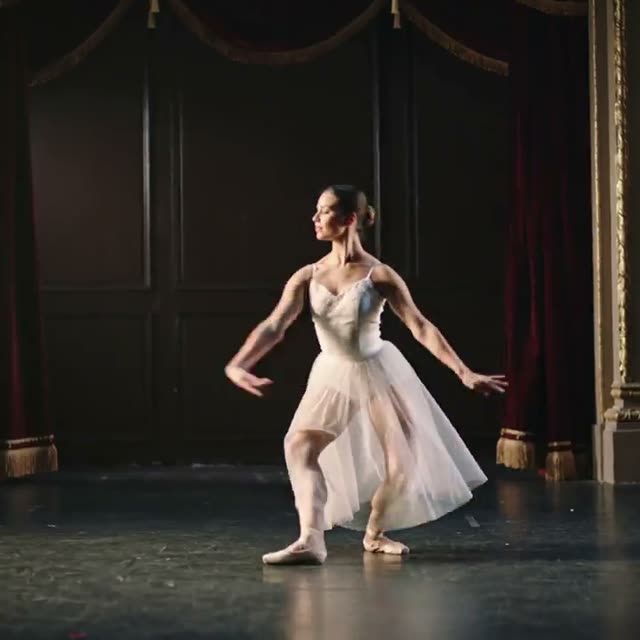
Kling 2.6 Image-to-Video is Kuaishou's HD image-animation model on VdoBloom, one step up in the Kling lineup from V2.5 Turbo. Like V2.5 Turbo it's image-to-video only — no text-to-video mode — and the output aspect ratio follows whatever shape the source photo already is, so there's no separate ratio picker to set.
You choose between a 5-second and 10-second clip; there's no resolution tier to pick, VdoBloom generates the model's standard HD output either way. Pricing is flat and duration-based: 22 credits for 5 seconds, 44 credits for 10 seconds, shown before you generate and refunded automatically if the job fails.
Kling 2.6 sits between V2.5 Turbo (cheaper, older) and Kling 3.0 / Kling 3.0 Omni (newer, pricier, with resolution tiers up to 4K and native audio) in VdoBloom's Kling family. It's a reasonable middle ground when you want HD image animation without the per-second billing and extra controls of the Kling 3.0 generation.
What it costs on VdoBloom
Kling 2.6 Image-to-Video is priced flat by length: 22 credits for a 5-second clip, 44 credits for a 10-second clip. There's no quality or aspect-ratio setting that changes the price — VdoBloom always shows the exact cost before you generate, and refunds it automatically if the job fails.
Kling 2.6 vs Kling 3.0
Kling 3.0 (kling-3.0/video) is the newer flagship: 3–15 second durations, std/pro/4K quality tiers, and text-or-image starting points, priced per second from 5.6 credits/s (std) up to 26.8 credits/s (4K). Kling 2.6 trades that flexibility for simplicity — a flat 22 or 44 credits, HD output only, image-to-video only, no quality tier to configure.
Use Kling 2.6 when a predictable, low flat price matters more than resolution or duration control. Use Kling 3.0 when you need a specific length, a 4K output, or the option to start from text instead of an image.
What creators use Kling V2.6 Image-to-Video for
- Animating a still photo into an HD 5–10 second clip without a text prompt driving the whole scene.
- Producing a batch of short product or portrait animations at a predictable flat price.
- A mid-tier option when Kling V2.5 Turbo feels too basic but Kling 3.0's per-second pricing feels like overkill.
How to use Kling V2.6 Image-to-Video on VdoBloom
- 1Open the Image to Video tool and select Kling V2.6 Image-to-Video from the model picker.
- 2Upload your starting image and describe the motion you want in the prompt.
- 3Choose your duration (5–10s), review the credit cost, and generate.
Frequently asked questions
How much does Kling 2.6 cost on VdoBloom?
It's flat, by duration: 22 credits for a 5-second clip, 44 credits for a 10-second clip. The cost is shown before you generate.
Is Kling 2.6 free?
New accounts get 10 free credits, which covers roughly half of a 5-second Kling 2.6 clip — enough to see the tool, not enough to finish a generation without topping up.
Does Kling 2.6 support text-to-video?
No — on VdoBloom, Kling 2.6 is image-to-video only. Upload a photo and it animates that image; there's no separate text-only mode.
What's the max length for a Kling 2.6 video?
Two choices: 5 seconds or 10 seconds. There's no in-between custom duration and no resolution selector — output is HD.
Is Kling 2.6 better than Kling 3.0?
They're built for different budgets. Kling 3.0 (kling-3.0/video) runs 3–15 seconds with std/pro/4K tiers, priced per second (5.6–26.8 credits/s depending on tier). Kling 2.6 is flat 22 or 44 credits regardless of quality, with no 4K option — cheaper and simpler, but less control over duration and resolution.
Is Kling 2.6's content filter strict?
VdoBloom rates Kling's content filter STRICT: the provider rejects sexual, violent, and other policy-violating uploads or prompts before a generation runs.
Is Kling AI open source?
No, Kling is a proprietary model from Kuaishou, accessed only through its API — same on VdoBloom as anywhere else.
Can I add a prompt to Kling 2.6 Image-to-Video?
Yes, an optional prompt (up to 2,500 characters, VdoBloom's limit across the Kling family) can describe the motion you want on top of the source image.
What happens if my Kling 2.6 generation fails?
The credit cost is shown up front, and failed generations are refunded automatically — no support ticket needed.