HappyHorse Image-to-Video 1.0: Image to Video Online
Bottom line
First-generation HappyHorse animation: any still becomes 4-15 seconds of motion at 720p or 1080p. Upload a starting frame, choose HappyHorse Image-to-Video 1.0 in the Image to Video tool, and animate it on VdoBloom — the credit price appears before every generation.
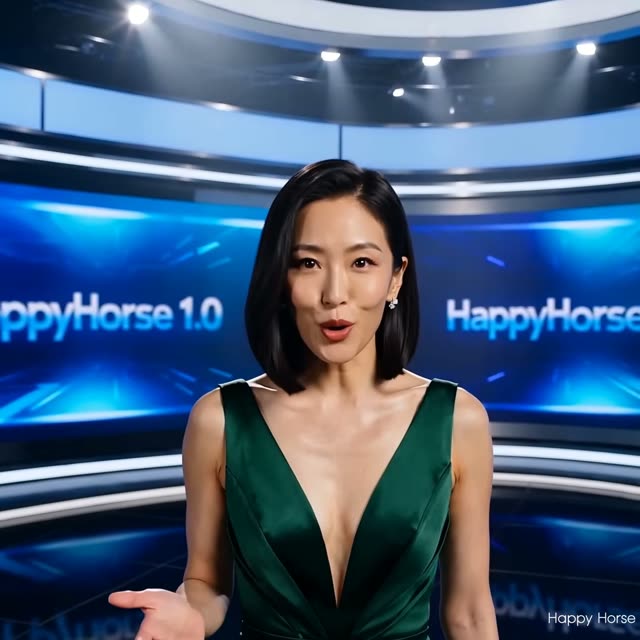
HappyHorse Image-to-Video 1.0 takes a still image and a motion description and returns a clip between 4 and 15 seconds, at 720p or 1080p. There's no aspect-ratio control — output follows the shape of the image you upload — which keeps the workflow to two real decisions: duration and resolution.
Pricing tracks the rest of the HappyHorse 1.0 line at roughly 11.5 credits per second at 720p and 19.7 at 1080p, flat regardless of clip length, so a 4-second and a 15-second clip cost proportionally the same per second of output. The 15-second ceiling, selectable at any whole second from 4, gives slow reveals and drifting camera moves more room than the 5-second caps common on some other image animators.
The 1.1 revision shares this exact duration and resolution range — the versions differ only where reference-to-video and text-to-video add aspect-ratio options; image-to-video itself doesn't change between them. Content filtering is VdoBloom's standard MODERATE tier, and the credit cost for your settings is always shown before you confirm a generation.
What it costs on VdoBloom
Flat per-second pricing: about 11.5 credits/second at 720p, 19.7 at 1080p, across the full 4-15 second range. A 4-second 720p clip is 46 credits; a 10-second 1080p clip is 197 credits; a 15-second 1080p clip is 295 credits — the ceiling for this model.
Tips for animating a still without wasted credits
Because price scales linearly with duration and there's no discount for longer clips, test a new image and prompt combination at a short duration (4-5 seconds) and 720p first, then re-run the confirmed setup at your target length and resolution. Since output follows your source image's aspect ratio, cropping or padding the image to your intended delivery shape before upload avoids having to re-crop the generated video afterward.
What creators use HappyHorse Image-to-Video 1.0 for
- Animating stills generated by any image model on VdoBloom into motion tests and finished clips.
- Extending a single photograph into a 15-second ambient loop for backgrounds or digital signage.
- Producing quick pitch animatics by giving each storyboard frame a few seconds of camera movement.
- Bringing product photography to life with subtle motion for listing pages.
How to use HappyHorse Image-to-Video 1.0 on VdoBloom
- 1Open the Image to Video tool and select HappyHorse Image-to-Video 1.0 from the model picker.
- 2Upload your starting image and describe the motion you want in the prompt.
- 3Choose your duration (4–15s), quality (720p/1080p), review the credit cost, and generate.
Frequently asked questions
What does HappyHorse Image-to-Video 1.0 cost?
About 11.5 credits/second at 720p and 19.7 credits/second at 1080p, the same rate the rest of the HappyHorse 1.0 line uses. A 5-second 720p clip is 58 credits; a 15-second 1080p clip is 295 credits.
What image can I start from?
Any still — an uploaded photo or render, or output from any image model on VdoBloom. You describe the motion in a text prompt and the model animates outward from that frame; there's no aspect-ratio setting since output follows the image's own shape.
Is there a free way to try HappyHorse Image-to-Video?
New VdoBloom accounts start with 10 free credits, though that's short of the 46-credit floor for even a 4-second 720p HappyHorse clip — enough to preview the credit-cost screen and settings, less to actually generate without topping up first.
How does 1.0 compare with HappyHorse Image-to-Video 1.1?
On image-to-video specifically, they match exactly: same 4-15 second range, same 720p/1080p tiers, same price per second, same 4.8 catalog rating. The 1.1 revision's extra aspect ratios apply to its text- and reference-to-video modes, not image-to-video, so there's no functional difference to weigh here.
Can I make clips longer than 10 seconds?
Yes — durations go up to 15 seconds, chosen at any whole second from 4, which gives slow reveals and drifting camera moves room that shorter-format image-to-video models can't provide.
What content restrictions apply?
It's in VdoBloom's MODERATE tier — standard provider filtering. Everyday creative subjects generate normally; disallowed categories are refused at generation time.
How does this differ from HappyHorse Reference-to-Video 1.0?
Image-to-video animates your exact uploaded picture as the literal opening frame. Reference-to-video instead uses your images as a guide to a subject's identity and generates an entirely new prompted scene around them — useful for keeping a character consistent across multiple different shots rather than moving one fixed frame.
What happens if a HappyHorse generation fails?
VdoBloom refunds the credits automatically — you're not charged for a job that didn't produce a usable clip, and there's no support ticket required to get the balance back.