MAGI-2 Image to Video: Image to Video Online
Bottom line
MAGI-2 image to video: your photo becomes a 1080p clip with sound, 4 to 30 seconds, from 29 credits. Upload a starting frame, choose MAGI-2 Image-to-Video in the Image to Video tool, and animate it on VdoBloom. The credit price appears before every generation.
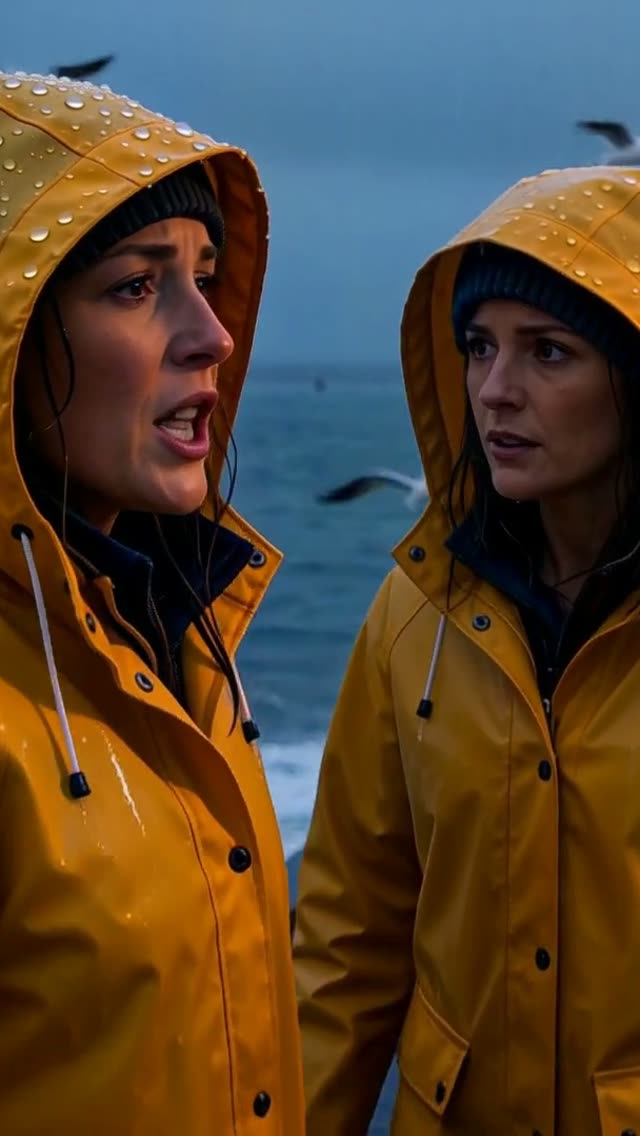
MAGI-2 Image-to-Video starts the clip from your photo. The photo is the first frame and sets the shape of the video, and the prompt says what happens next. You can add a second photo as the last frame, and the clip ends on it.
You pick any length from 4 to 30 seconds. The video is 1080p and comes with sound made with the picture; words in quotes in the prompt are spoken. Prompts can be up to 15,000 characters.
The price is the same as MAGI-2 text-to-video, per second: 29 credits for 4 seconds, 36 for 5 seconds and 212 for 30 seconds.
What MAGI-2 Image-to-Video costs
One price per second at 1080p. The photos do not change the price.
| Length | 1080p |
|---|---|
| 4 s | 29 credits |
| 5 s | 36 credits |
| 10 s | 71 credits |
| 15 s | 106 credits |
| 20 s | 141 credits |
| 30 s | 212 credits |
Which MAGI-2 mode should I use?
All three make 1080p clips with sound, 4 to 30 seconds long, at the same price per second. Text-to-video starts from a prompt alone. Image-to-video starts from your photo as the first frame, and can end on a second photo. Reference-to-video takes photos, short videos and audio clips as references for the people, places, motion or voices in the clip.
| Text-to-Video | Image-to-Video | Reference-to-Video | |
|---|---|---|---|
| Starts from | A prompt | Your photo (first frame) | Up to 10 photos, 5 videos, 5 audio clips |
| Shape | 21:9, 16:9, 4:3, 1:1, 3:4 and 9:16 | Follows the photo | 21:9, 16:9, 4:3, 1:1, 3:4 and 9:16 |
| Length | 4-30 s | 4-30 s | 4-30 s |
| 5 s at 1080p | 36 credits | 36 credits | 36 credits |
What creators use MAGI-2 Image-to-Video for
- Bringing a product photo or portrait to life with movement and sound.
- A clip that moves from one photo to another, using the last-frame option.
- A talking scene from a still, with the lines written in quotes.
How to use MAGI-2 Image-to-Video on VdoBloom
- 1Open the Image to Video tool and select MAGI-2 Image-to-Video from the model picker.
- 2Upload your starting image and describe the motion you want in the prompt.
- 3Choose your duration (4–30s), quality (1080p), review the credit cost, and generate.
Frequently asked questions
How much does MAGI-2 Image-to-Video cost?
29 credits for 4 seconds, 36 for 5 seconds, 71 for 10 seconds and 212 for 30 seconds, at 1080p.
Can I choose the shape of the video?
No. Your photo is the first frame, so the video takes its shape.
Can I set the last frame too?
Yes. Add a second photo and the clip ends on it.
Does MAGI-2 make sound?
Yes. Voices, sound effects and background sound are made with the picture. Put words in quotes in the prompt to have them spoken. You can turn sound off for a silent clip; the price is the same.
What happens if a generation fails?
The credits are refunded automatically to the balance they came from.
MAGI-2 Image-to-Video guides, prices and comparisons
This page is the MAGI-2 Image-to-Video hub. Each guide below goes deeper on one question and links back here.
MAGI-2
The MAGI-2 main page: from a prompt, 4-30 s with sound, from 29 credits.
MAGI-2 Reference-to-Video
From photos, videos and audio, 4-30 s, from 29 credits.