FLUX Outpainting: AI Image Editor Online
Bottom line
Expand a photo's canvas with pixel sliders per side — FLUX Outpainting ignores the prompt too, 12 credits. Open the Image Edit tool, select FLUX Outpainting, upload your image, and the exact credit cost appears before the edit runs.
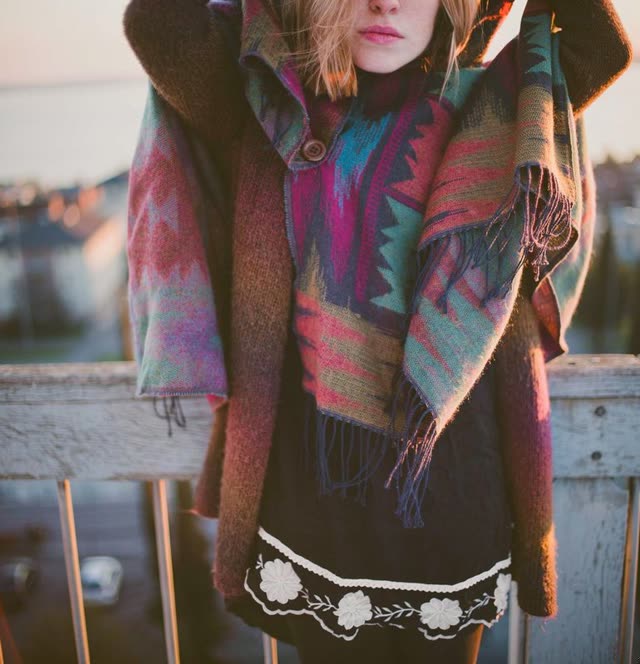
FLUX Outpainting extends an image beyond its original edges: upload a photo, set how many pixels to add on the top, right, bottom, and left sides independently (up to 512px per side, combined output capped at 2048px), and the model generates new content in the expanded area that continues the scene plausibly. Like its sibling FLUX Erase, it's driven entirely by the image and the directional pixel values — the model ignores the text prompt, even though the edit form still requires you to type something into the prompt box before the Transform button unlocks.
That mismatch is worth knowing going in: whatever you type satisfies the form, but has no effect on the result. Only the source image and the four directional sliders matter.
It's another Black Forest Labs model run through VdoBloom's Runware pipeline, capped at one source image per job. VdoBloom prices it at 12 credits, rates it 4.2, and applies a MODERATE content badge.
What it costs on VdoBloom
FLUX Outpainting is a flat 12 credits per job. A new account's 10 free credits fall 2 short of covering one run — FLUX Erase, its sibling tool, costs 10 and fits the free balance exactly if you want to try Black Forest Labs' mask/canvas tools before topping up.
The prompt box is required but doesn't do anything
This is the single most important thing to know before using FLUX Outpainting: VdoBloom's edit form requires you to type text into the prompt box to unlock the Transform button, but that text has no effect on the result. The real controls are the source image and the four directional pixel sliders (top/right/bottom/left, up to 512px each, 2048px combined). Type anything to get past the form requirement, then spend your attention on the sliders.
Common problems and how to avoid them
The most common outpainting failure is a combined output size over the 2048px cap — large source photos need smaller per-side pixel values, since the limit applies to the final expanded size, not each side independently. A request with every slider at 0 will also be rejected outright, since there's nothing to generate. VdoBloom shows the 12-credit cost before you run and refunds it automatically if the job fails.
What creators use FLUX Outpainting for
- Widening a portrait or product photo to fit a wider aspect ratio without cropping the subject.
- Extending a background for a banner or header where the source photo is too tightly framed.
- Adding canvas on one side only — a single direction slider — to reposition a subject within the frame.
How to use FLUX Outpainting on VdoBloom
- 1Open the Image Edit tool and select FLUX Outpainting.
- 2Upload the image(s) to edit and describe the change you want.
- 3Review the credit cost and generate — results appear in your library.
Frequently asked questions
How much does FLUX Outpainting cost on VdoBloom?
12 credits per run. The cost is shown before you generate, and refunded automatically on a failed job.
What do 10 free signup credits get me on FLUX Outpainting?
Not quite one run — the 12-credit cost is 2 more than a new account's 10 free credits. FLUX Erase (10 credits) or FLUX.2 [dev] (4 credits) fit inside the free balance instead.
Does FLUX Outpainting use the prompt I type?
No — the model ignores it, by the same design as FLUX Erase. VdoBloom's edit form does require non-empty prompt text before the Transform button becomes clickable, which is a form validation quirk rather than the model reading what you wrote; type anything to satisfy the field, then set the actual result with the top/right/bottom/left pixel sliders.
How do I control which direction FLUX Outpainting expands?
Four independent sliders — top, right, bottom, left — each 0 to 512 pixels. Set only the sides you want extended; leaving a side at 0 keeps that edge unchanged. The combined final size (source plus the sides you expand) is capped at 2048 pixels total, so large source photos need smaller per-side values.
Is FLUX Outpainting censored?
It carries VdoBloom's MODERATE content badge — standard filtering, the same tier as FLUX Erase and Flux Kontext.
FLUX Outpainting vs Flux Kontext — are these the same thing?
No, and mixing them up is a common source of confusion (people search for a "Kontext outpaint prompt" that doesn't apply here). Kontext edits content inside the existing frame using a written instruction that the model actually reads. Outpainting only extends the canvas outward using pixel sliders, and does not use the prompt at all. If the job is changing something inside the photo, use Kontext; if it's adding canvas around the photo, use Outpainting.
Can FLUX Outpainting edit more than one image at once?
No — one source image per job, expanded outward per your slider settings.
Why does my FLUX Outpainting job fail with "at least one direction must be greater than 0"?
VdoBloom rejects a request where all four sliders are left at 0, since there'd be nothing to generate. Set at least one of top, right, bottom, or left above zero before running the job.