Artistic Styles · Free template
Character Stepping Through Portal AI Template
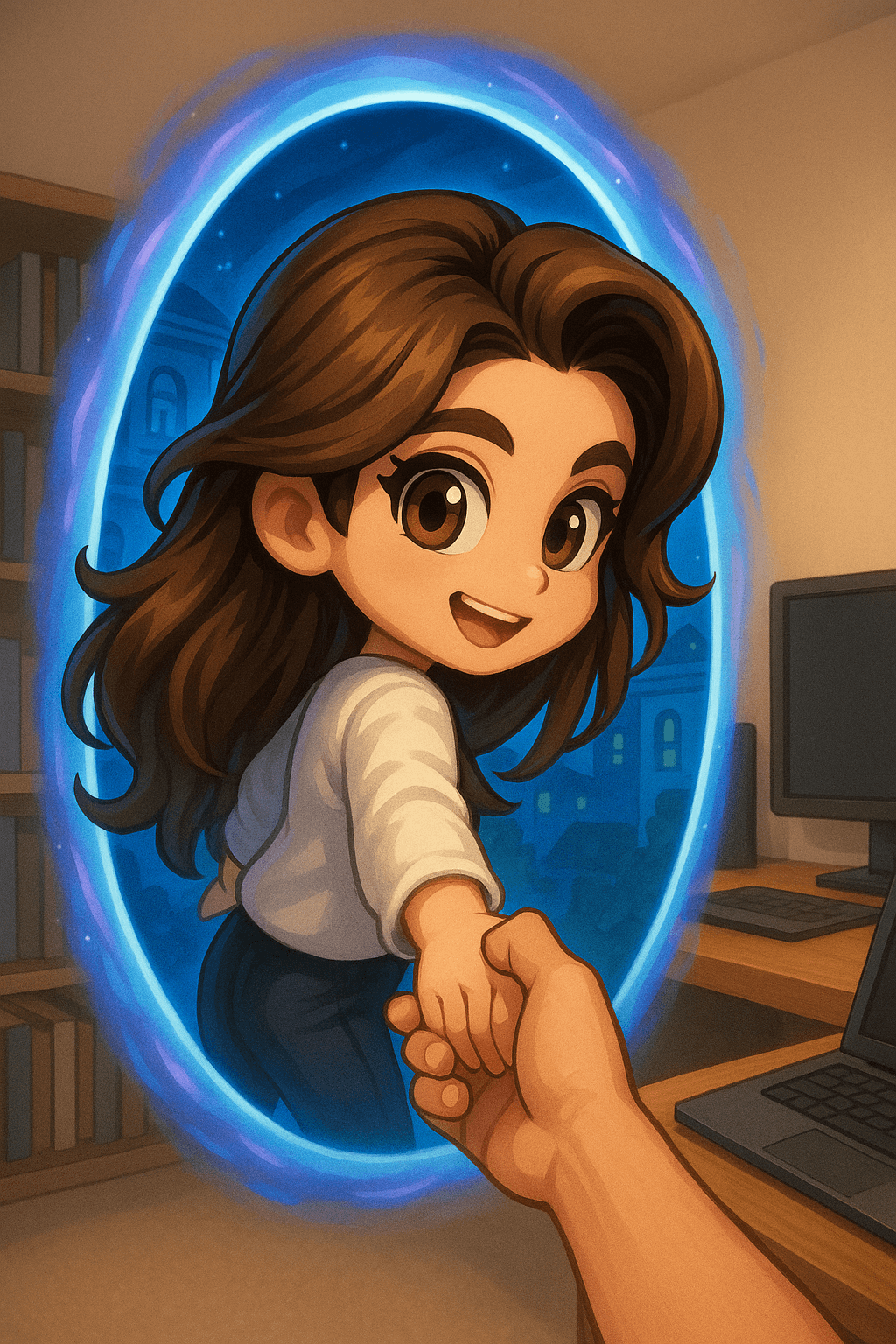
The Character Stepping Through Portal template converts a single-person photo into a chibi character reaching back through a glowing blue-and-purple portal to pull the viewer in. One side shows a realistic programmer's study, the other the character's cool-toned chibi world, a split the prompt frames in 2:3 from a third-person view. It makes dramatic, story-driven profile art.
What you need
A clear half-body or full-body single person photo.
Opens VdoBloom Art Studio with this prompt prefilled. Free account required; generation uses credits.
The prompt
The complete prompt, exactly as it runs in Art Studio. Copy it, edit it, or take it to any image tool you like — the CC-BY-4.0 license allows reuse and adaptation with credit to the original author below.
A 3D chibi-style version of the person in the photo is stepping through a glowing portal, reaching out and holding the viewer’s hand. As the character pulls the viewer forward, they turn back with a dynamic glance, inviting the viewer into their world.
Behind the portal is the viewer’s real-life environment: a typical programmer’s study with a desk, monitor, and laptop, rendered in realistic detail. Inside the portal lies the character’s 3D chibi world, inspired by the photo, with a cool blue color scheme that sharply contrasts with the real-world surroundings.
The portal itself is a perfectly elliptical frame glowing with mysterious blue and purple light, positioned at the center of the image as a gateway between the two worlds.
The scene is captured from a third-person perspective, clearly showing the viewer’s hand being pulled into the character’s world. Use a 2:3 aspect ratio.
How to use this template
- 1
Open the template in Art Studio
Click the button below and the template loads into VdoBloom Art Studio with this exact prompt prefilled. You will need a free VdoBloom account if you are not signed in yet.
- 2
Upload your photo(s)
If the template needs a reference image (see "What you need" above), attach it in Art Studio. Templates without a reference requirement skip straight to the next step.
- 3
Generate and download
Pick an image model — Nano Banana, Seedream, or Flux — and generate. Results vary run to run, so regenerate or tweak the prompt until you like the output, then download it.
Attribution & license
Prompt by @dotey · CC-BY-4.0 · via the awesome-nano-banana collection (original source).
Example image by @jamez-bondos, created with Sora.
Related templates
3D Chibi Proposal Scene
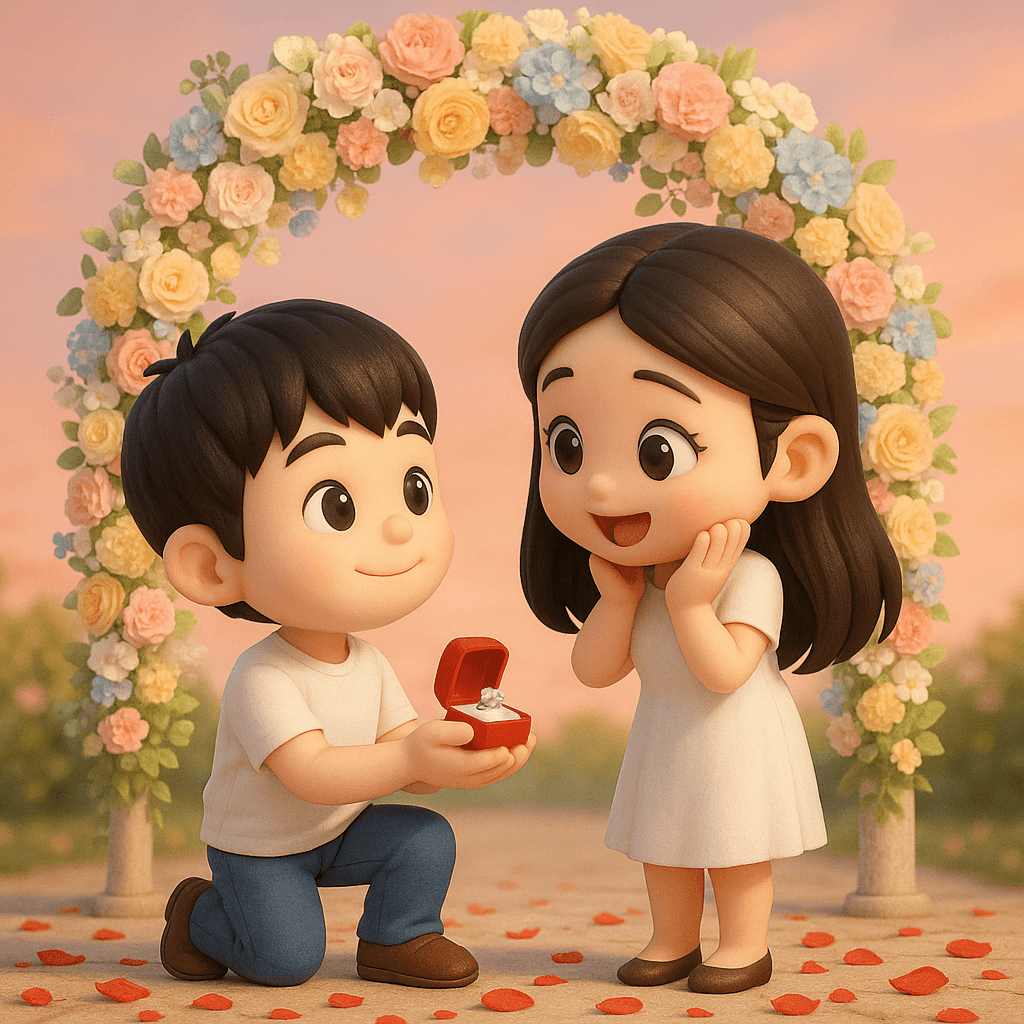
Turn a couple's photo into an adorable chibi 3D proposal beneath a pastel floral arch, with rose petals scattered across the ground.
3D Polaroid Breakout Effect
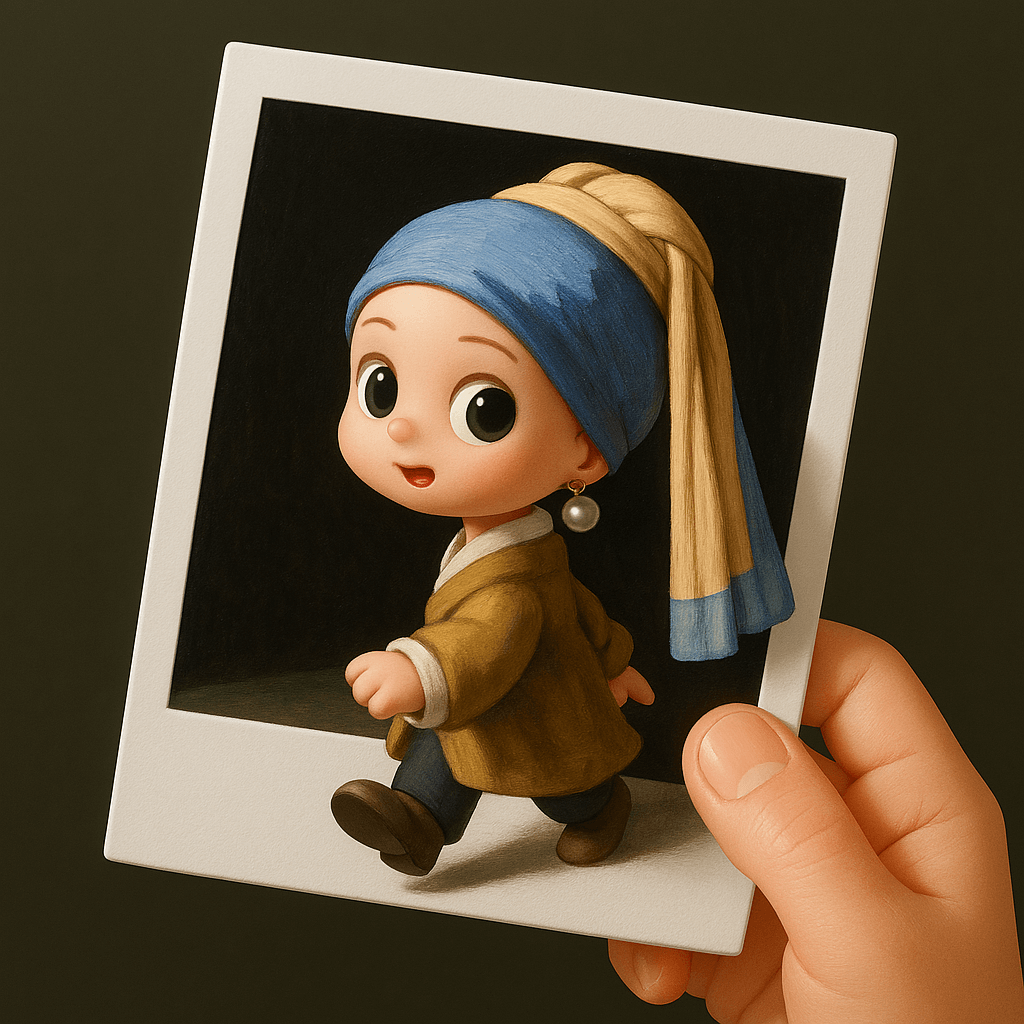
Upload a single-person photo and get a chibi 3D figure stepping out of a Polaroid held by a real human hand.
Retro Style Promotional Poster
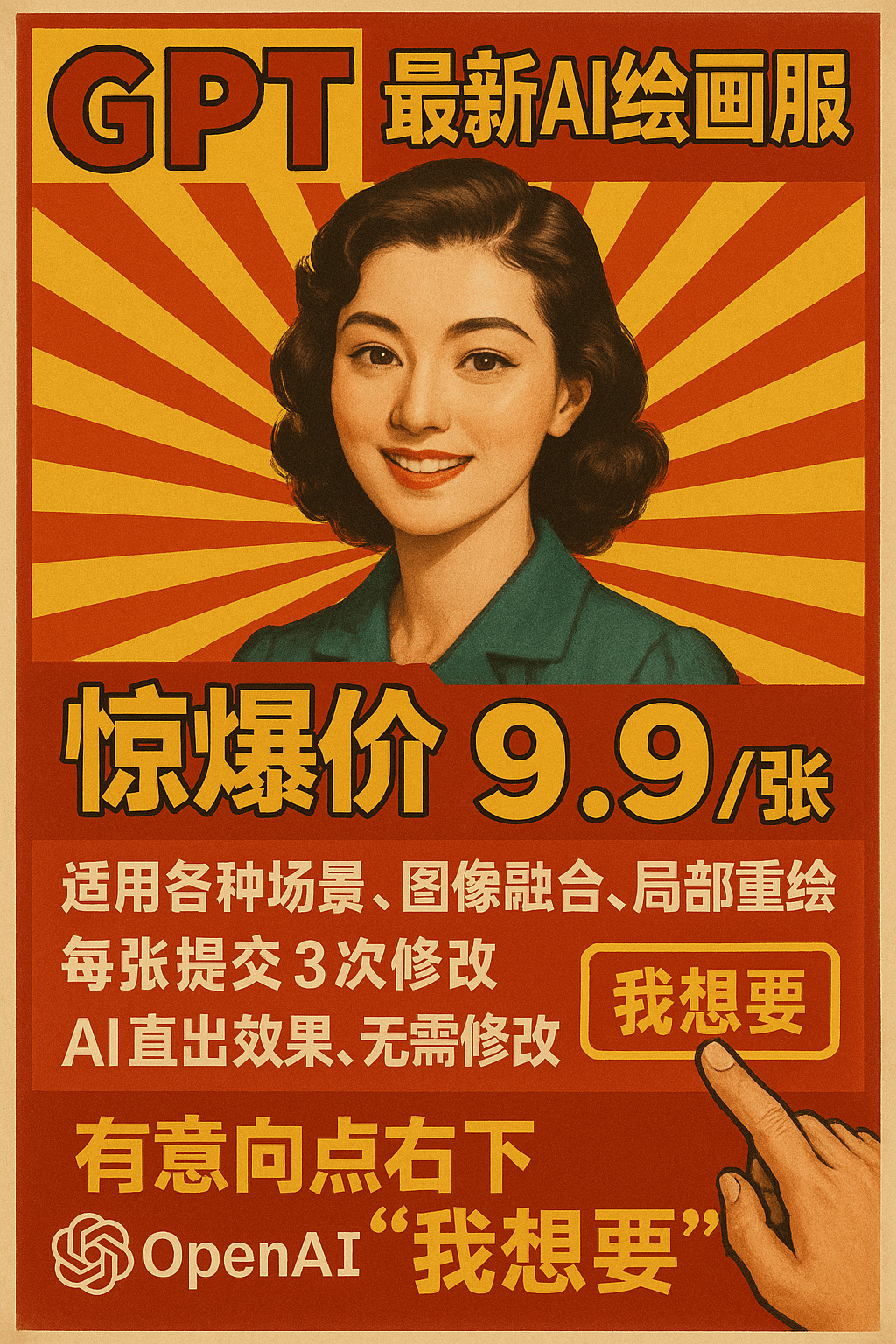
This prompt restyles a marketing message as a vintage Chinese advertising poster set against a red-and-yellow radial burst background.
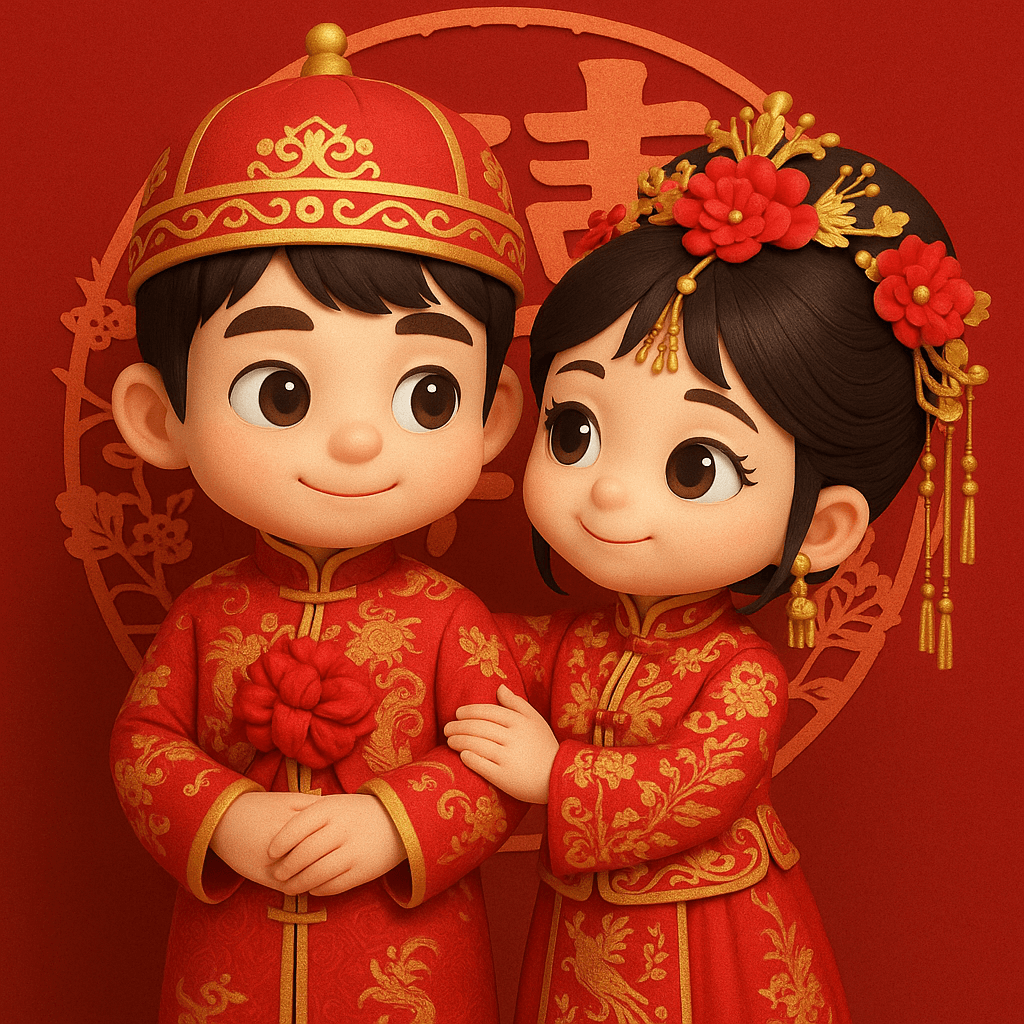
3D Chibi Chinese Wedding Scene
The 3D Chibi Chinese Wedding Scene template reimagines a couple's photo as chibi 3D characters in traditional red wedding attire, from the groom's dragon-embroidered changpao to the bride's phoenix-embroidered xiuhe gown and crown.